

In organizations, just like yours, employee offboarding happens for several reasons. The question is, how do you make the process simple for both the employee and everyone involved?
With SteadyPoint HRIS, offboarding can be simple, clear, and consistent.
In this blog, we will show you how to offboard employees using the SteadyPoint HR management system, from reviewing templates to launching the offboarding process.
Ready to try it yourself? Start your free trial of SteadyPoint HR. For more guides, visit the HR App blog.
Check available offboarding templates
The first step in the offboarding process is to review your available templates.
The SteadyPoint HR management system includes a default offboarding template that you can find under:
Settings > Offboarding Templates > Standard Employee Offboarding
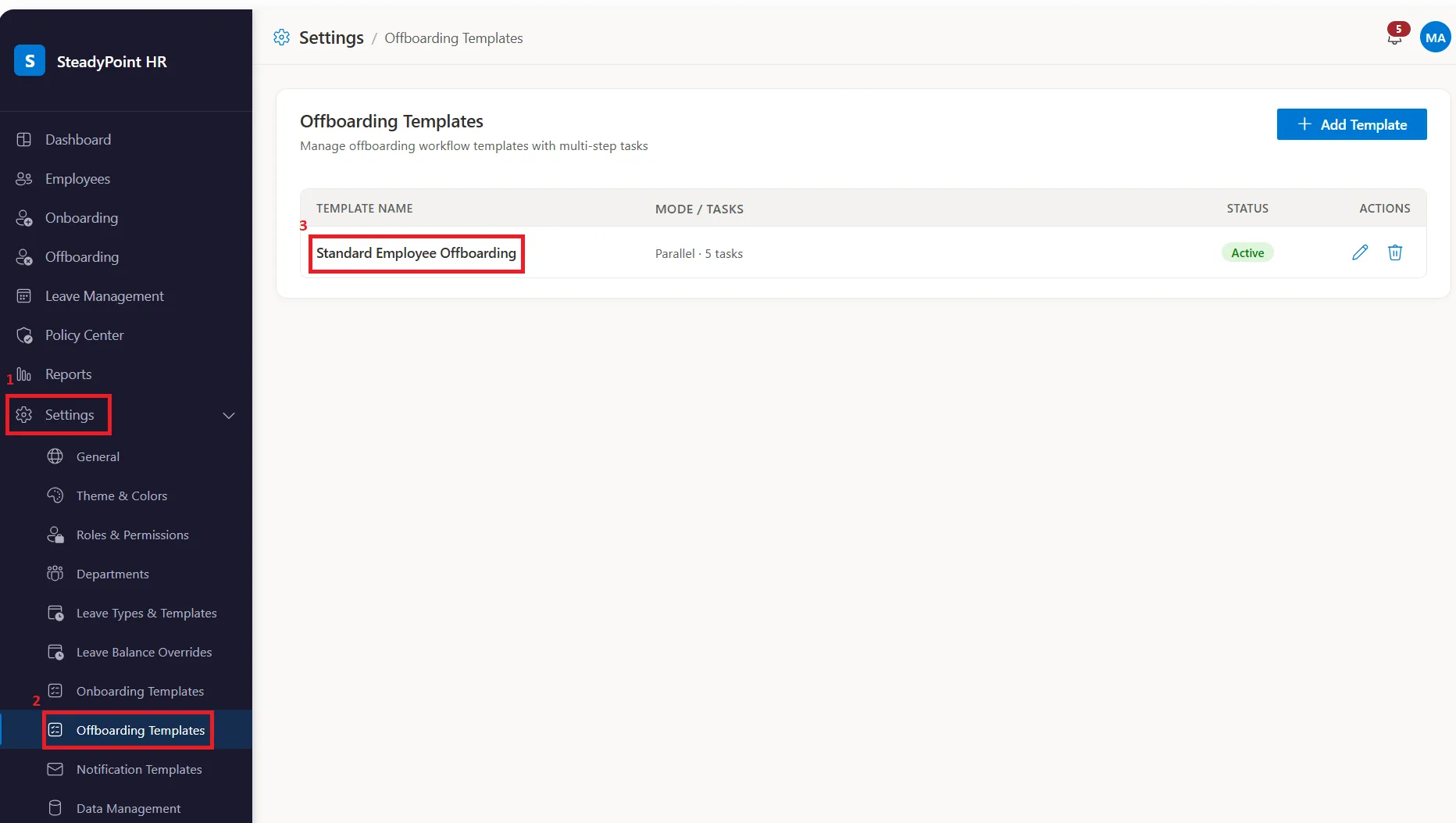
By default, this template includes a list of activities that are commonly needed when an employee leaves the organization.
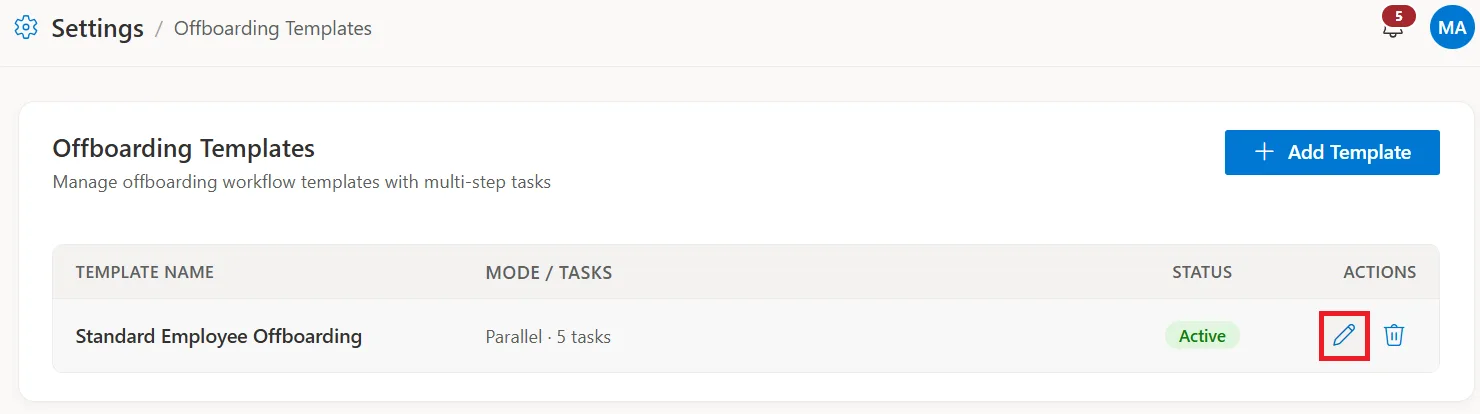
If you want to customize the template, simply click the Edit icon next to the Standard Employee Offboarding template.
As shown in the image below, you can:
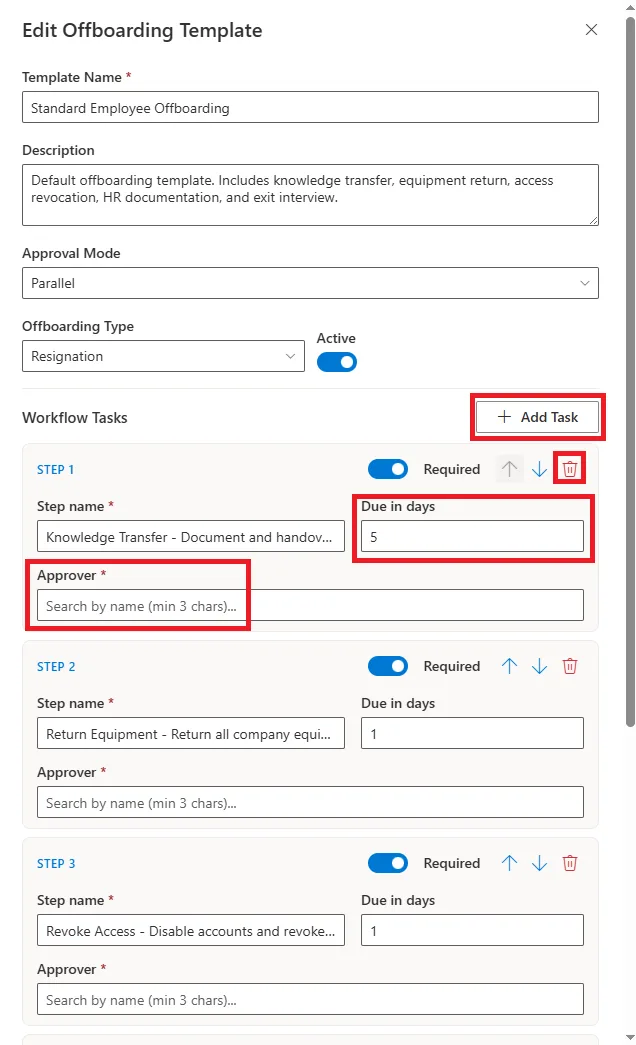
- Add new tasks
- Delete existing tasks
- Change task durations
- Set or update assignees
- And more
This gives you the flexibility to tailor the offboarding process to your organization's requirements.
Create a custom offboarding template
If you prefer starting from scratch or need different offboarding processes for different employee types, you can create your own offboarding template.
1. Go to Settings, click Offboarding Templates, and select Add Template
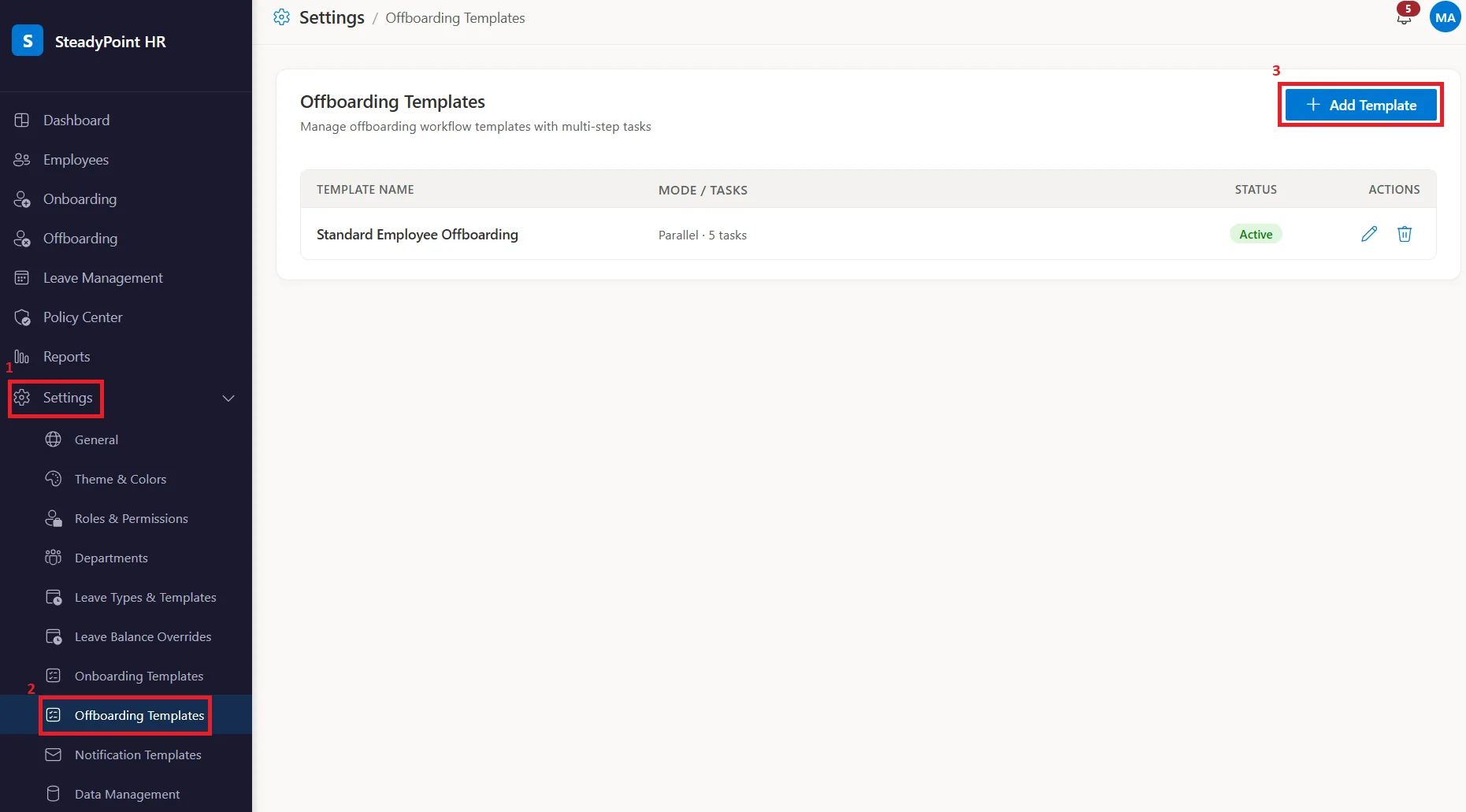
2. Then fill in the following details
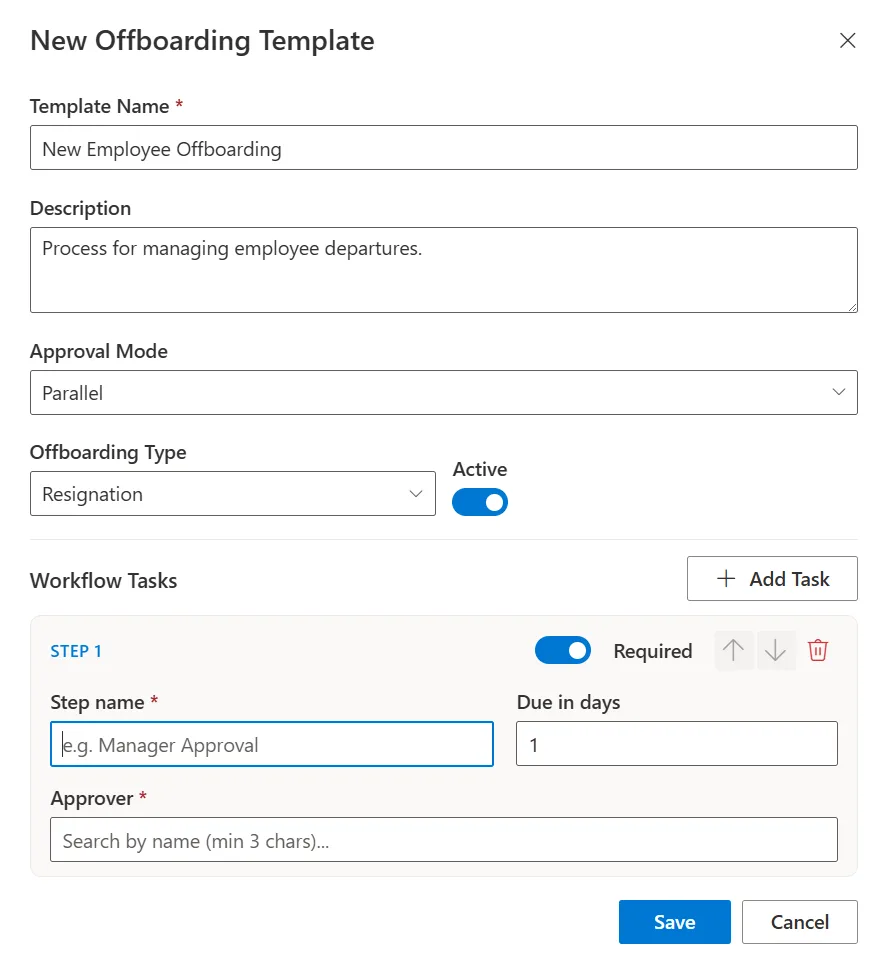
- Name: For example: New Employee Offboarding
- Description: Add a brief explanation of the offboarding process.
- Approval Mode: Choose one of the following options:
- Sequential: Tasks are completed one by one.
- Parallel: Tasks can run at the same time.
3. Next, click Add Task. For each task, you can:
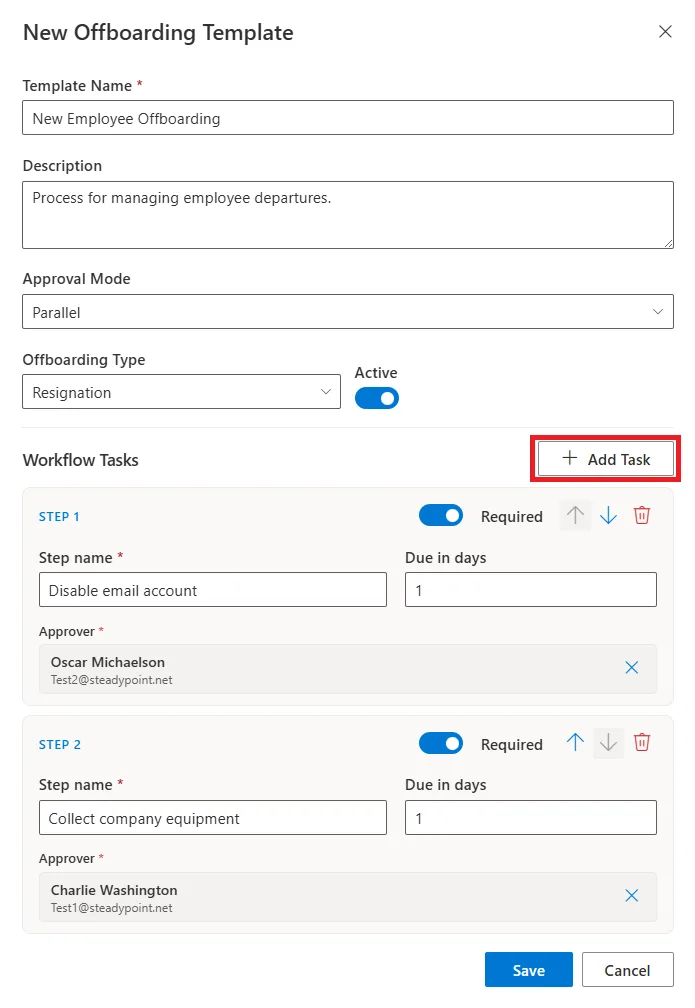
- Give the task a name
- Set the number of days to complete it
- Mark it as required or optional
- Assign an approver
You can add as many tasks as you need.
A simple offboarding template may include tasks such as:
- Disable email account
- Collect company equipment
- Remove system access
- Process final payroll
With SteadyPoint HRIS, creating and managing offboarding templates is straightforward and fully customizable.
Start an employee offboarding process
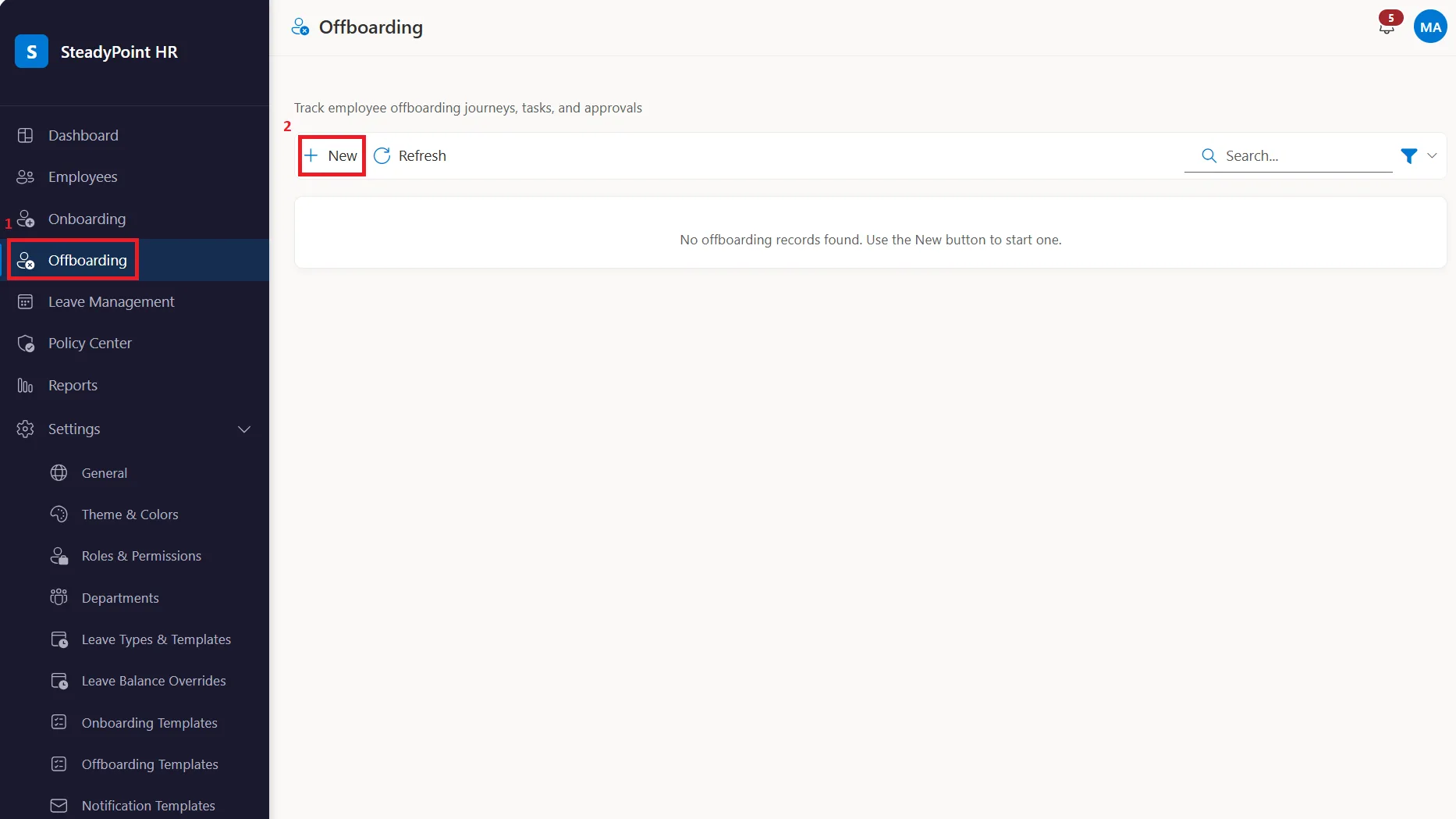
Once your template is ready, you can start the offboarding process.
Go to Offboarding and click New.
Then:
- Select the employee name
- Choose the offboarding template
- Set the last working day
- Select the offboarding reason
- Add attachments if needed
- Click Create Offboarding
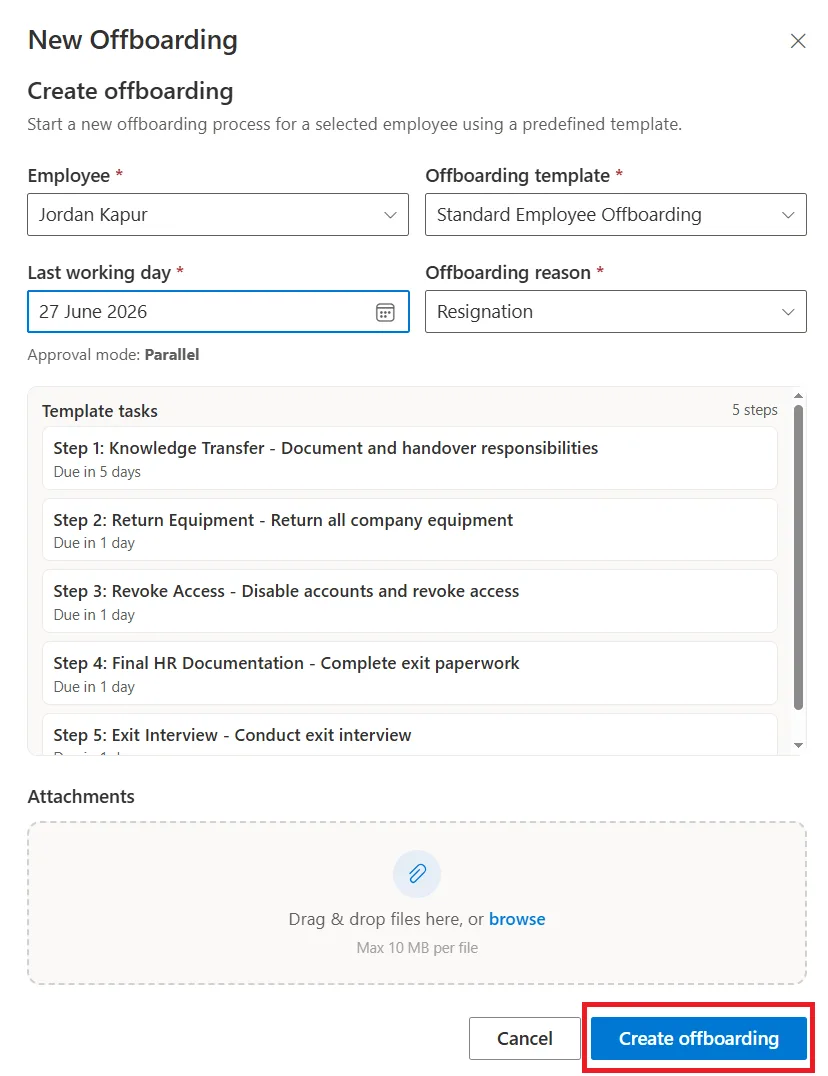
That's it. The offboarding process is now active.
Approvers automatically receive email notifications with their assigned tasks. They can complete their work directly within the SteadyPoint HR management system.
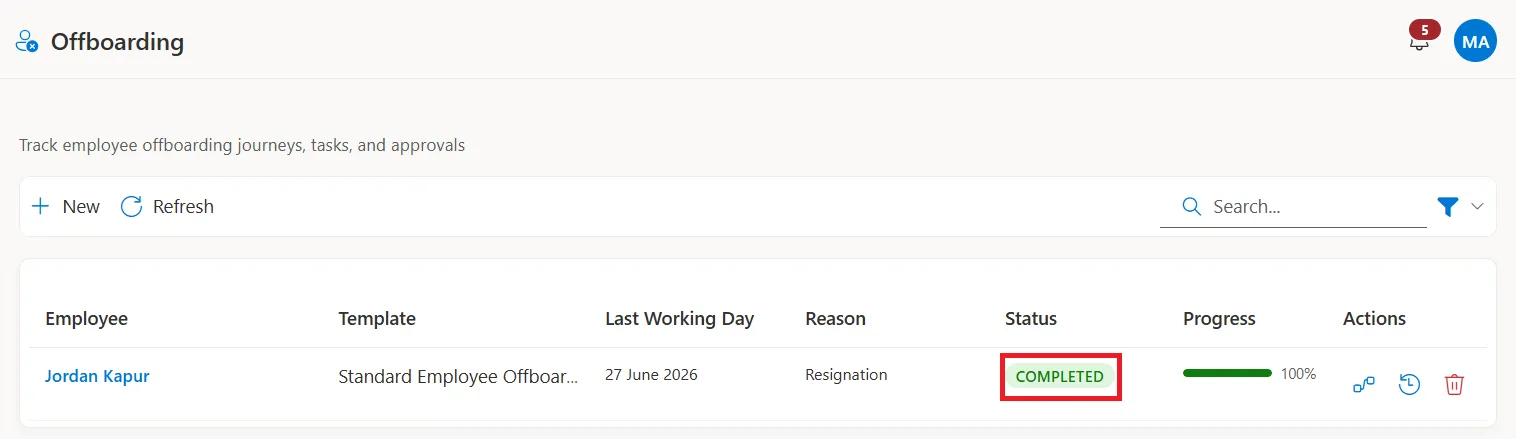
Once all tasks are completed, the offboarding is automatically marked as complete.
Final note
A structured offboarding process saves time, reduces mistakes, and creates a better experience for both employees and administrators.
SteadyPoint HRIS helps you manage employee offboarding in a simple, clear, and consistent way, all from one HR management system.