

To help manage the SteadyPoint HR management system, Roles and Permissions are added in the system. This allows the right users to be granted the right access. In this blog, we will talk about the three roles available in SteadyPoint HRIS and the permissions granted for each.
Ready to try it yourself? Start your free trial of SteadyPoint HR. For more guides, visit the HR App blog.
SteadyPoint HRIS roles
In SteadyPoint HR management system, three roles are available:
- Default – All users
- Admin
- HR
By default, users added to the system are granted the regular users' permissions, which are very restricted as explained below. If you want to give them more permissions, elevate them to HR or Admin role as needed.
SteadyPoint HRIS permissions granted
In this section, we will list the permissions granted for each role in SteadyPoint HRIS:
Default – All users
- Submit leave requests
- View & acknowledge policies
HR role permissions
HR has permission to:
- Create, edit and view the employee list
- Create onboarding templates, manage onboarding, and view all onboarding processes
- Create offboarding templates, manage offboarding, and view all offboarding processes
- Request leave, view all leave requests, and approve leave requests
- View, manage, and acknowledge policies
- View and export reports
- Manage email templates
HR does not have permission to:
- Access settings
- Manage roles
Admin role
Admin has full permission over the system.
How to assign user roles in SteadyPoint HRIS
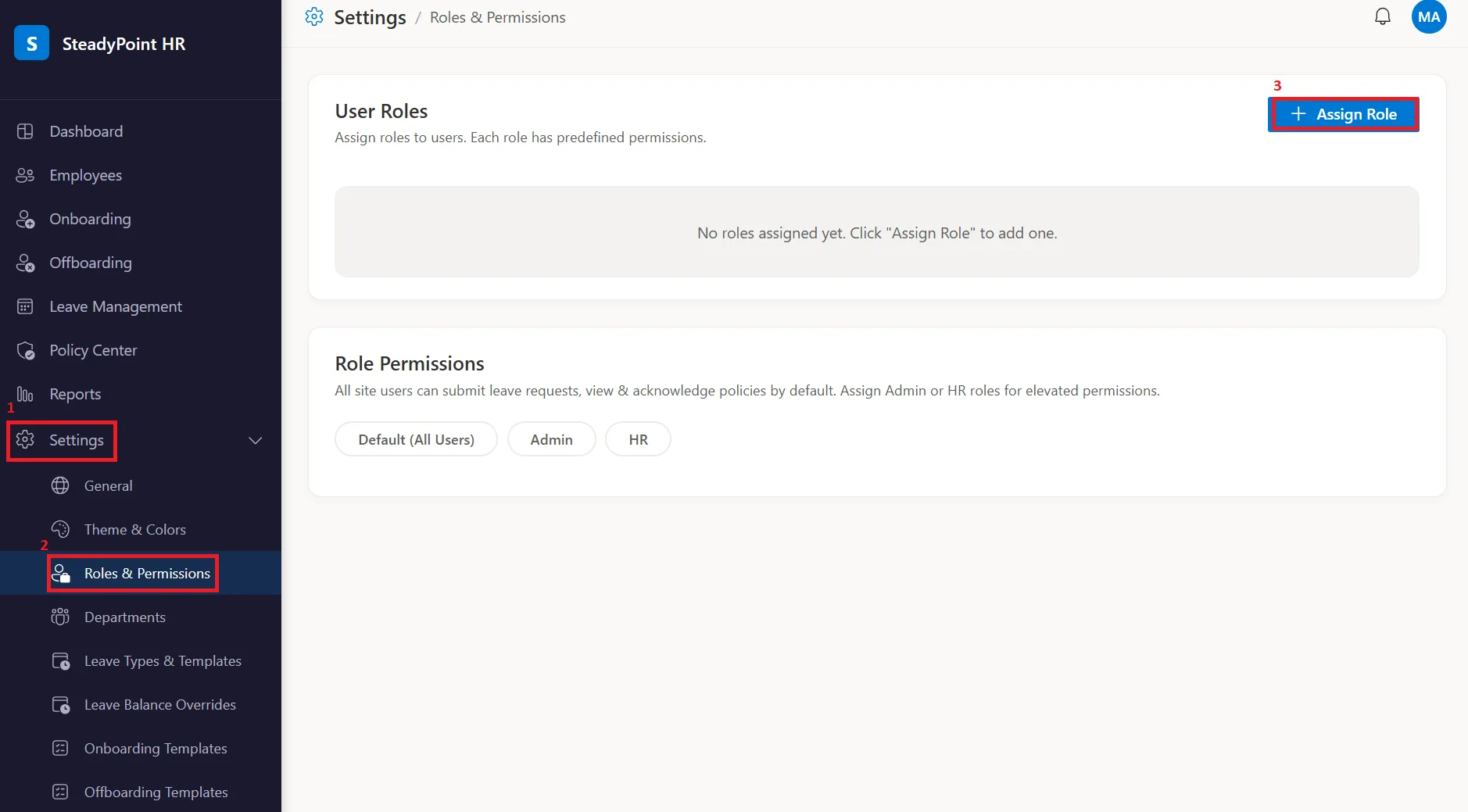
Admin can assign roles to users as needed. To do so:
- In your side navigation, click Settings > Roles and Permissions
- Click + Assign Role
- Search for the user and select the role
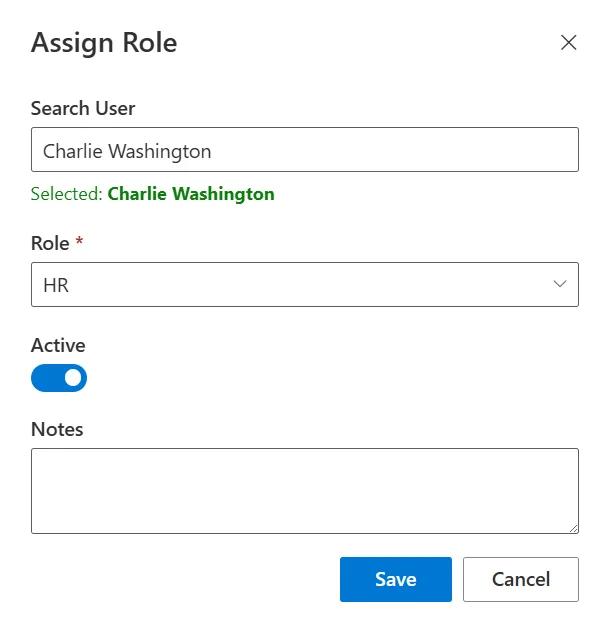
Note:Default users don't need to be granted special permissions. Only Admin and HR roles need to be assigned.