
Meet Charlie, an employee at XYZ Company. He prefers working in Microsoft Teams and wants IT support in the same place. If this sounds familiar, this guide shows how to create a ticket directly from Teams.
You can also read how to add Helpdesk into Teams in this guide.
Need a helpdesk that works inside Microsoft Teams? 👉 Try SteadyPoint Helpdesk free for 30 days.
Create a ticket from Microsoft Teams
Step 1: Open Helpdesk in Teams
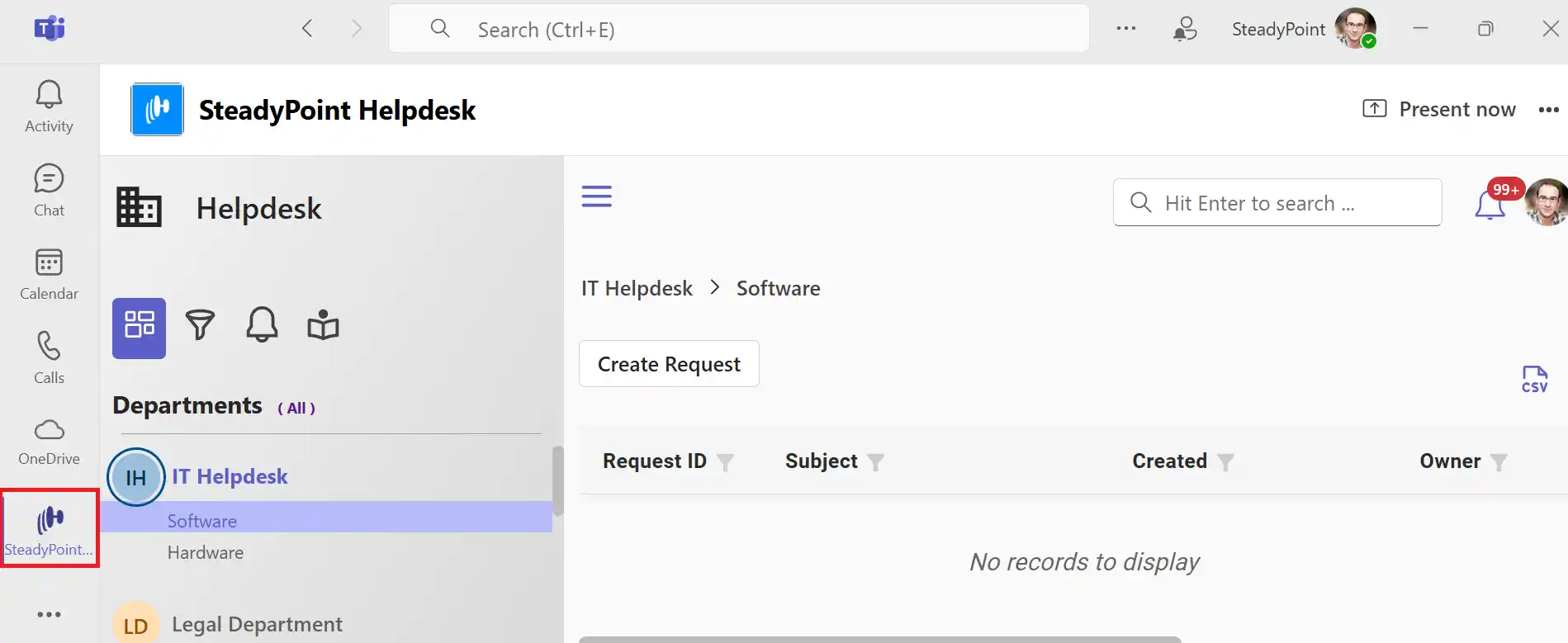
When an issue happens, open Microsoft Teams, click the SteadyPoint Helpdesk app, then select Create Request.
Step 2: Complete ticket details and submit
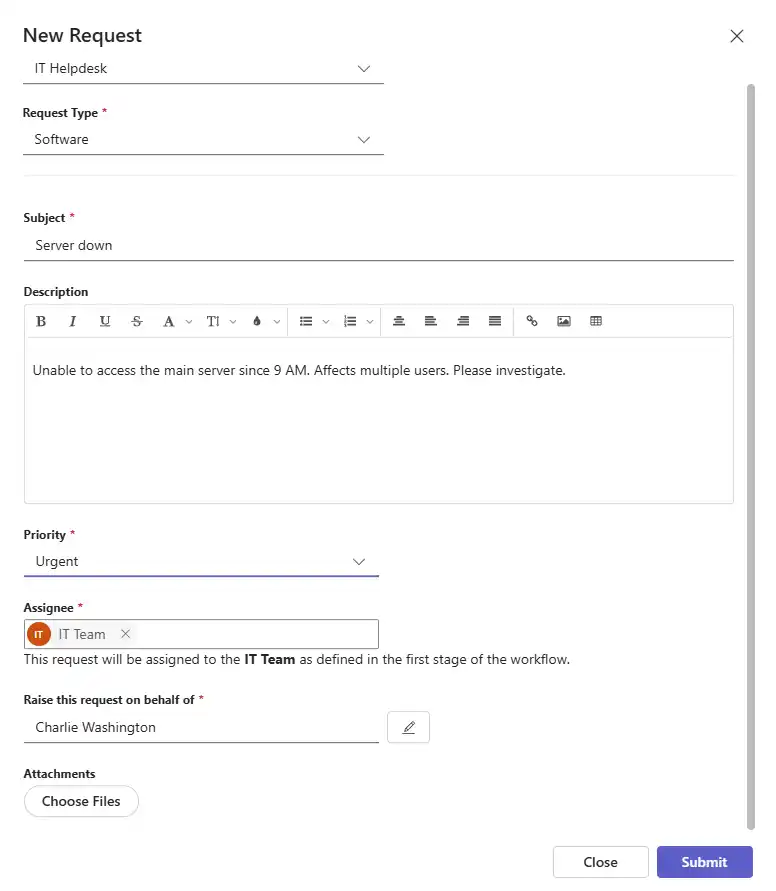
Select the relevant department and request type (for example, IT / Software), add a short subject and description, then click Submit.
Step 3: IT team receives and starts work
After submission, the IT team receives email notifications and can start handling the issue immediately.
If you rely on Teams throughout the day, SteadyPoint Helpdesk gives you a native ticketing workflow where you already collaborate.