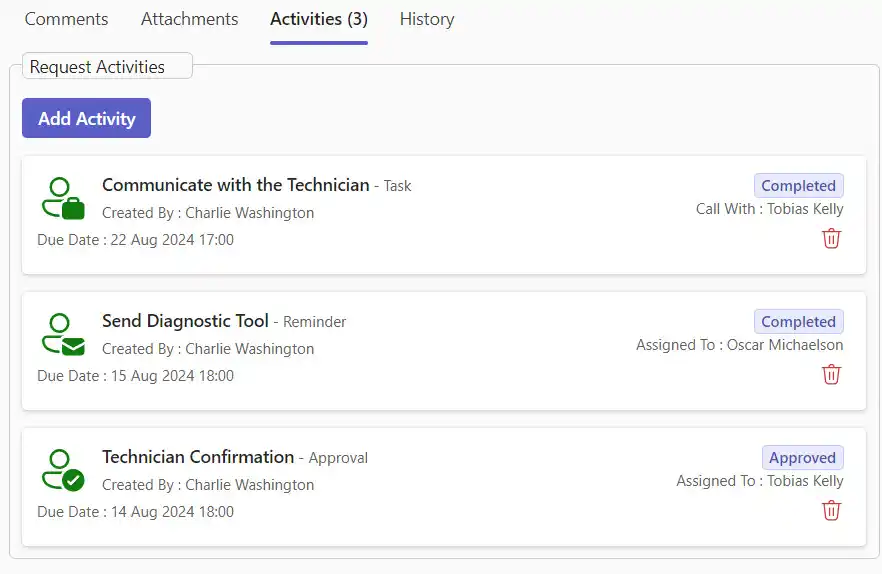
Activities allow ticket handlers to organize and track all sub-tasks needed to complete a main ticket. This guide covers activity types, how to set them up, and how to manage them effectively.
How to create activities
- Select Activities from the tabs at the top of a ticket.
- Click Add Activity.
Types of activities
SteadyPoint Helpdesk supports three activity groups: approvals, reminders, and tasks.
Type 1: Approval
- Subject: Technician confirmation.
- Description: Optional additional details.
- Due date: Select date and time.
- Assigned to: User/group responsible for approval.
Type 2: Reminder
- Subject: Send diagnostic tool.
- Description: Optional additional details.
- Due date: Select date and time.
- Assigned to: Person/group who receives notification.
Type 3: Task
Task activities support multiple sub-types.
3.1 To Do
- Task type: To-Do.
- Subject: Technician Confirmation.
- Description: Optional.
- Start/Due Date: Select date and time.
- Priority: Low / Normal / High.
- Assigned to: Individual/group responsible for task.
3.2 Follow up
- Task type: Follow-up.
- Subject: Campaign Updates.
- Description: Optional.
- Start/Due Date: Select date and time.
- Priority: Low / Normal / High.
- Follow-up with: Individual/group assigned.
3.3 Appointment
- Task type: Appointment.
- Subject: Meeting with CEO.
- Description: Optional.
- Start/Due Date: Select date and time.
- Priority: Low / Normal / High.
- Appointment with: Individual/group meeting target.
3.4 Call
- Task type: Call.
- Subject: Communicate with Technician.
- Description: Optional.
- Start/Due Date: Select date and time.
- Priority: Low / Normal / High.
- Call with: Individual/group call target.
3.5 Email
- Task type: Email.
- Subject: Testimonials.
- Description: Optional.
- Start/Due Date: Select date and time.
- Priority: Low / Normal / High.
- Email to: Individual/group recipient.
Filter activities
To simplify management when handling multiple activities, use the filter feature. You can filter by Assigned to me or Created by me, then reset to view all activities.
Queued tasks
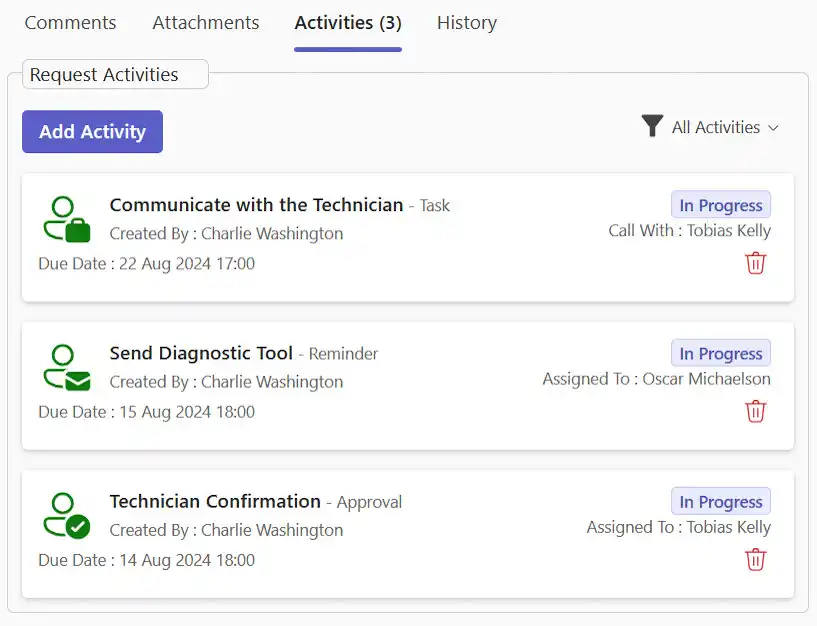
Queued tasks appear as shown below. If conditional workflow is enabled, the ticket cannot be closed until all queued tasks change from In Progress to Completed.
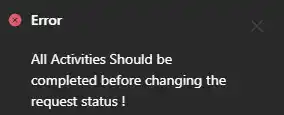
If you try to progress the ticket before completing required tasks, you will receive an error.
Once tasks are completed, the queue updates and you can continue ticket progression.