SteadyPoint

Installation Guide

How to Easily Install Helpdesk: A Step-by-Step Guide

SteadyPoint Helpdesk screen showing install helpdesk.

Welcome to the SteadyPoint SharePoint HelpDesk installation guide. Here, you'll find a step-by-step walkthrough to help you install this Office 365 ticketing system. Please note that this straightforward process may be subject to changes by Microsoft.

SteadyPoint SharePoint Helpdesk: Step-by-Step Installation Guide

Need assistance installing Helpdesk? 👉 Book your free meeting now — we’ll walk you through it step by step!

How to Install SteadyPoint Helpdesk from SharePoint Admin Center

  1. In the SharePoint Admin Center, click on Admin.
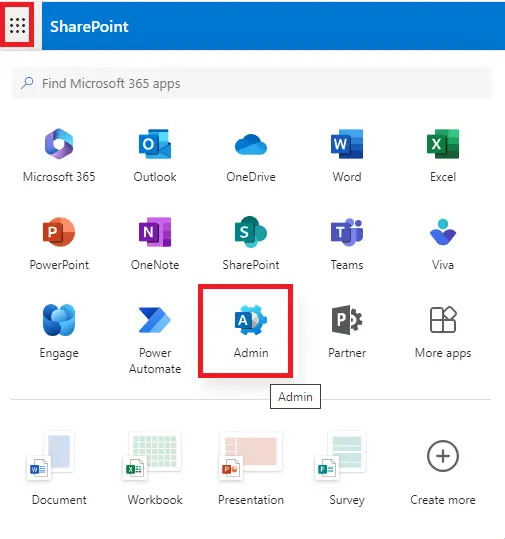
    SteadyPoint Helpdesk screen showing how to install steadypoint helpdesk from sharepoint admin center.

    If Admin is not visible in the list, click on More apps and select Admin.

  2. From the Microsoft Admin Center, select SharePoint.
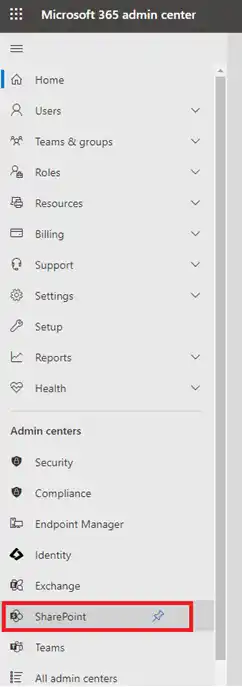
    SteadyPoint Helpdesk screen showing how to install steadypoint helpdesk from sharepoint admin center.
  3. To create a new site, click on Sites > Active Sites > Create.
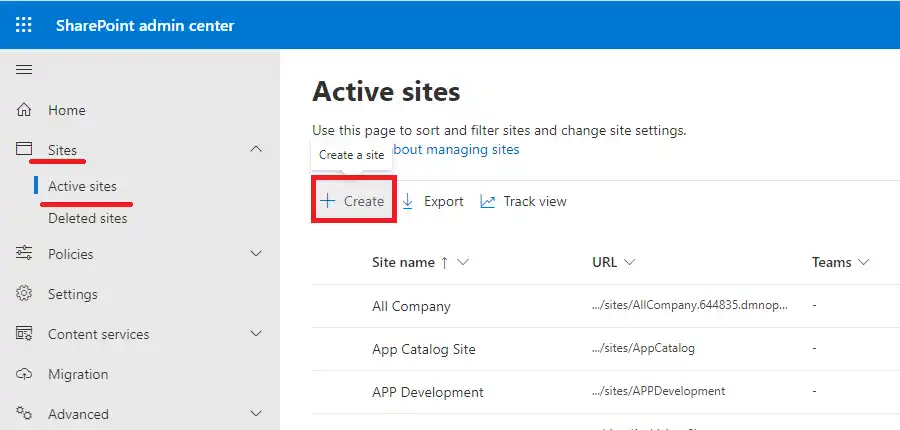
    SteadyPoint Helpdesk screen showing how to install steadypoint helpdesk from sharepoint admin center.
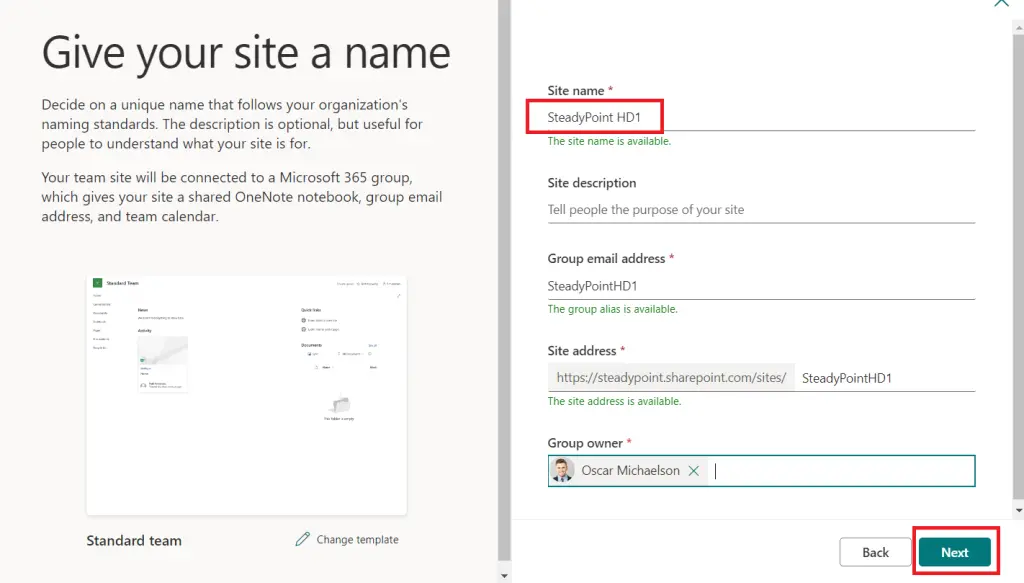
  4. Then, give the site a name.

    SteadyPoint Helpdesk screen showing how to install steadypoint helpdesk from sharepoint admin center.
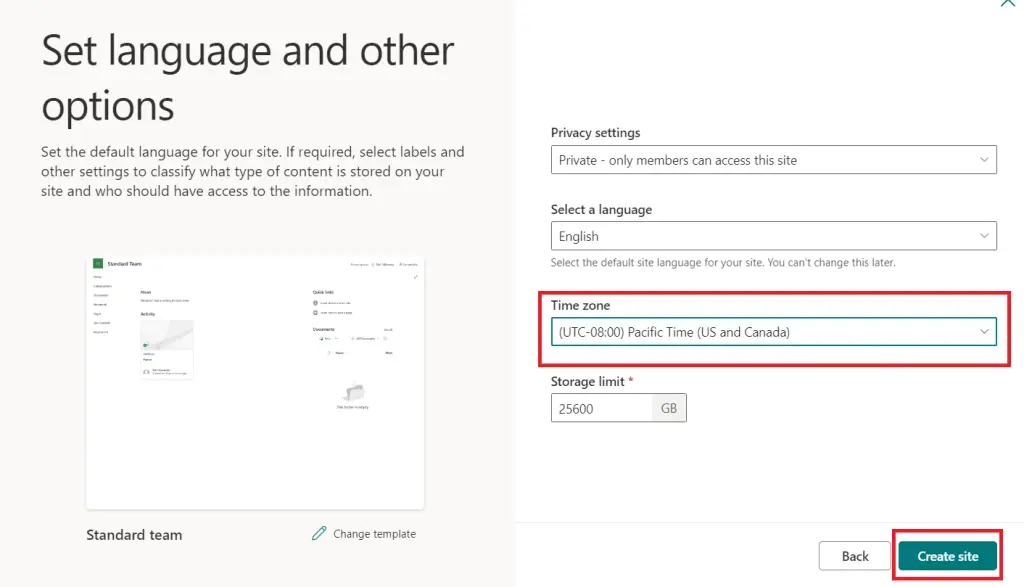
  5. Select your time zone.

    SteadyPoint Helpdesk screen showing how to install steadypoint helpdesk from sharepoint admin center.
  6. To add our SharePoint ticketing system, click on New > App.
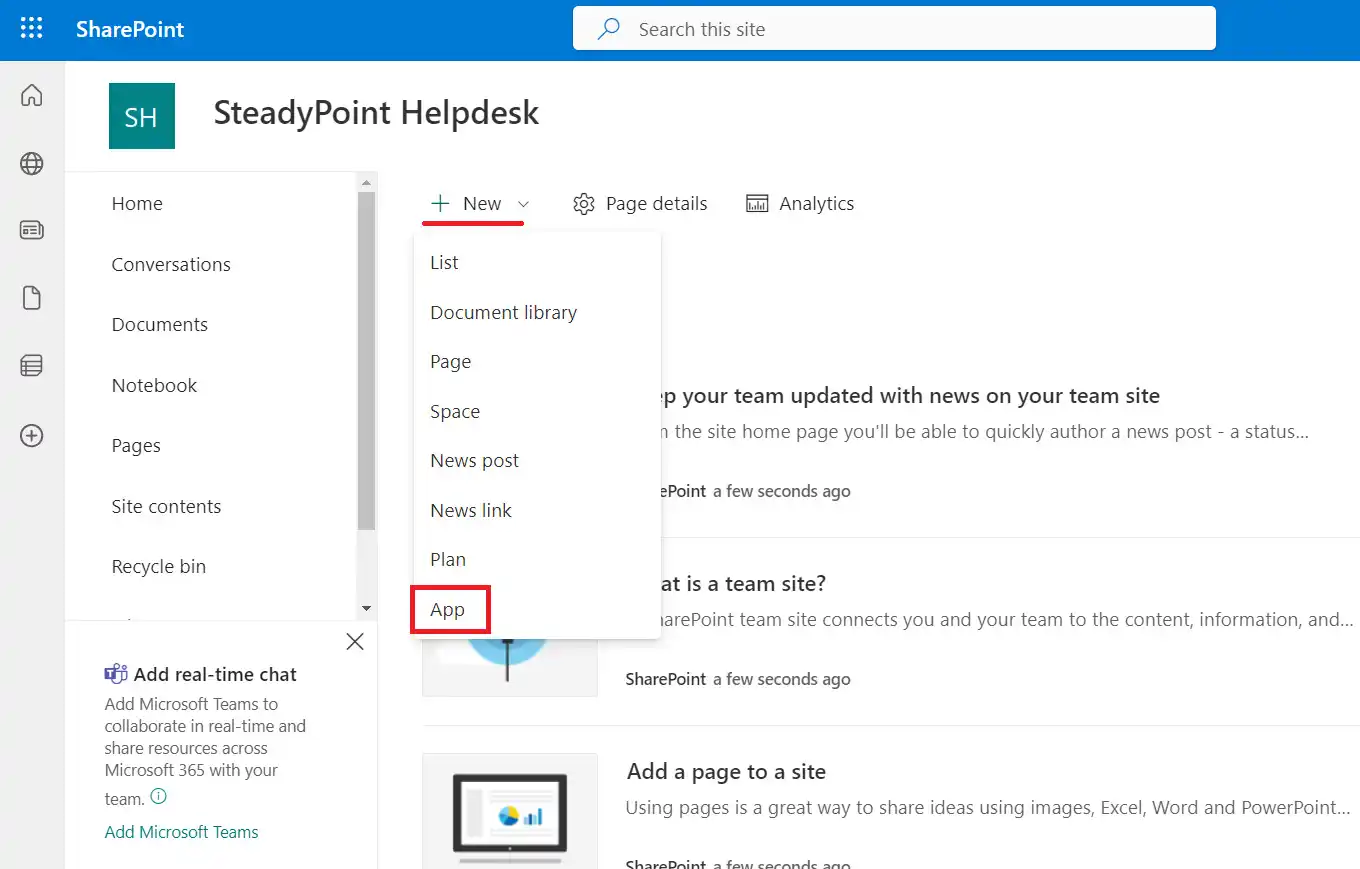
    SteadyPoint Helpdesk screen showing how to install steadypoint helpdesk from sharepoint admin center.
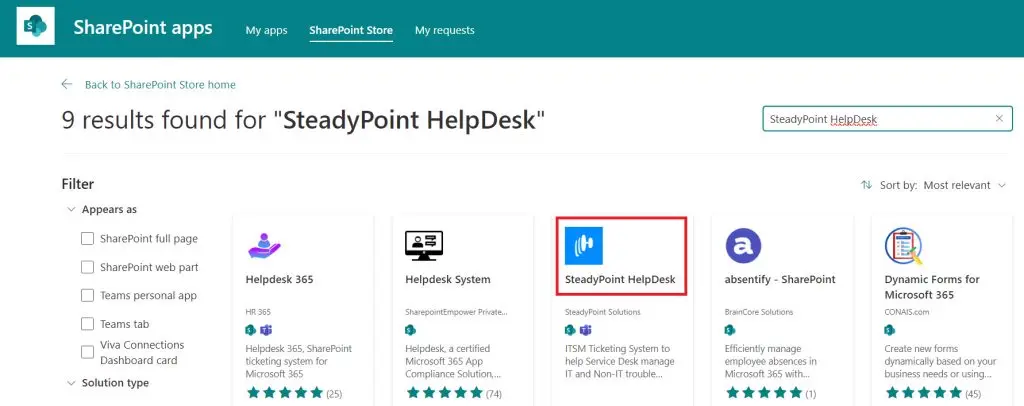
  7. Click on SharePoint Store and search for the app "SteadyPoint HelpDesk".
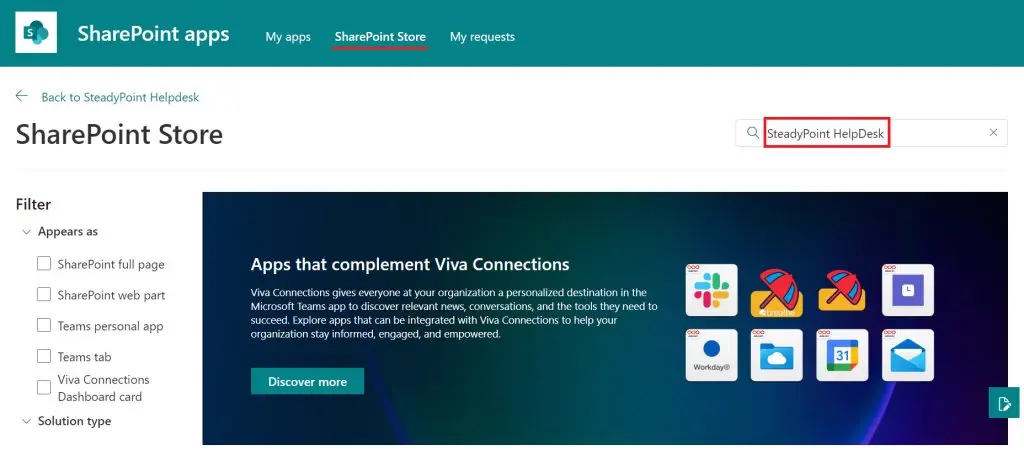
    SteadyPoint Helpdesk screen showing how to install steadypoint helpdesk from sharepoint admin center.
  8. Select SteadyPoint HelpDesk.

    SteadyPoint Helpdesk screen showing how to install steadypoint helpdesk from sharepoint admin center.
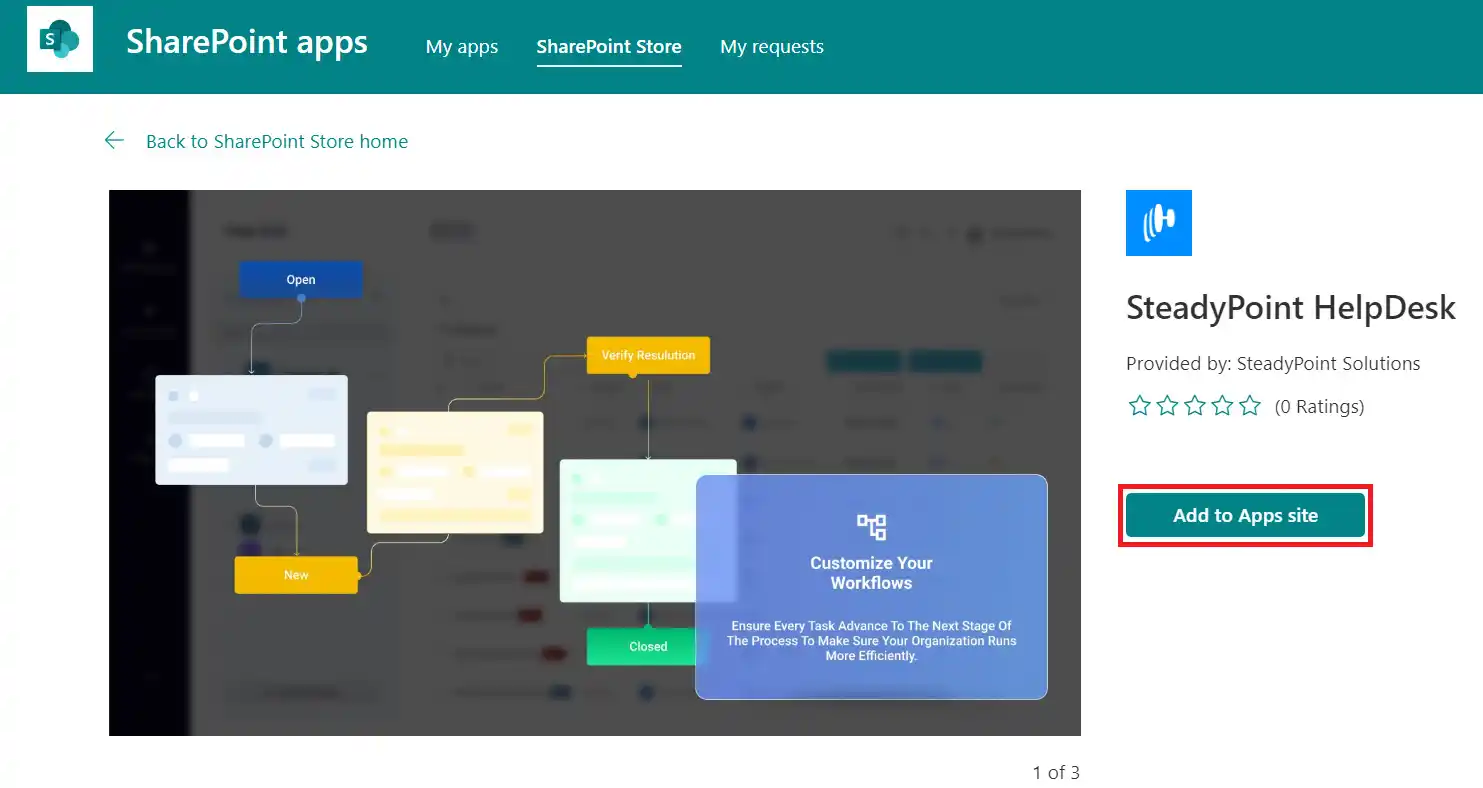
  9. Add to Apps Site.

    SteadyPoint Helpdesk screen showing how to install steadypoint helpdesk from sharepoint admin center.
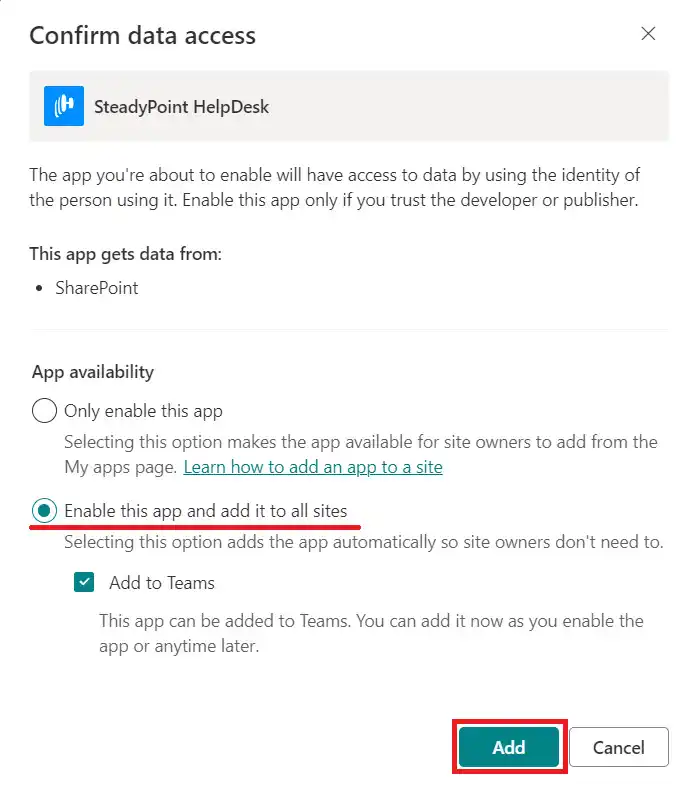
  10. Click on Add.

    SteadyPoint Helpdesk screen showing how to install steadypoint helpdesk from sharepoint admin center.
  11. Click on the gear icon and select Site Contents.
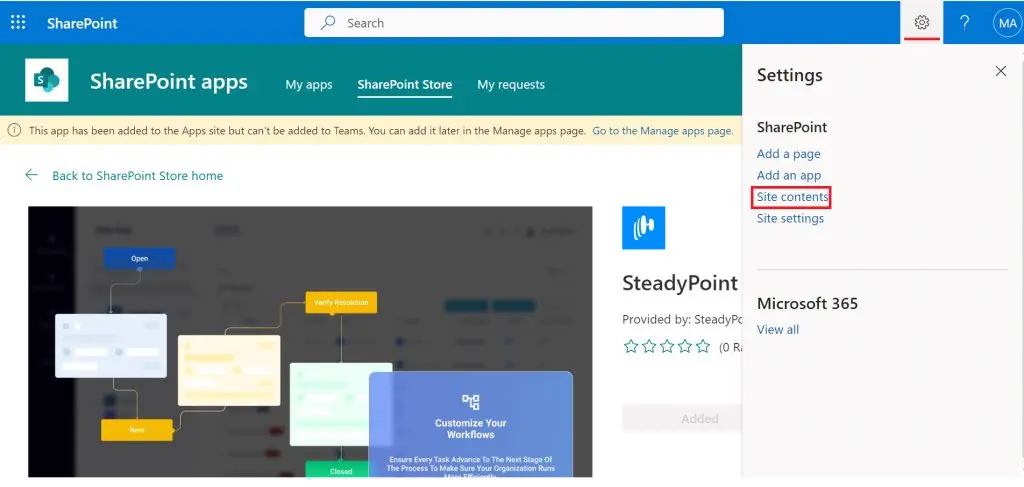
    SteadyPoint Helpdesk screen showing how to install steadypoint helpdesk from sharepoint admin center.
  12. To create a new page, click on Pages > +New > Site Page.
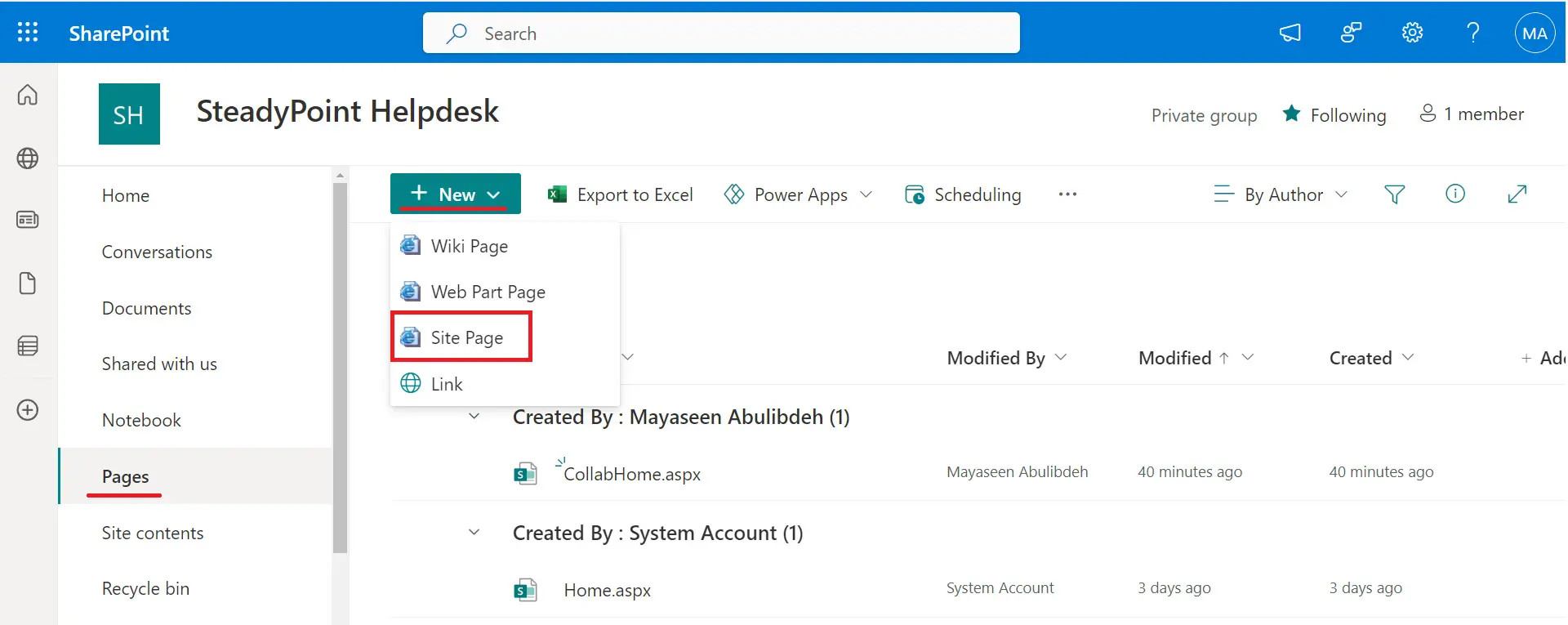
    SteadyPoint Helpdesk screen showing how to install steadypoint helpdesk from sharepoint admin center.
  13. Give the page a name, such as "SteadyPoint SharePoint Help Desk", then hover over the center of the page and click on the (+) sign.
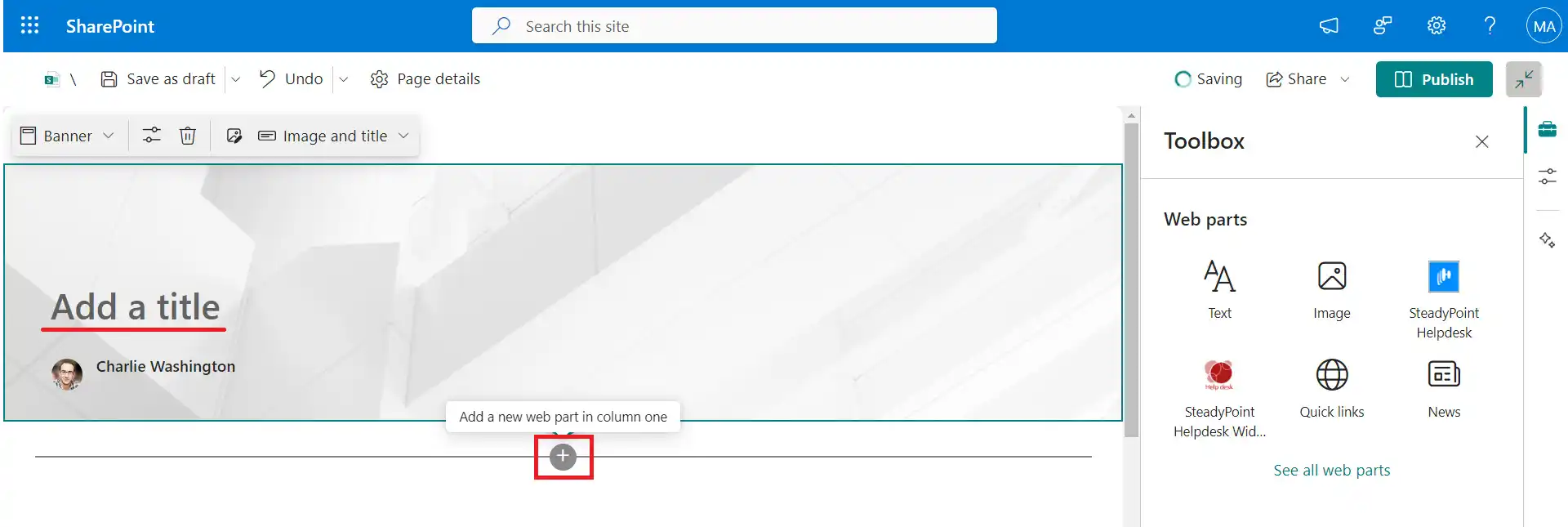
    SteadyPoint Helpdesk screen showing how to install steadypoint helpdesk from sharepoint admin center.
  14. Select "SteadyPoint Helpdesk" and Publish.
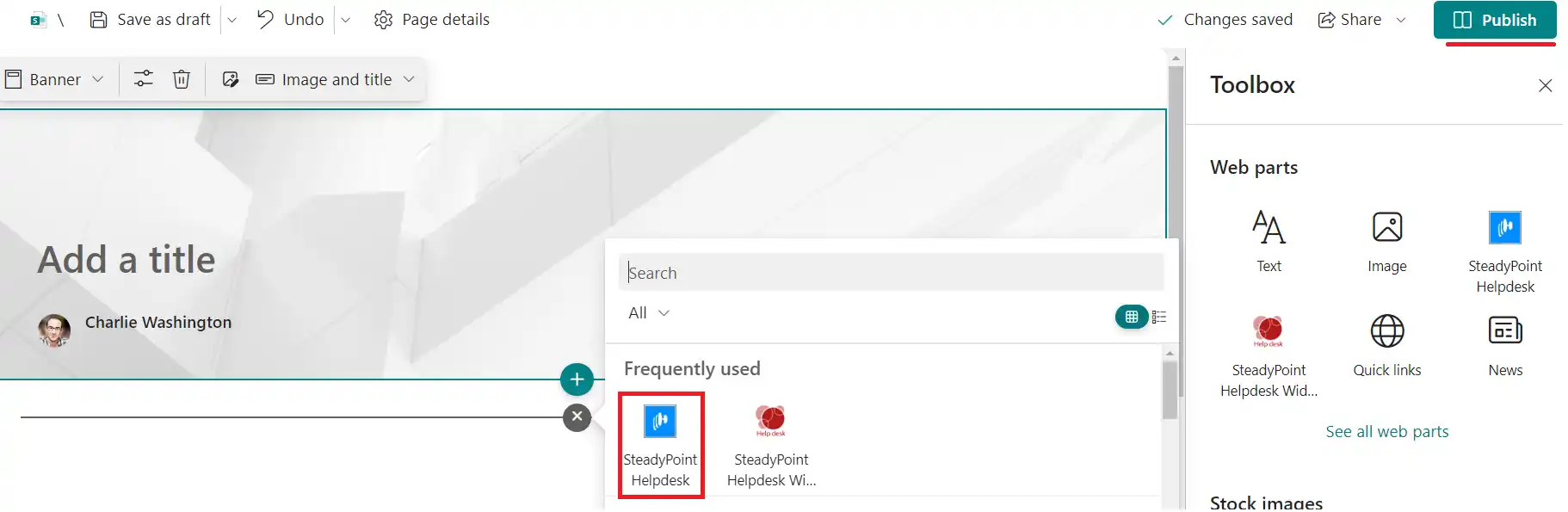
    SteadyPoint Helpdesk screen showing how to install steadypoint helpdesk from sharepoint admin center.

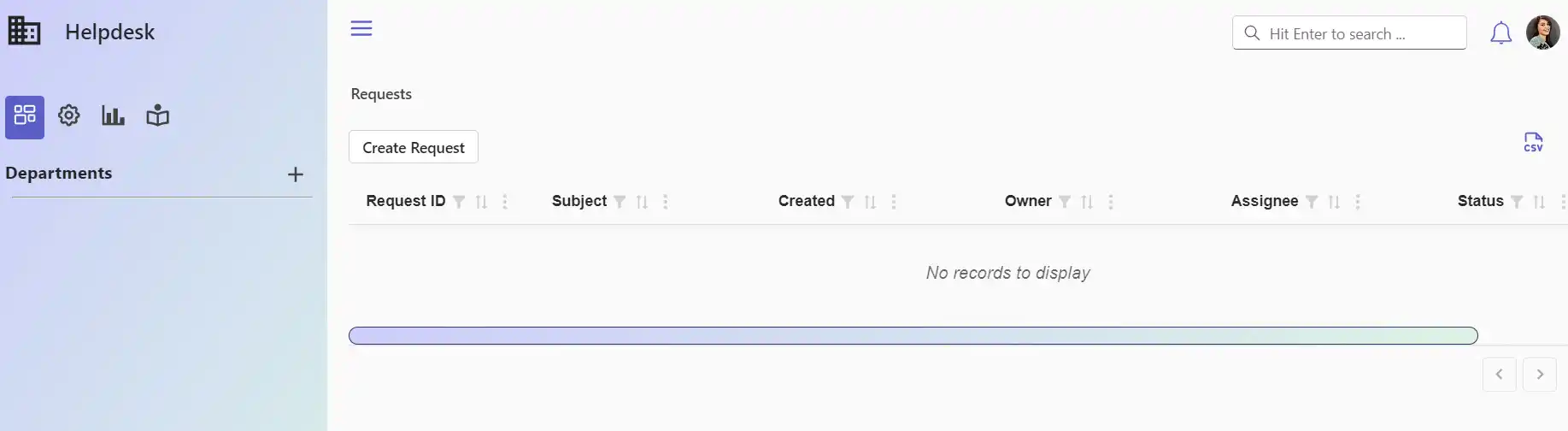
    Here we go...

    SteadyPoint Helpdesk screen showing how to install steadypoint helpdesk from sharepoint admin center.

How to Install SteadyPoint Helpdesk from Microsoft AppSource

  1. Go to Microsoft AppSource: Visit Microsoft AppSource.
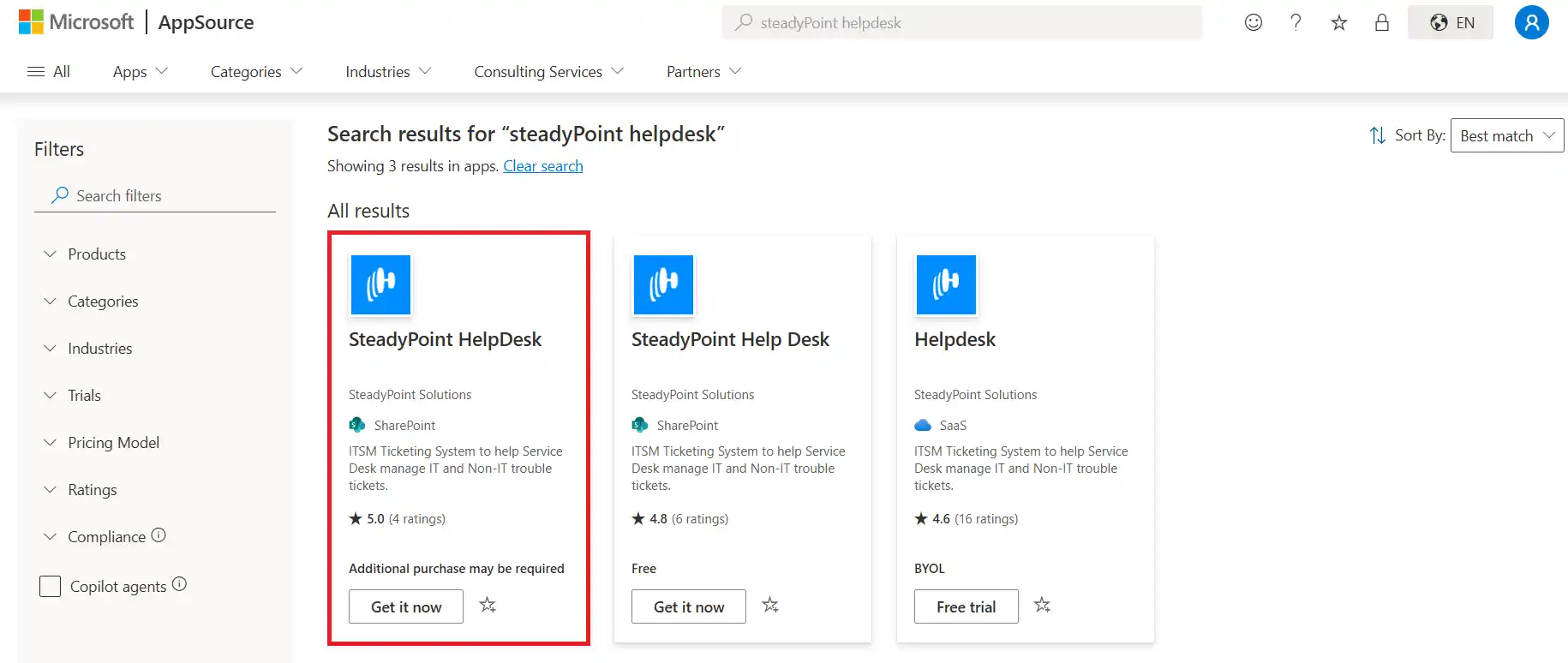
  2. Search for "SteadyPoint Helpdesk": In the search bar at the top, type "SteadyPoint HelpDesk" and press Enter.
  3. Click on Get it now.
SteadyPoint Helpdesk screen showing how to install steadypoint helpdesk from microsoft appsource.

Or, you can skip the search and open the Helpdesk app profile directly using this link.

Done with the installation? It’s time to dive into Helpdesk—start by creating your first department and begin organizing your tickets. Follow our step-by-step guide here.

Continue Exploring

Keep reading, see product details, or talk to our team.