
If your company already uses SharePoint and Microsoft 365, you may not need a separate platform to manage internal support requests. Using SharePoint as a ticketing system lets employees submit requests while support teams can organize, assign, and track tickets in one place.
The real question is: how do you set it up, and what tools do you need to make it work?
In this article, we'll explain how to create a SharePoint ticketing system using Microsoft 365 tools and what to consider when building and managing your own SharePoint helpdesk.
If you don't want to build everything from scratch, we'll also look at SteadyPoint SharePoint Helpdesk, a ready-to-use Office 365 helpdesk that works within SharePoint to manage requests, automate workflows, track SLAs, and keep support organized.
Whether you're building an Office 365 ticketing system, a Microsoft Teams ticketing system, or looking for a ready-made solution, this guide will help you understand your options.
Why use SharePoint as a ticketing system?
If your organization already uses Microsoft 365, using SharePoint as a ticketing system can be a practical way to manage internal support without introducing another platform.
- Centralize tickets: Store support requests in SharePoint and give agents a single place to view, assign, update, and close tickets.
- Create custom ticket fields: Add fields such as priority, category, status, assigned agent, requester, department, and due date to match your support process.
- Automate ticket workflows: Use Power Automate to assign tickets, send email notifications, update statuses, and trigger actions when a request is submitted or changed.
- Control access: Use SharePoint permissions to control who can submit, view, or manage support requests.
- Connect with Microsoft Teams: Bring ticket notifications and support workflows into Teams to support faster collaboration and create a Microsoft Teams ticketing system.
- Build on Microsoft 365: Combine SharePoint with Power Automate, Microsoft Teams, and other Microsoft 365 tools to create an Office 365 helpdesk or Office 365 ticketing system that fits your existing environment.
- Customize as your needs grow: Start with a simple SharePoint helpdesk and add workflows, notifications, reporting, SLAs, and other capabilities as your support process becomes more advanced.
How to create a Ticketing System in SharePoint
You can build a basic SharePoint ticketing system using tools that are already part of Microsoft 365. The setup typically combines SharePoint Lists for storing tickets, and Power Automate for workflows.
Here's how to get started:
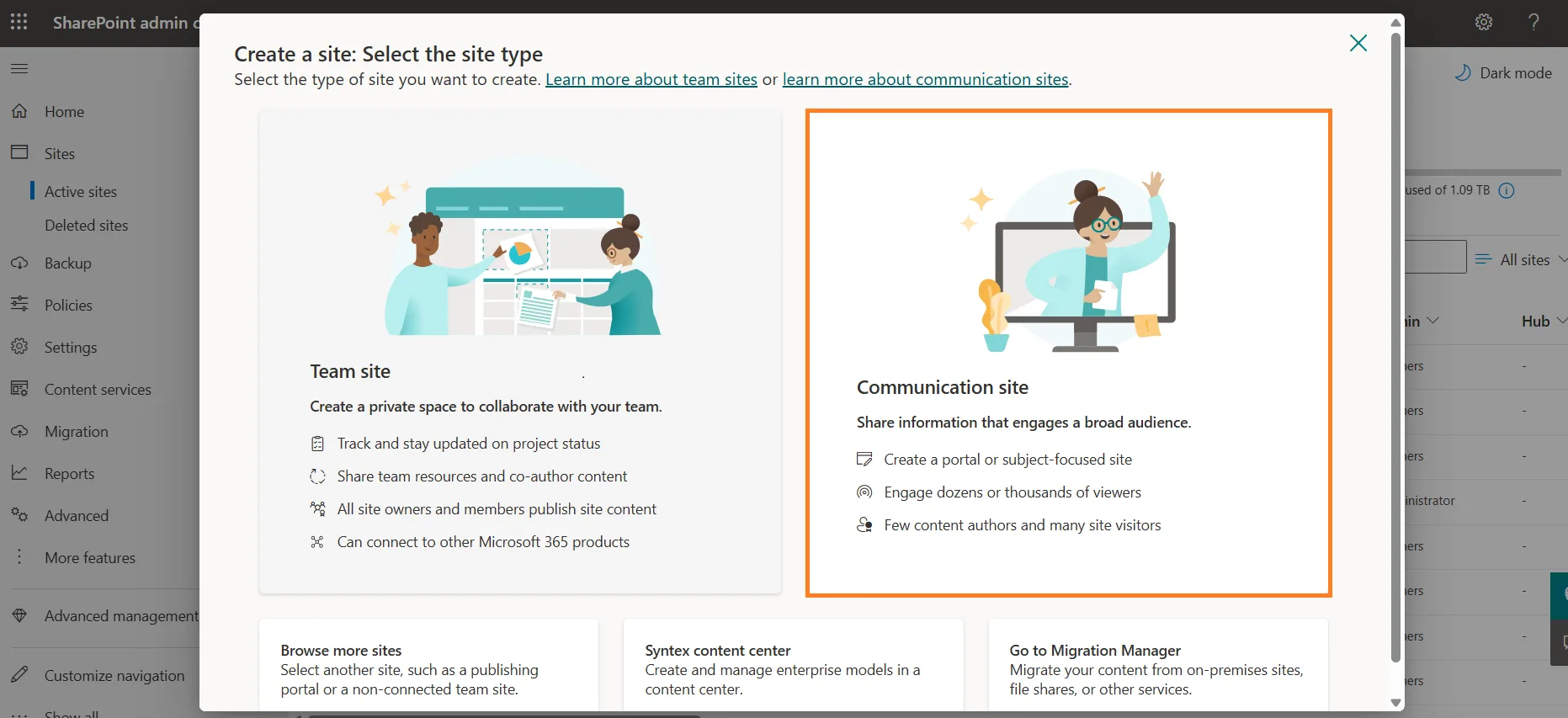
1. Create a SharePoint Site
Create a dedicated SharePoint site for your support team. This gives you a central place to manage tickets, documentation, and other helpdesk resources.
2. Create a Ticket List
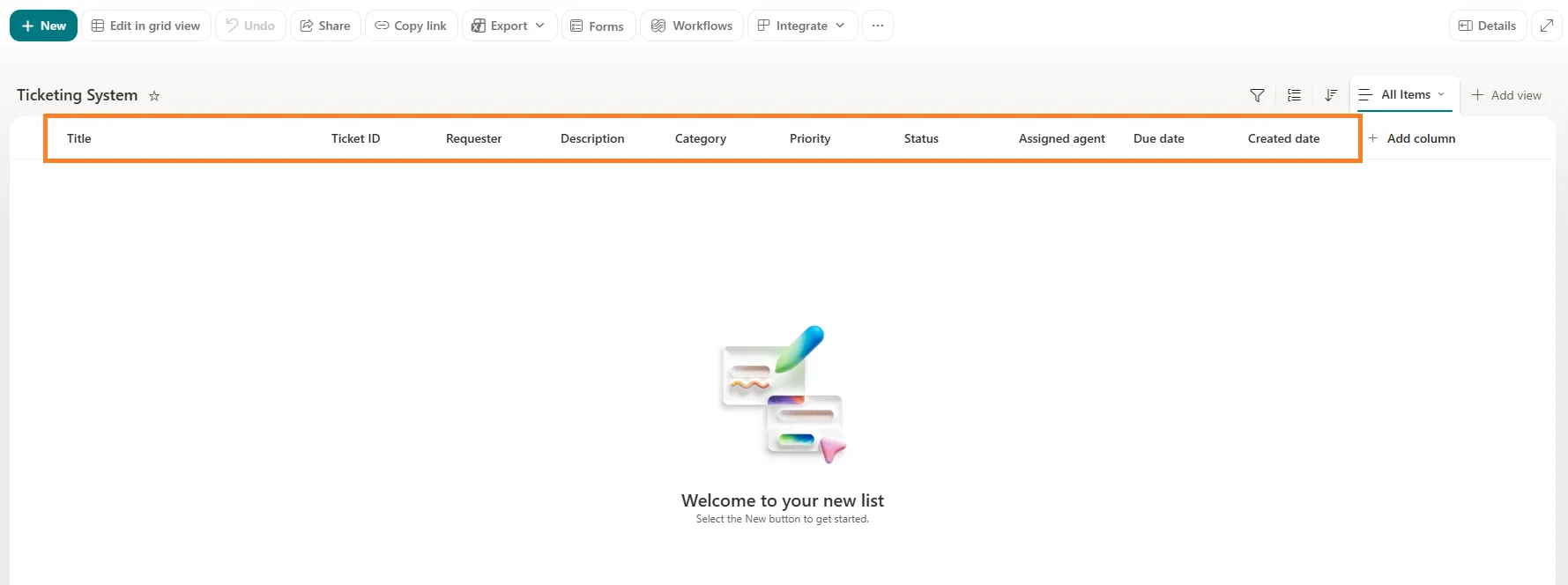
Create a SharePoint List to store and manage support requests. Add fields such as:
- Ticket ID
- Requester
- Title and description
- Category
- Priority
- Status
- Assigned agent
- Due date
- Created date
This list will serve as the foundation of your SharePoint helpdesk.
3. Create a Ticket Submission Form
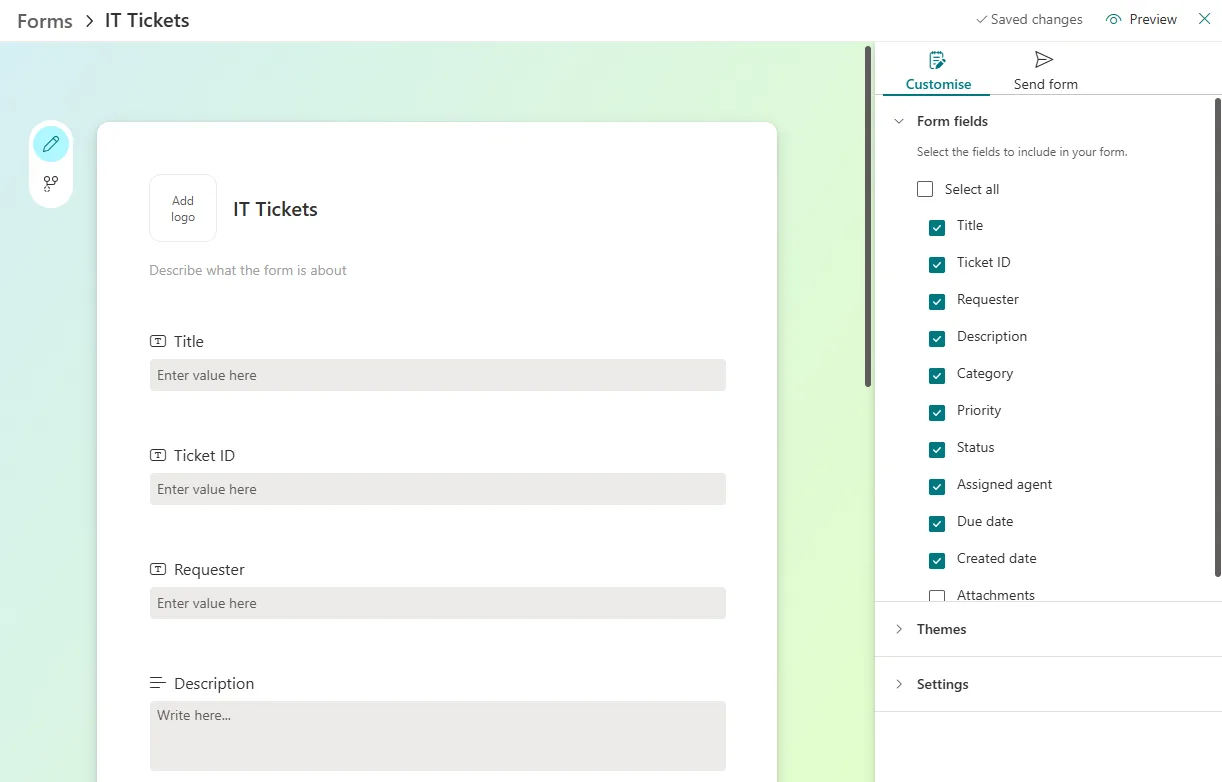
Use the SharePoint list form to give employees a simple way to submit support requests. Keep the form focused on the information your support team needs to understand and resolve the issue.
4. Automate the Ticket Workflow
Use Power Automate to handle repetitive tasks. For example, you can automatically assign new tickets, notify support agents, send confirmation emails, update ticket statuses, and send reminders when tickets are approaching their deadlines.
This is what turns a basic SharePoint list into a more functional Office 365 ticketing system.
5. Set Up Permissions
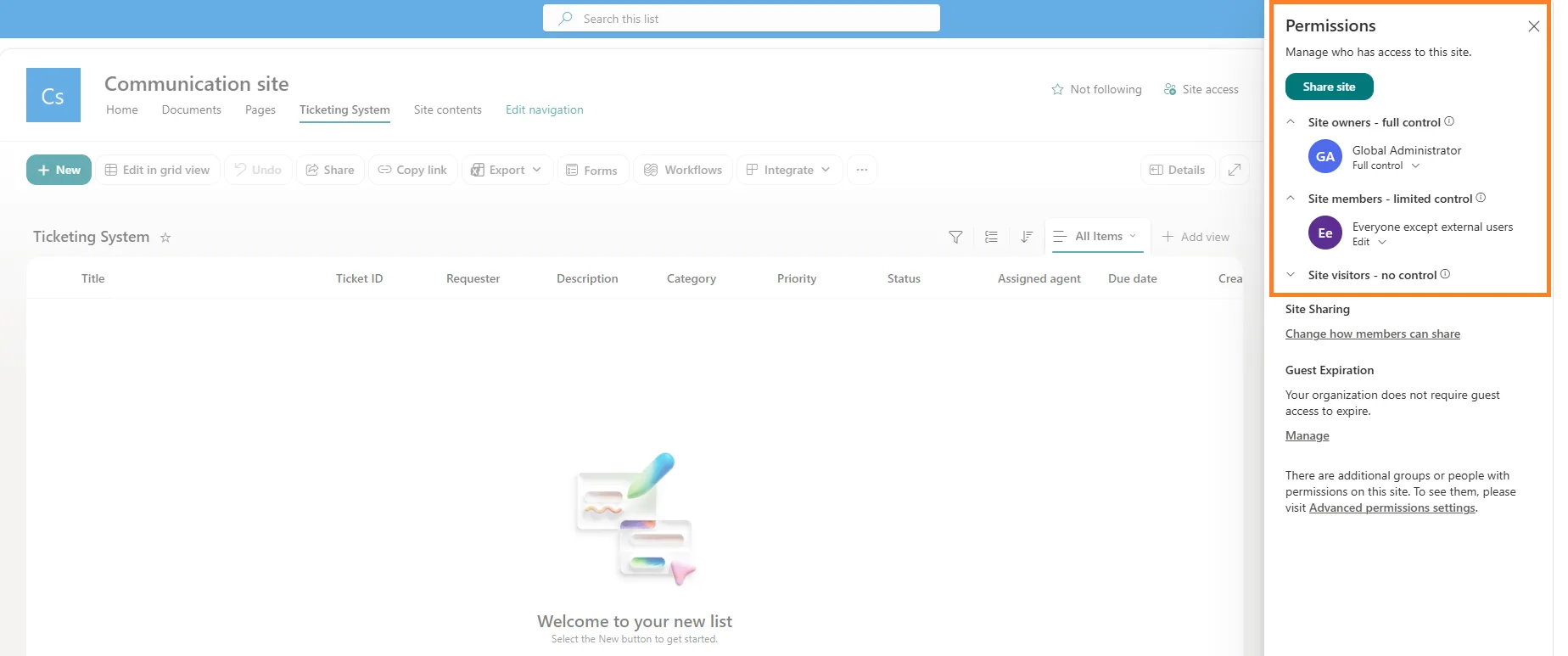
Configure SharePoint permissions based on user roles. Employees may only need to submit and view their own requests, while support agents and administrators need additional access to manage tickets.
6. Add SLA Tracking and Reporting
Once your basic Office 365 helpdesk is working, you can add reminders, SLA tracking, and reporting. These can help you monitor response and resolution times, identify overdue tickets, and understand your team's support workload.
Building a ticketing system this way gives you a flexible starting point for using SharePoint as a ticketing system. However, as your support process becomes more advanced, maintaining multiple lists, flows, permissions, and integrations can require significant time and effort.
Limitations of Building a SharePoint Ticketing System
Using SharePoint as a ticketing system can work well for basic internal support, especially if your organization already uses Microsoft 365. But as the number of tickets and support requirements grow, a DIY setup can become harder to manage.
- More setup and maintenance: You need to create and maintain SharePoint lists, Power Automate flows, forms, permissions, and notifications.
- Not built specifically for helpdesk teams: SharePoint gives you the building blocks, but features such as advanced SLA management, ticket escalation, and service desk workflows may require additional configuration.
- Workflows can become complex: Simple automation is easy to set up, but multiple rules for assignment, escalation, approvals, and notifications can make Power Automate flows difficult to maintain.
- Reporting requires extra work: SharePoint can store your ticket data, but turning that data into useful service desk reports and dashboards may require additional tools or configuration.
- Teams integration needs configuration: You can connect SharePoint with Microsoft Teams, but building a complete ticketing workflow across both platforms takes additional setup.
- Scaling takes more effort: A basic Office 365 ticketing system may work for a small support team, but larger teams often need more automation, controls, and dedicated helpdesk features.
For smaller teams with straightforward requirements, a SharePoint-based Office 365 helpdesk can be a practical option. However, if you need more advanced ticket management without building and maintaining everything yourself, a ready-made SharePoint helpdesk can save time and reduce ongoing maintenance.
A Ready-to-Use SharePoint Helpdesk
Building a SharePoint ticketing system from scratch can be a good option when you have simple requirements and the time to manage the setup. But if you want a complete solution without building every feature yourself, a ready-to-use SharePoint helpdesk can make the process much easier.
SteadyPoint is a flexible and highly customizable ticketing system built for Microsoft 365. It can be adapted to teams of any size and used for different types of internal requests, including IT, HR, facilities, and more.
With SteadyPoint, you can:
- Customize forms to collect the right information for each type of request.
- Create flexible workflows for assignment, approvals, escalations, and other processes.
- Automate repetitive tasks.
- Create tickets through email so requests sent to support inboxes can be captured and managed as tickets.
- Work through Microsoft Teams with a Teams-based ticketing experience for support teams and employees.
- Use a modern, easy-to-navigate interface designed for both employees and support agents.
- Keep improving your system with continuous releases and new features.
Whether you need an Office 365 helpdesk, a Microsoft Teams ticketing system, or a flexible solution for managing requests across different departments, SteadyPoint gives you a ready-to-use alternative to building and maintaining everything yourself.
If you're considering using SharePoint as a ticketing system, SteadyPoint lets you start with a complete solution and customize it as your organization grows.
Ready to see how it works? Explore SteadyPoint SharePoint Helpdesk or start your free trial.
Frequently Asked Questions
1. Can SharePoint be used as a ticketing system?
Yes. SharePoint Lists can store support tickets, while Power Automate can automate assignments, notifications, and status updates.
2. How do I create a SharePoint ticketing system?
Create a SharePoint site and ticket list, add the required fields, and use Power Automate to automate your helpdesk workflows.
3. Can SharePoint work as an Office 365 helpdesk?
Yes. SharePoint can be combined with Power Automate and Microsoft Teams to create an Office 365 helpdesk for managing support requests.
4. How does Power Automate help a SharePoint helpdesk?
Power Automate can assign tickets, send notifications, update statuses, trigger approvals, and send reminders automatically.
5. Is a SharePoint helpdesk customizable?
Yes. You can customize ticket fields, forms, permissions, workflows, categories, and approval processes to match your needs.
6. Should I build or use a ready-made SharePoint helpdesk?
Building your own offers flexibility but requires maintenance. A ready-made Microsoft 365 helpdesk provides more features without building everything from scratch.