
With the SteadyPoint SharePoint Asset Management App, employees can easily request new assets, replacements, upgrades, or returns, while managers can review and manage requests in one place.
In this guide, we'll walk through how to submit an asset request, how managers process requests, and how to manage the asset requests table.
Ready to try it yourself? Start your free trial of SteadyPoint Assets. For more guides, visit the Assets blog.
Steps to Submit an Asset Request
Open Asset Requests
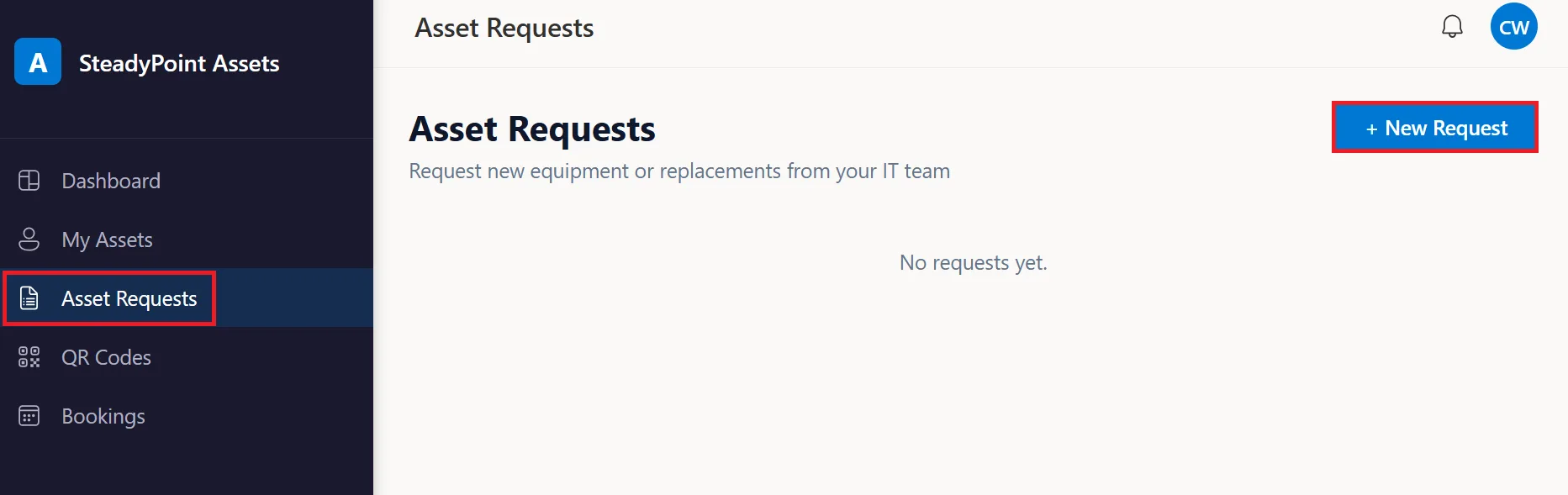
Go to Asset Requests and click New Request to open the request form.
Complete the Request Form
Fill in the following details:
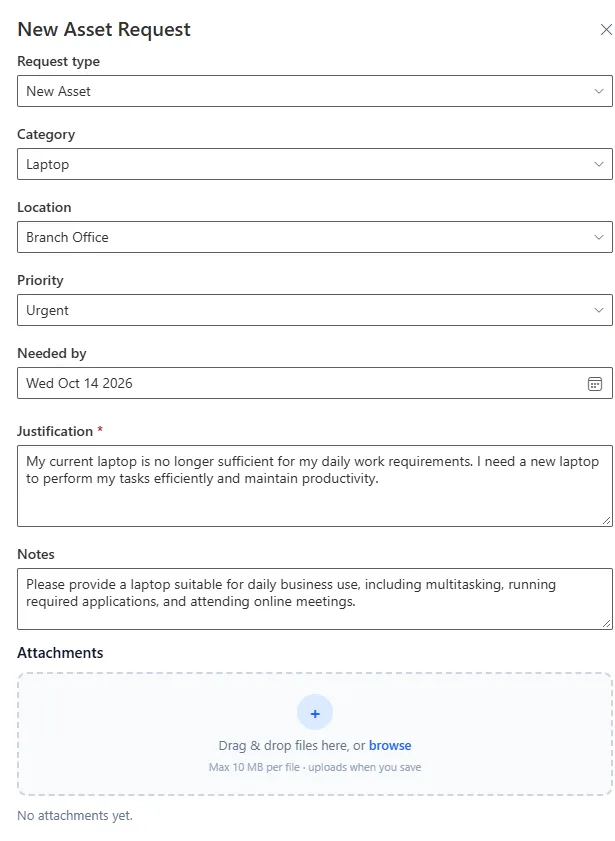
- Request Type: Select New Asset, Replacement, Upgrade, or Return.
- Category: Choose the relevant asset category, managed under Settings > Categories. See our guide to setting up categories.
- Location: Select the required asset location.
- Priority: Set the request priority.
- Needed By: Specify the required date.
- Justification and Notes: Explain your request and add any relevant details.
- Attachments: Upload supporting documents if needed.
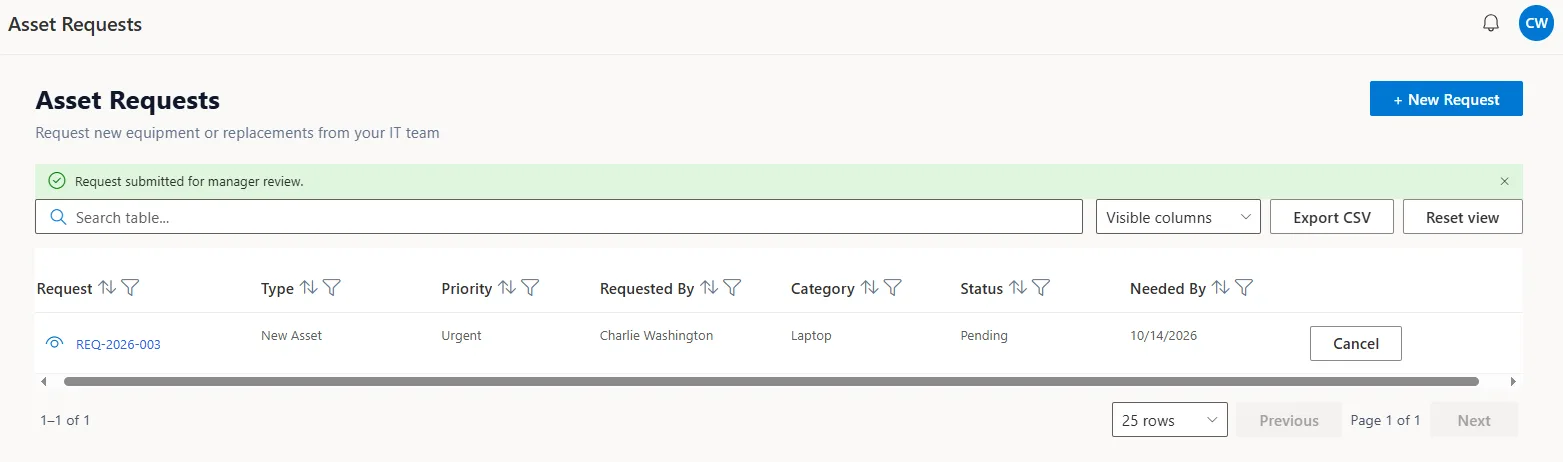
Once completed, submit your request for the manager's review.
How Managers Handle Requests
Managers can review each request and choose to approve or reject an asset.
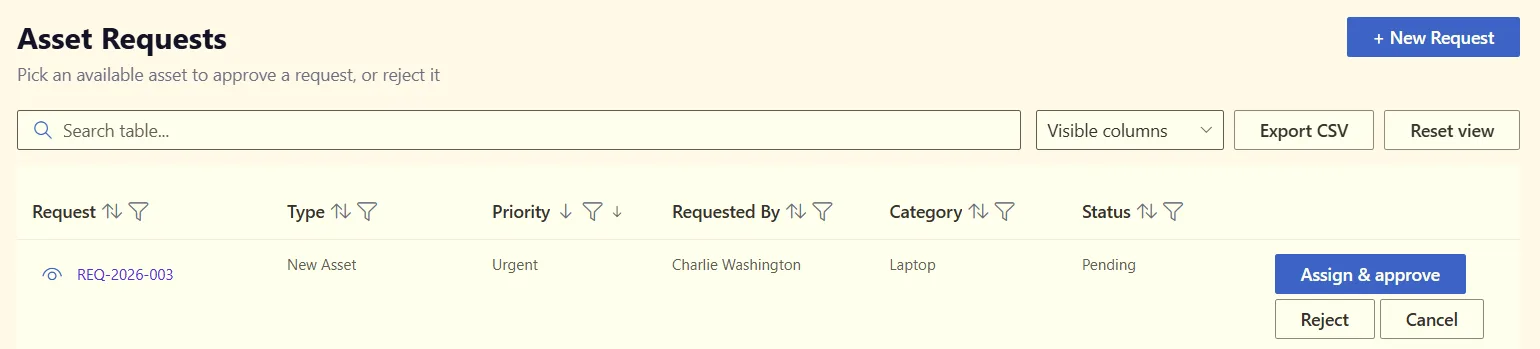
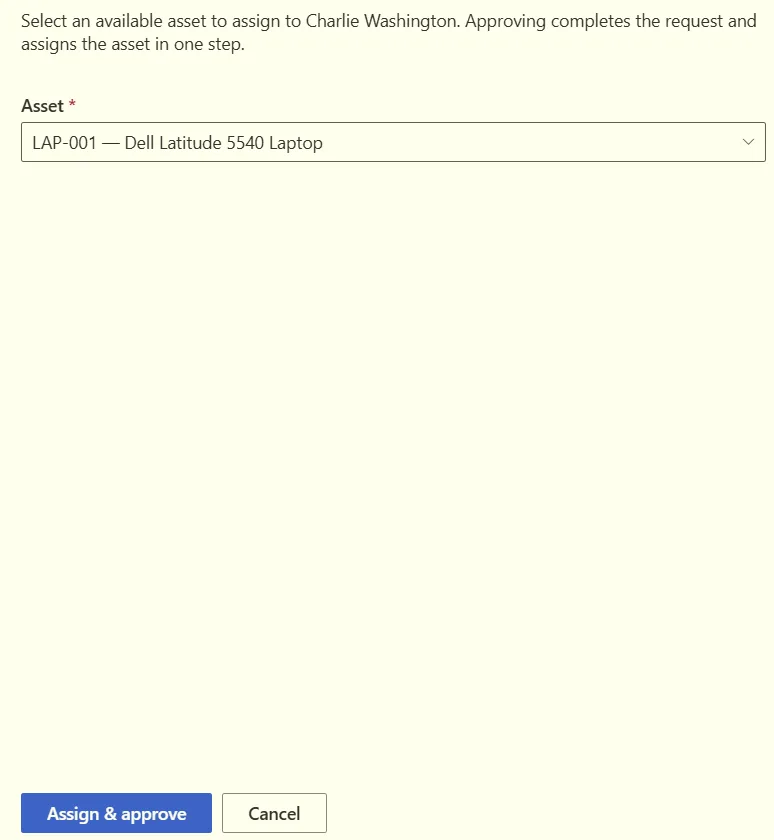
If the request is approved, the manager must select an asset from the list of matching assets.
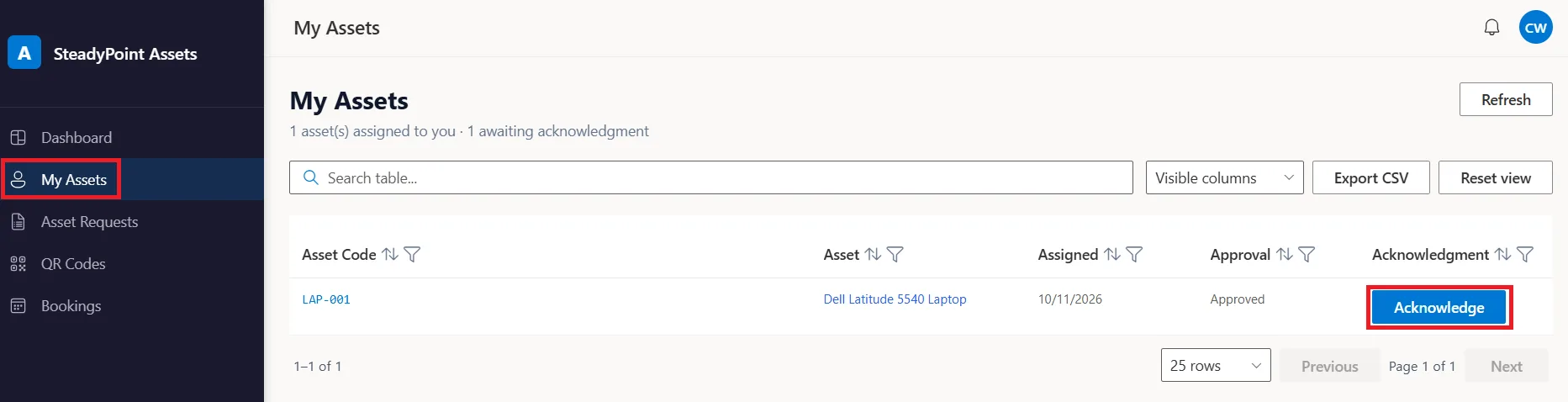
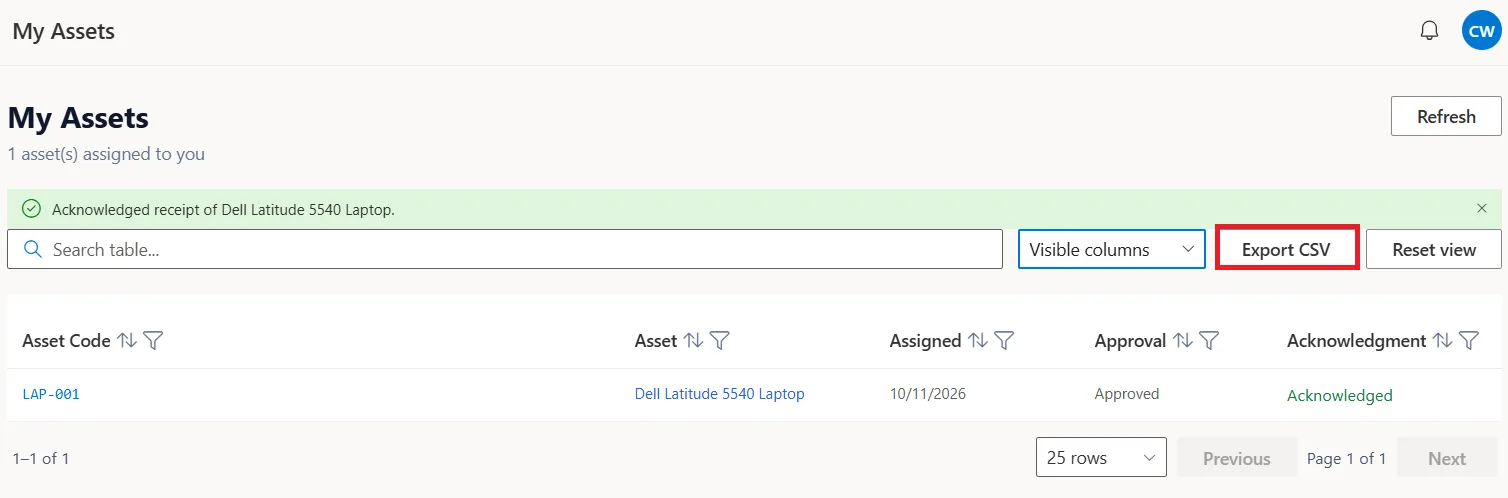
Approved requests move to My Assets. The requester should then acknowledge receipt of the assigned asset, as shown below.
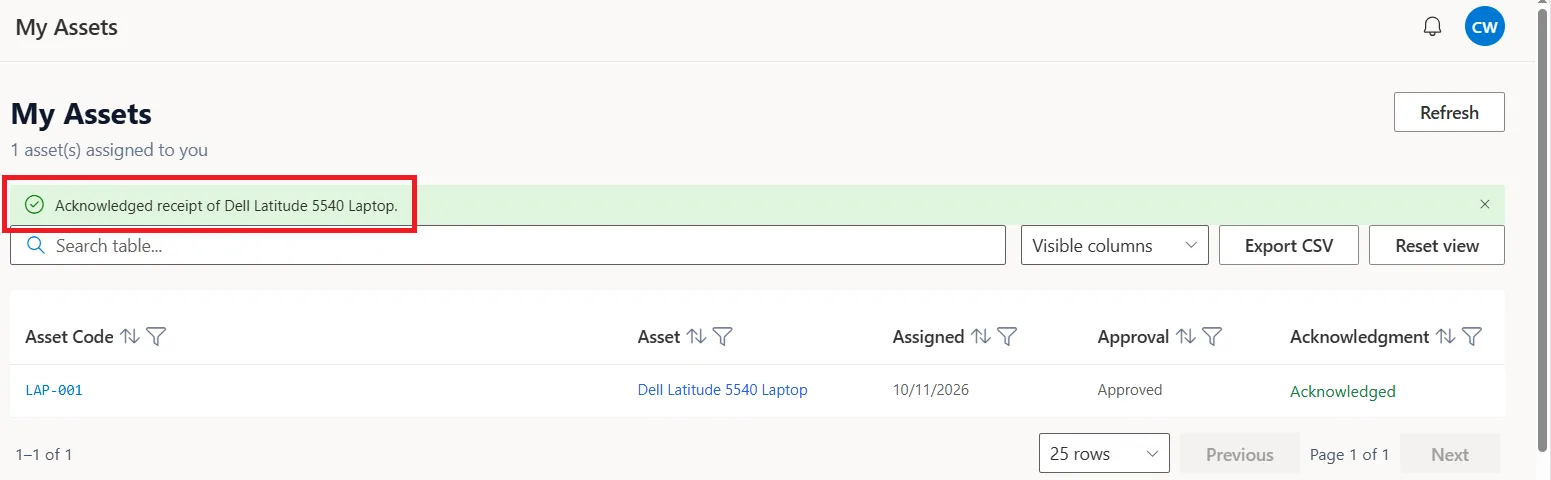
Once the requester acknowledges receipt, a confirmation message will appear to confirm that the acknowledgement was successful.
Manage and Export Requests
You can customize the table using Visible Columns to show or hide details such as request number, type, priority, requester, category, status, assigned asset, and needed-by date.
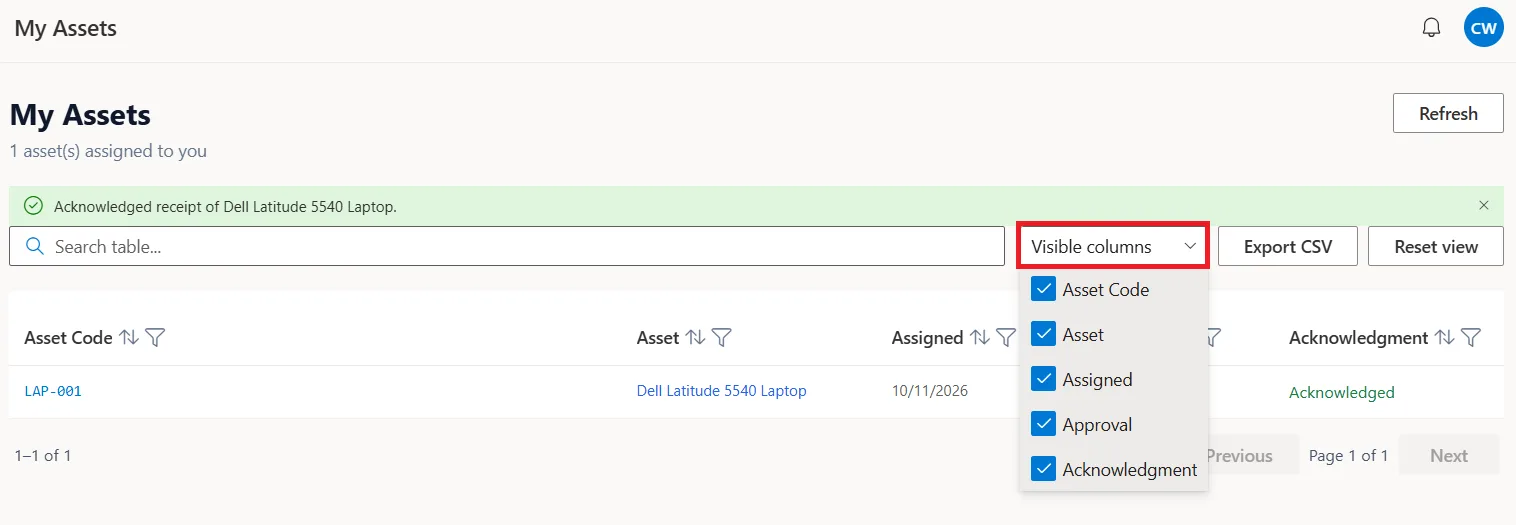
You can also filter and sort requests by these columns or export the table to Excel using Export to CSV.
Start Your Free Trial
Discover how SteadyPoint Microsoft 365 Asset Management Software can help your organization manage assets and employee requests efficiently.
Start your 30-day free trial of SteadyPoint SharePoint Asset Management today!