
Adding assets to your system is one of the first steps in building an organized asset inventory. With SteadyPoint Office 365 Assets software, you can add assets individually or import multiple assets at once using an Excel template.
In this guide, we'll show you both methods using SteadyPoint, a SharePoint asset management software for Microsoft 365.
Ready to try it yourself? Start your free trial of SteadyPoint Assets. For more guides, visit the Assets blog.
Two Ways to Add Assets
SteadyPoint Office365 Assets app gives you two options:
- Add an asset manually: Enter the information for one asset at a time.
- Import assets using Excel: Add multiple assets in bulk using a CSV file.
Let's look at each option.
Option 1: Add an Asset Manually
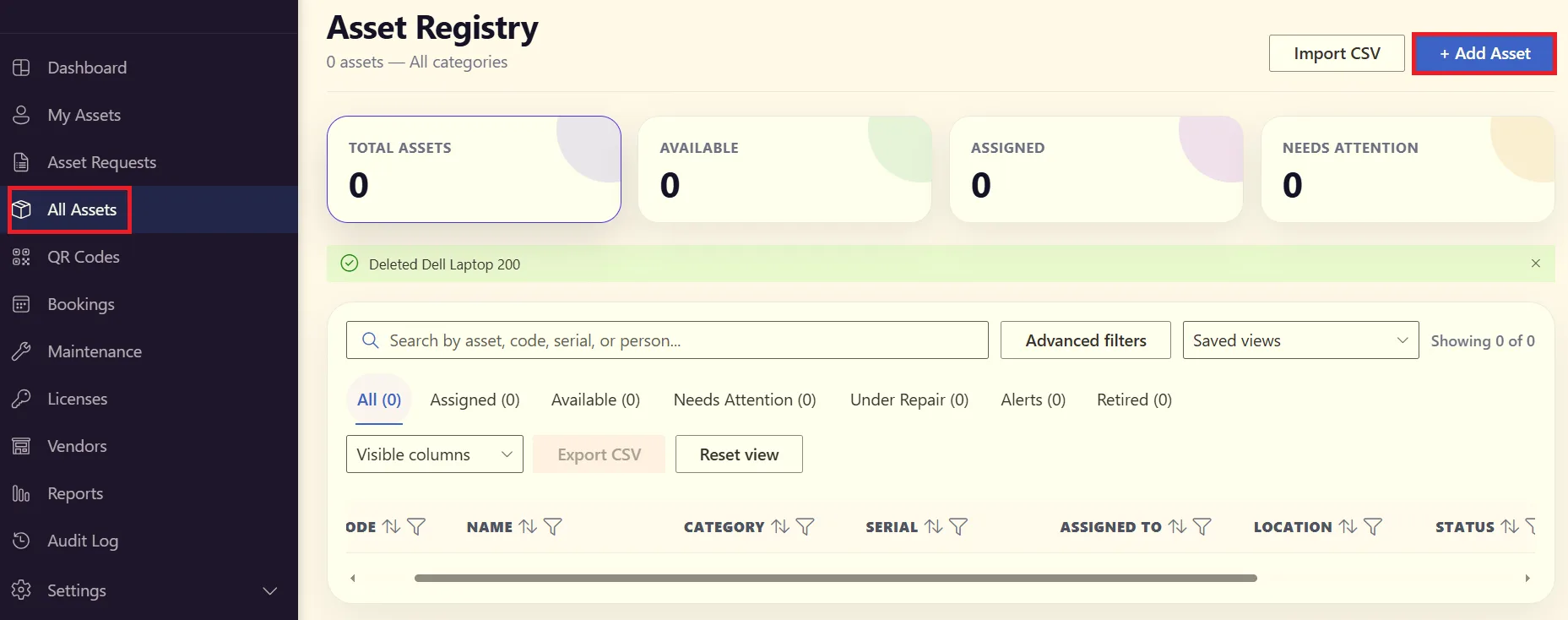
Go to All Assets
From the SteadyPoint Assets dashboard, go to All Assets and click Add Asset. A new screen will open where you can enter the asset information.
Enter the Asset Details
Complete the relevant fields for the asset.
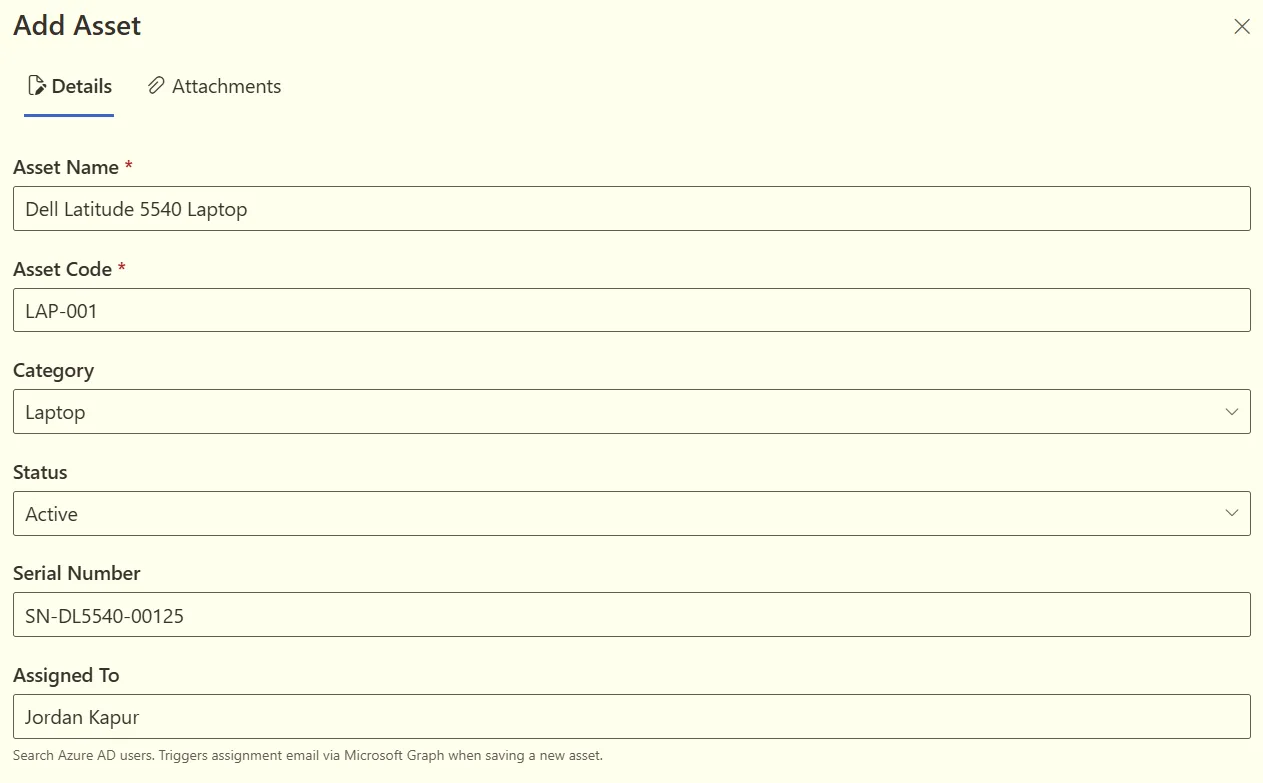
- Asset Name — Enter the name of the asset. For example: Dell Latitude 5540 Laptop
- Asset Code — Enter a unique code for the asset, such as: LAP-001
- Category — Select the appropriate category, such as Laptops. Categories can be created and managed from Settings, as explained in our previous guide.
- Status — Select the current status of the asset:
- Active
- Available
- In Repair
- In Warranty
- Retired
- Disposed
- Serial Number— Enter the asset's serial number, for example: SN-DL5540-00125
- Assigned To — Select the user the asset is assigned to.
- Location— Select the asset's location, such as:
- Head Office
- Branch Office
- Brand — Enter the manufacturer, for example: Dell
- Model — Enter the asset model, such as: Latitude 5540
- Purchase Date — Select the date the asset was purchased.
- Purchase Value — Enter the purchase value of the asset.
- Warranty Expiry— Select the date when the asset's warranty expires.
Once you have entered the required information, save the asset. It will then appear in your asset list.
Option 2: Add Assets in Bulk Using Excel
If you need to add multiple assets, you can save time by importing them in bulk.
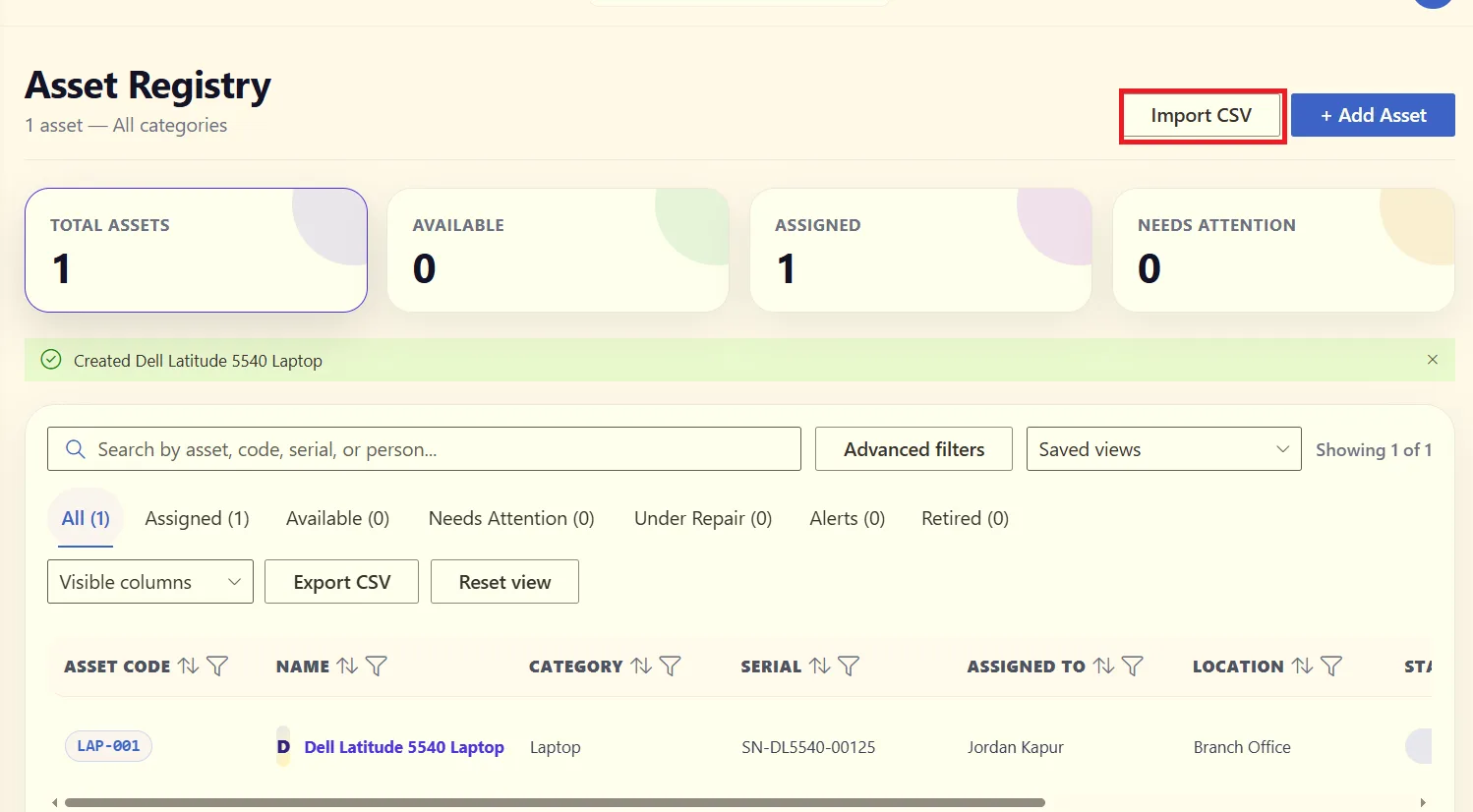
Click Import CSV
From All Assets, download the provided CSV template and open it in Excel.
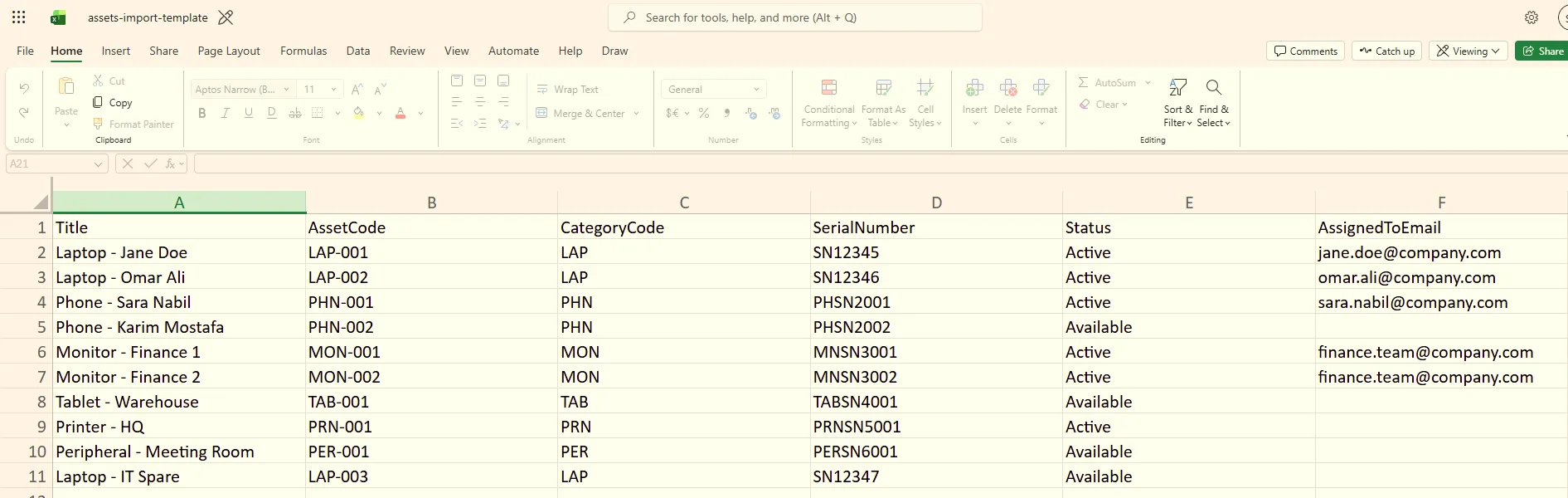
The template provides the fields you need to complete for each asset.
Add your asset data
Enter your asset information into the template. You can add multiple assets, with each asset entered on its own row.
Upload the file
Once your data is ready, choose the completed CSV file and upload it.
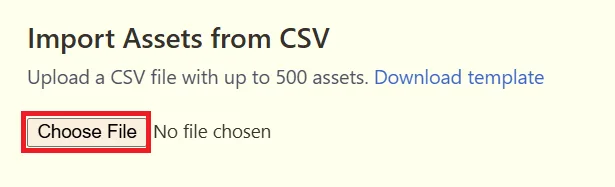
The assets will be added to SteadyPoint Assets in bulk.
Customize the Asset List
You can choose which information appears in your asset list using the Visible Columns option.
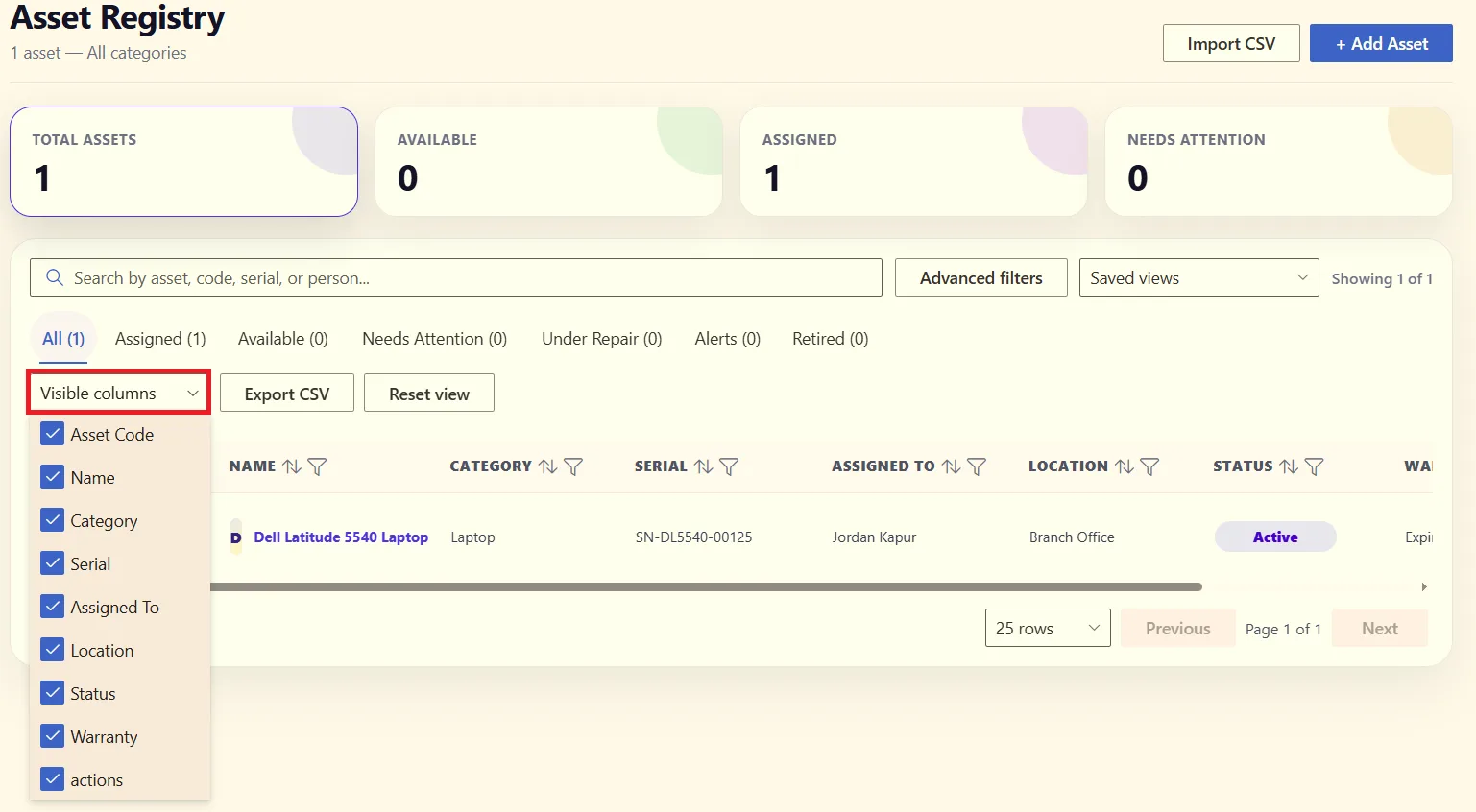
Available columns include:
- Asset Code
- Name
- Category
- Serial Number
- Assigned To
- Location
- Status
- Warranty
- Actions
This allows you to keep the asset list focused on the information your team needs.
Export Assets to CSV
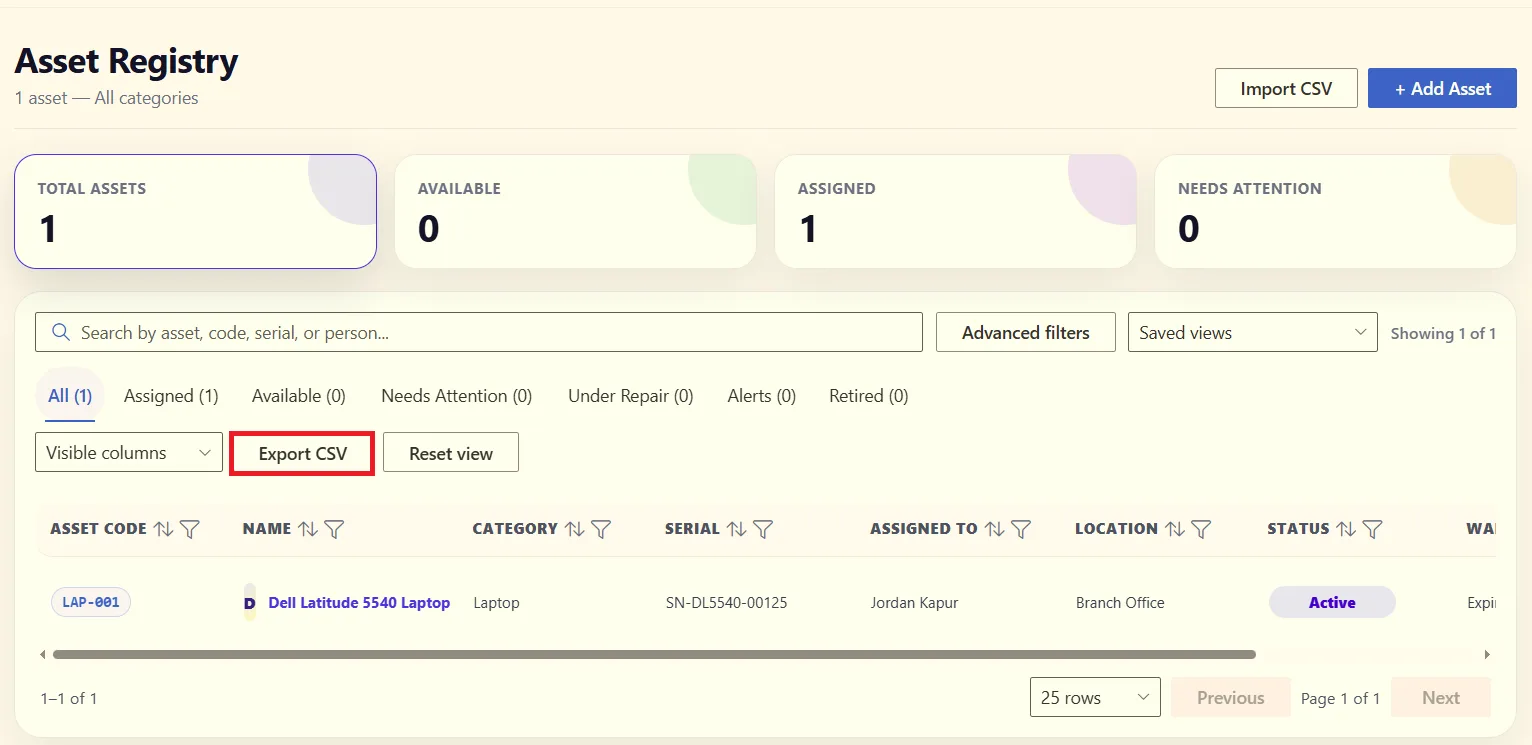
You can also export your asset data whenever you need it.
Click Export CSV to download the asset list as a CSV file that you can open in Excel for review, reporting, or record keeping.
Manage Your Assets in Microsoft 365
Whether you are adding one asset or importing hundreds of records, SteadyPoint Assets gives you a simple way to build and maintain your asset inventory.
Ready to organize your assets? Explore SteadyPoint Assets Management and start building your asset inventory today.