
Welcome to the SteadyPoint Assets installation guide. Here, you'll find a step-by-step walkthrough to help you install this Office 365 Assets Management App. Please note that this straightforward process may be subject to changes by Microsoft.
Need assistance installing SteadyPoint SharePoint Assets? Book your free meeting now — we'll walk you through it step by step!
How to install SteadyPoint Assets from SharePoint Admin Center
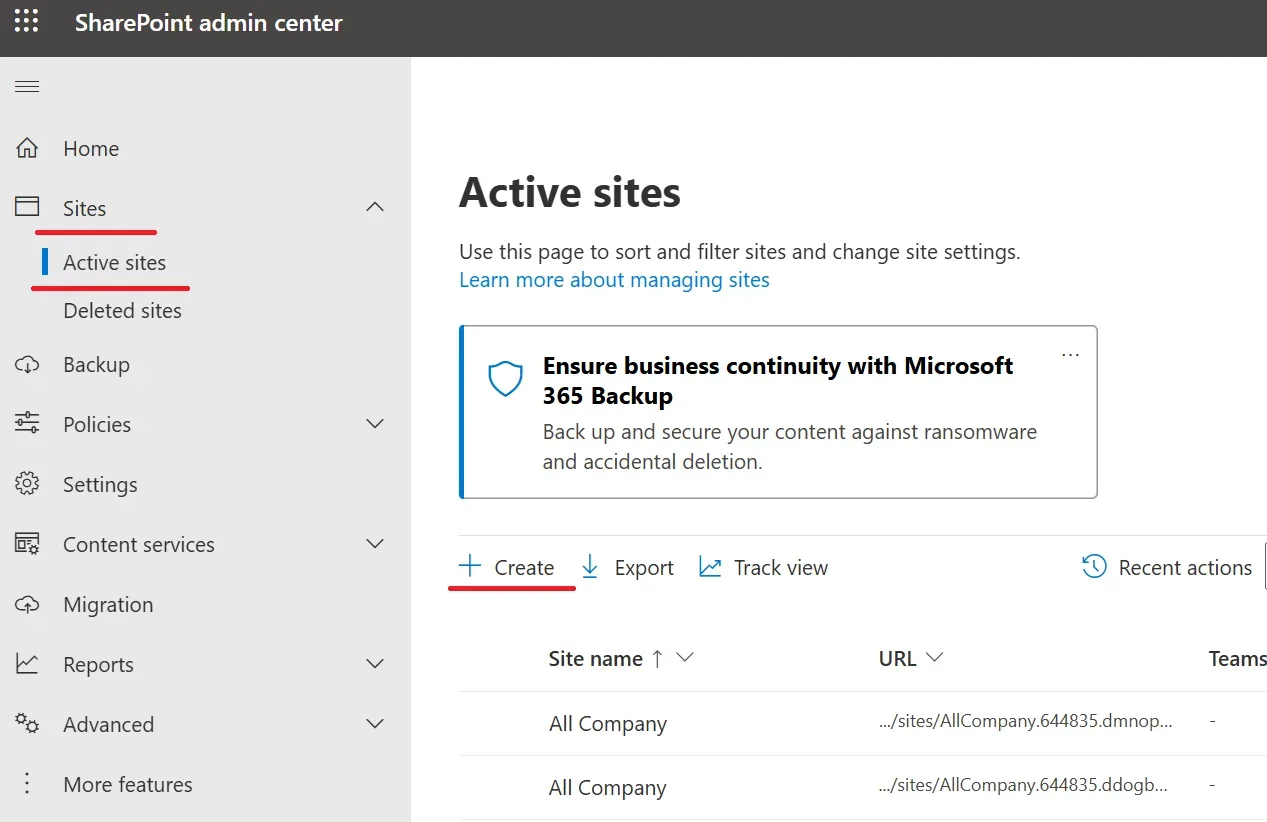
From the SharePoint Admin Center, create a new site. Click on Sites > Active Sites > Create.
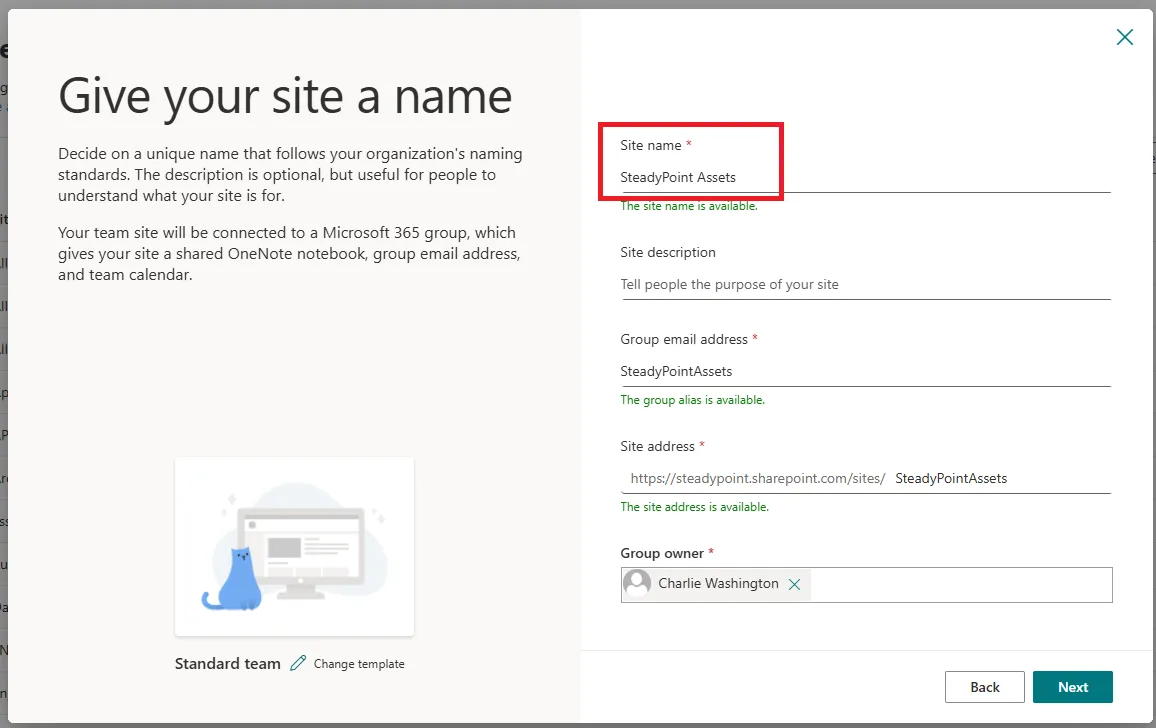
Then, give the site a name.
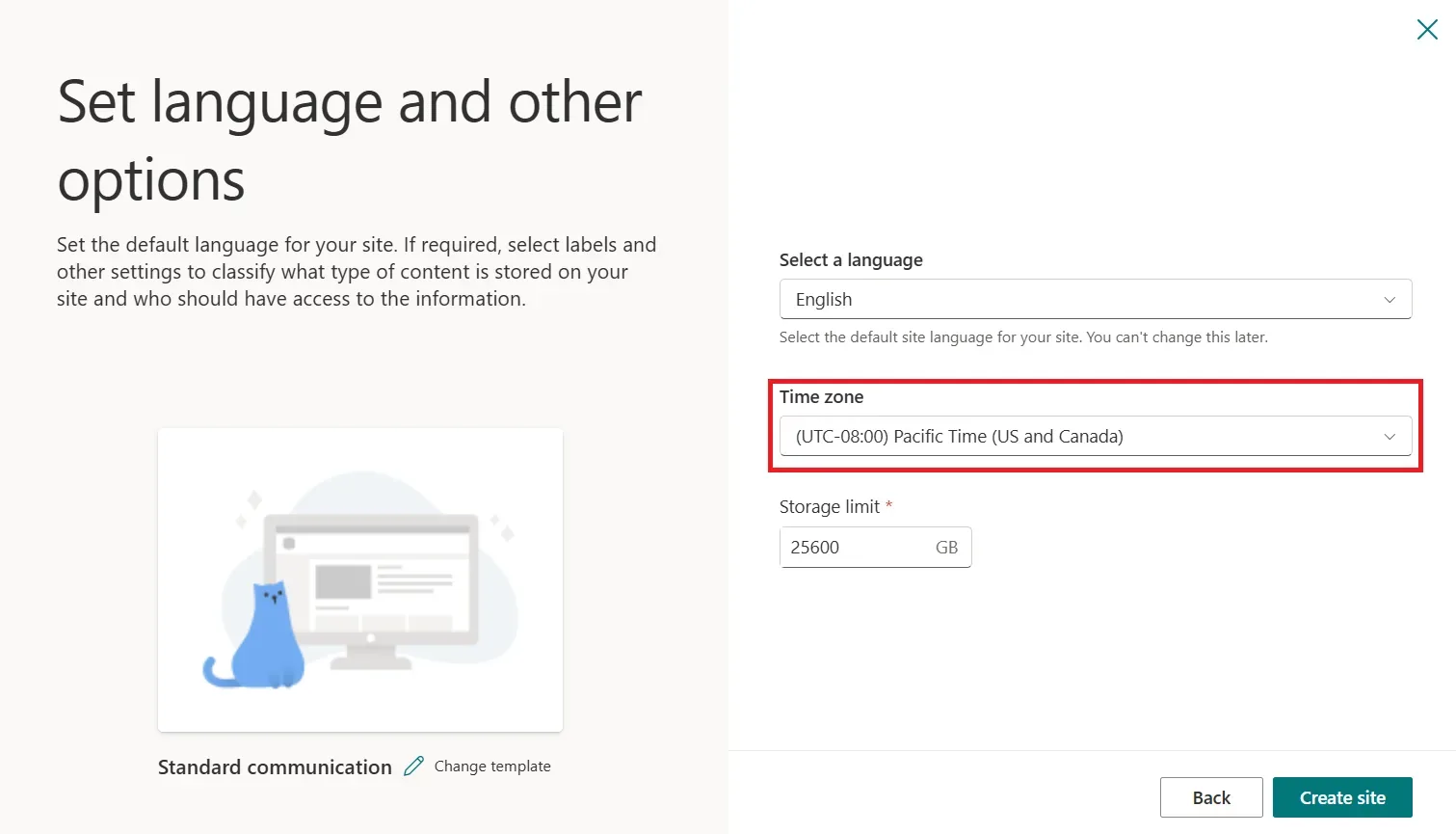
Select your time zone.
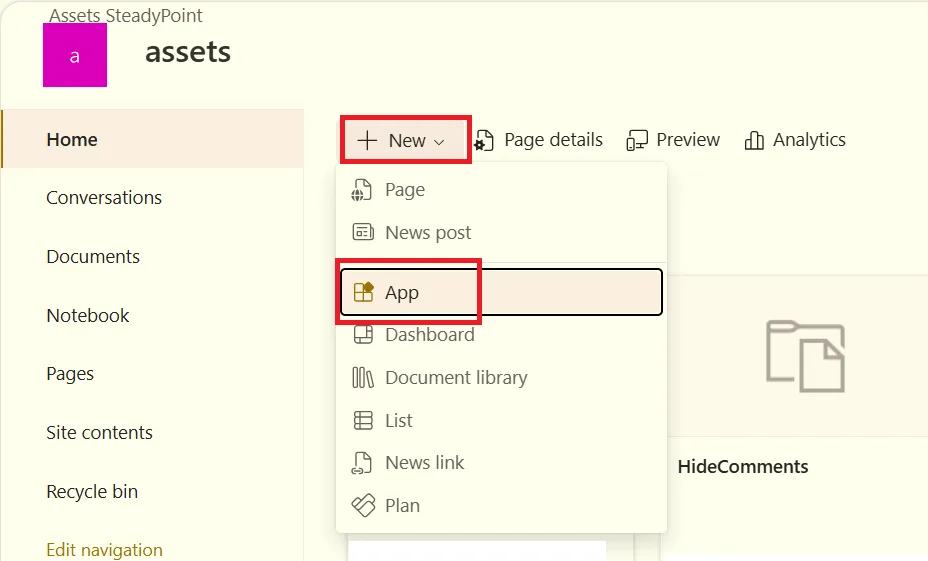
To add SteadyPoint Assets Management, click on New > App.
Click on SharePoint Storeand search for the app "SteadyPoint Assets Management".
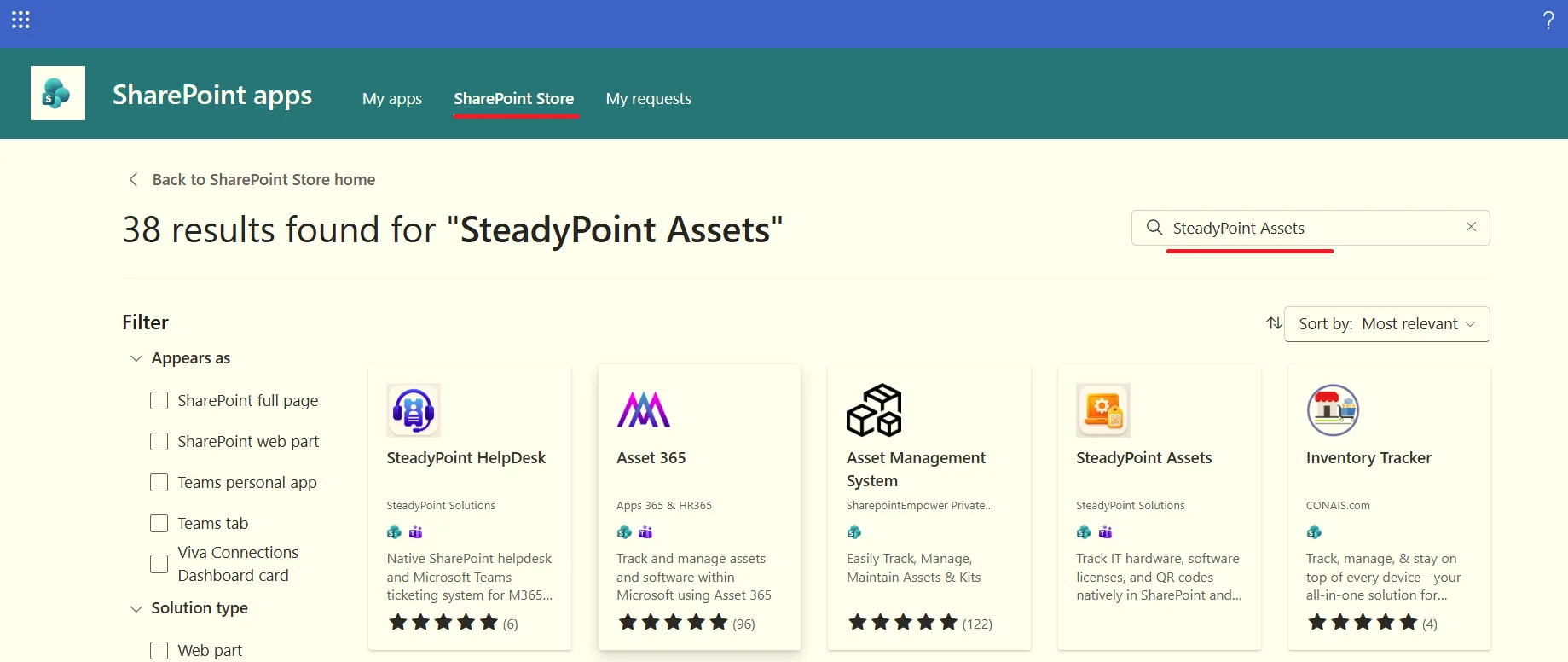
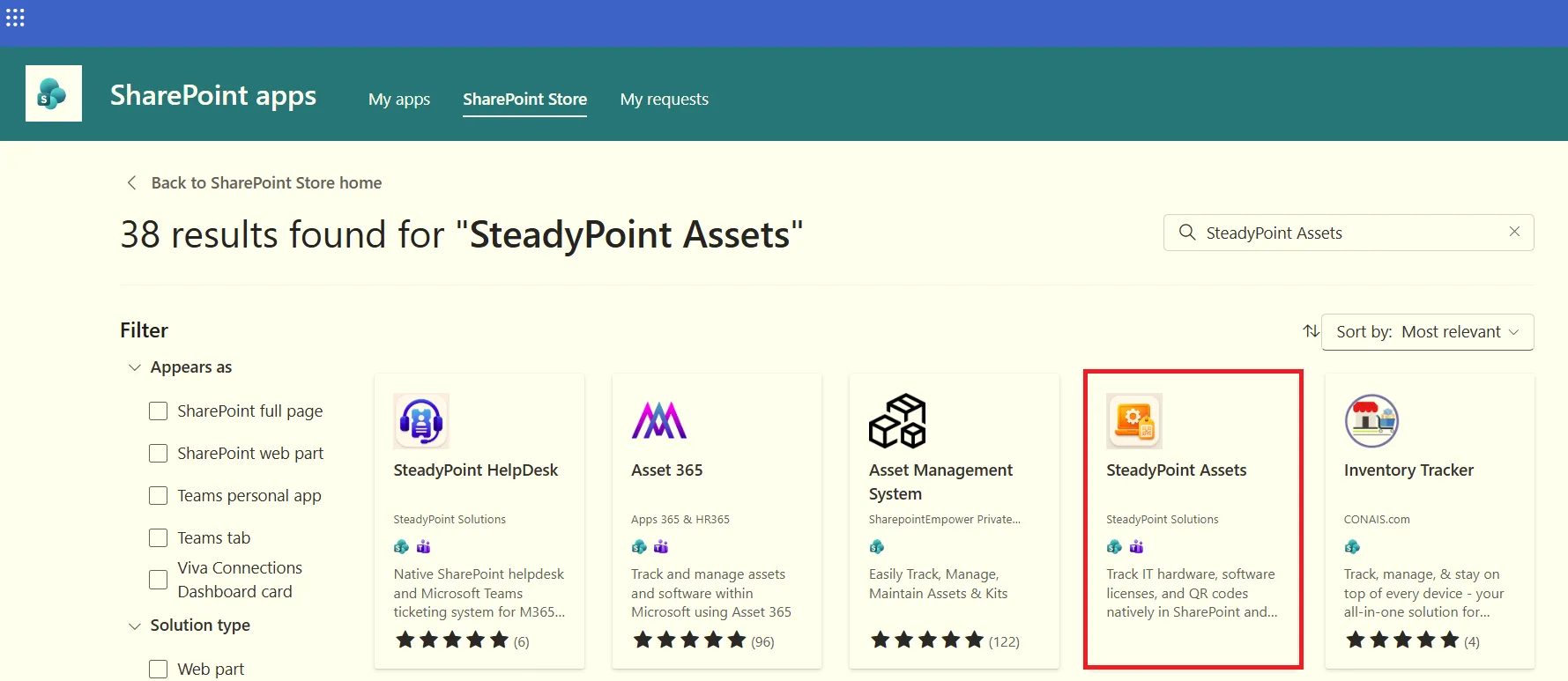
Select SteadyPoint Assets Management.
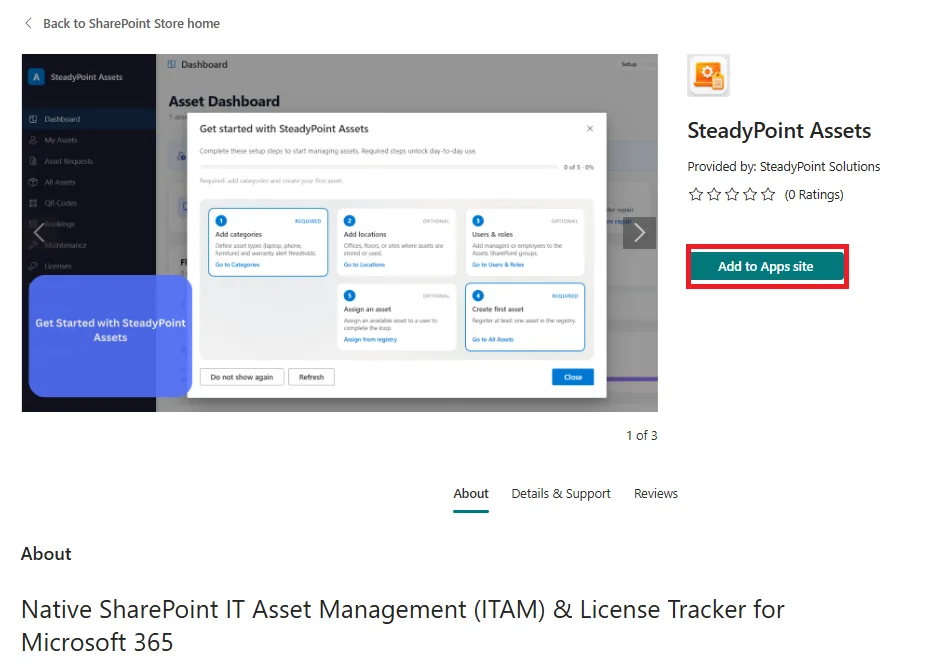
Click Add to Apps Site.
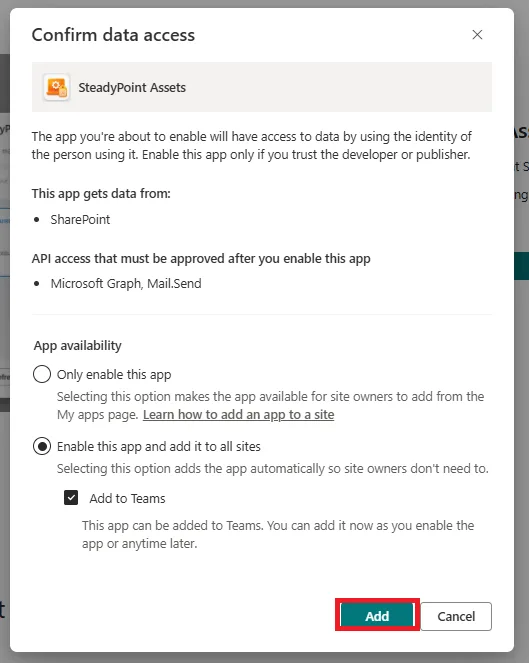
Click on Add.
Click on the gear icon and select Site Contents.
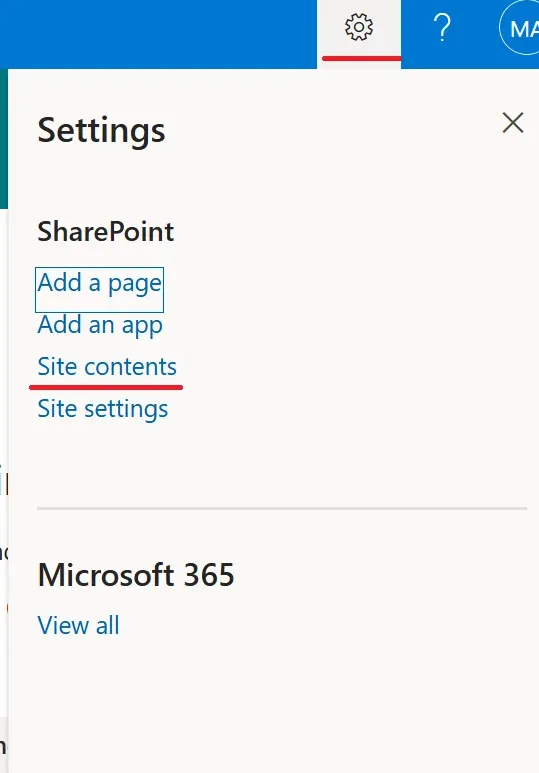
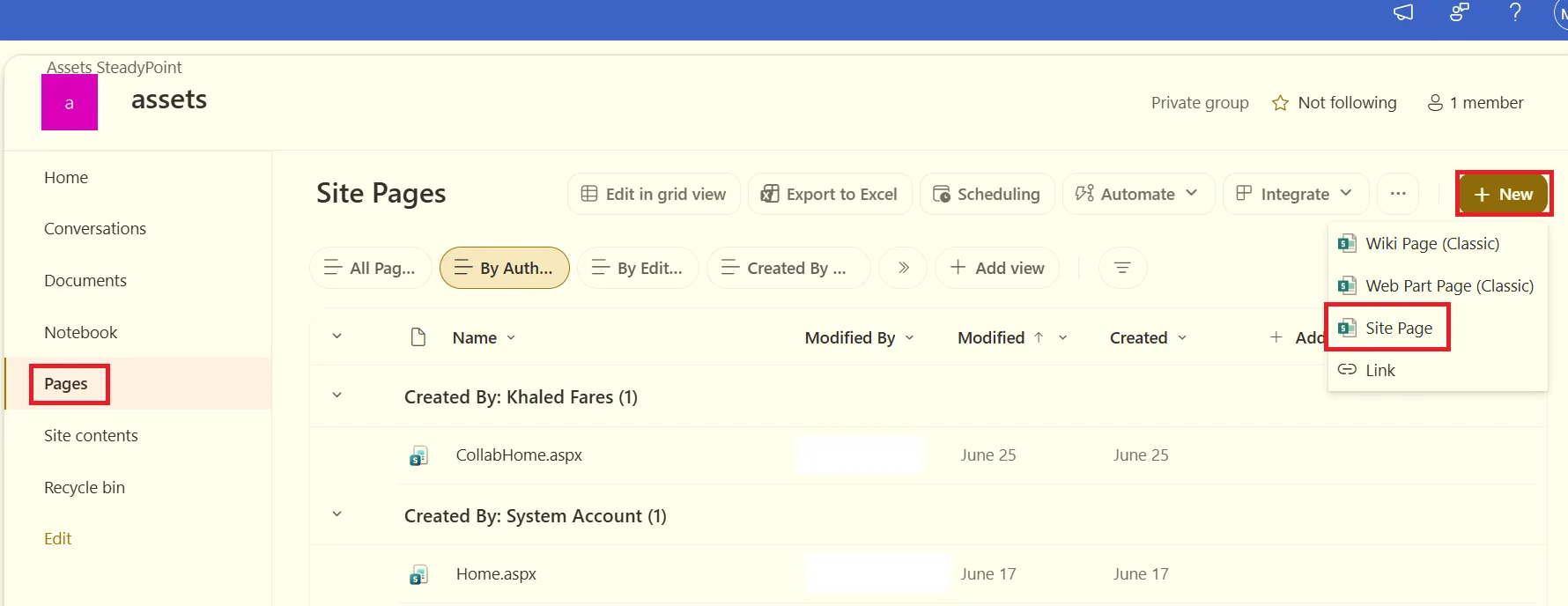
To create a new page, click on Pages > + New > Site Page.
Give the page a name, such as "SteadyPoint Assets", then hover over the center of the page and click the (+) sign.
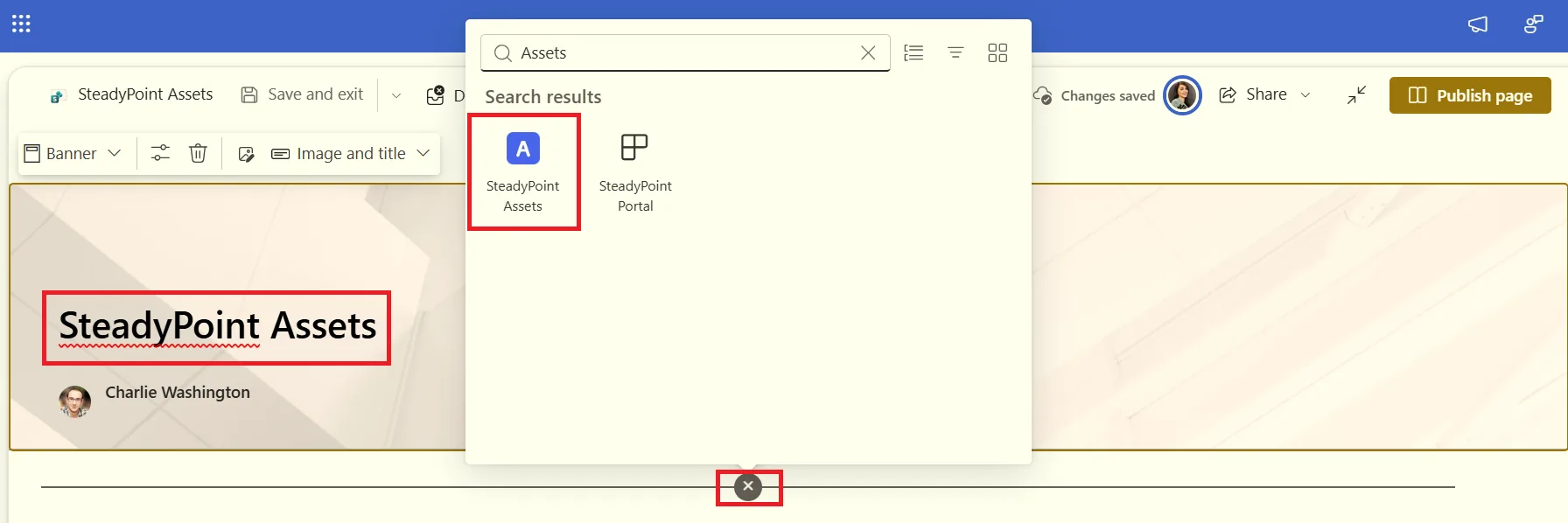
Select SteadyPoint Assets Management.
Click on Publish Page.
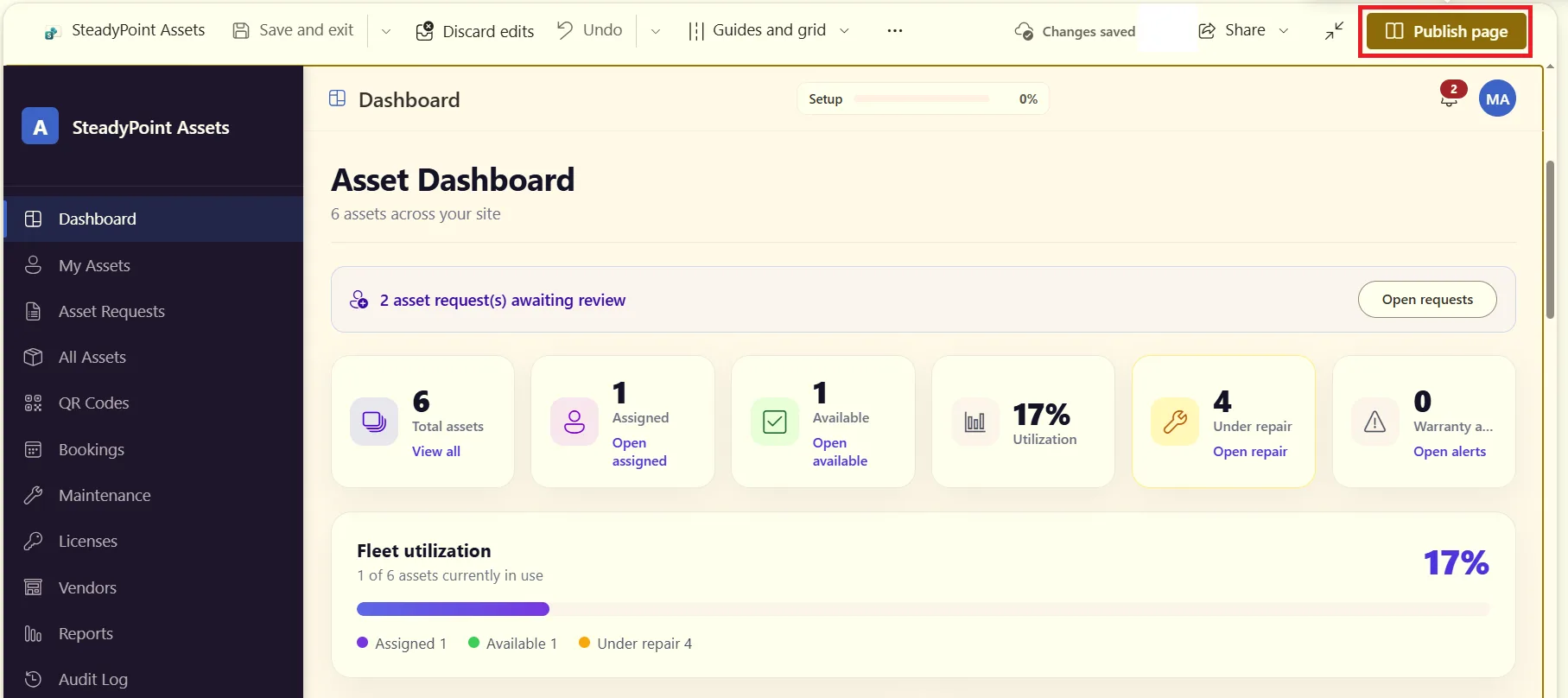
Here we go...
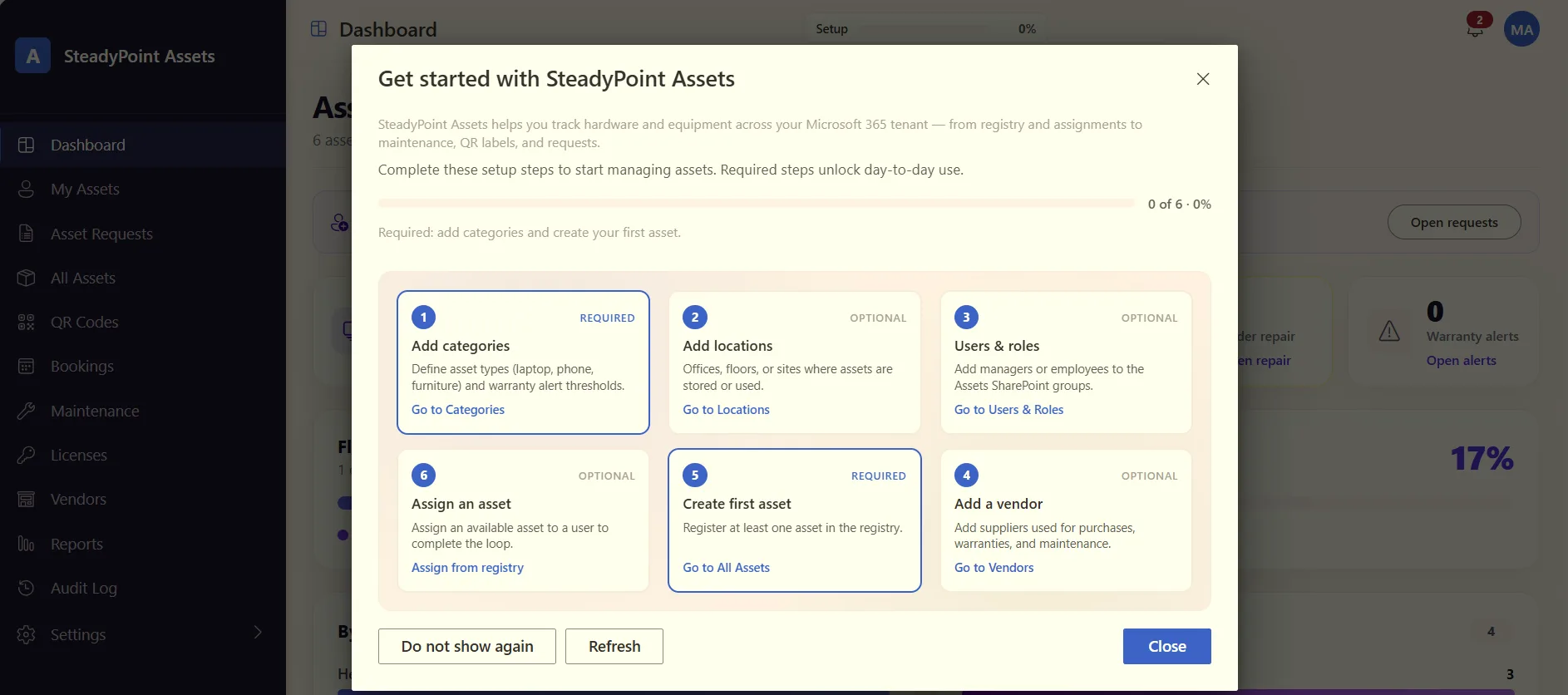
How to install SteadyPoint Assets from Microsoft AppSource
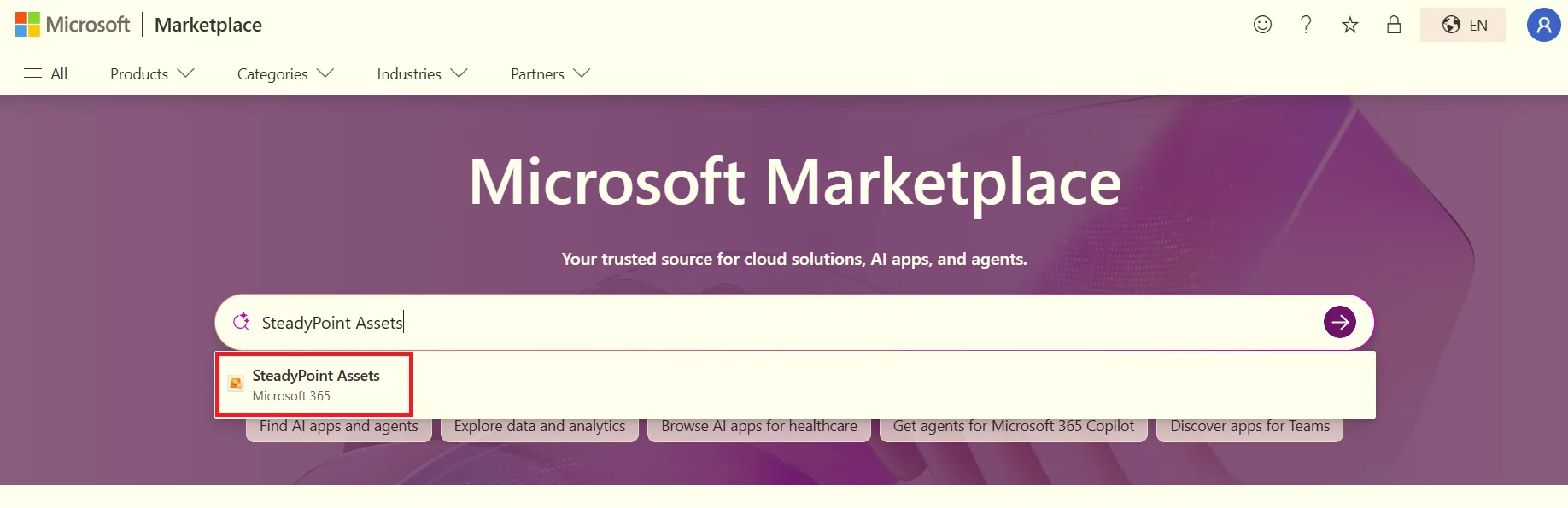
Go to Microsoft AppSource.
Search for "SteadyPoint Assets": In the search bar at the top, type "SteadyPoint Assets" and press Enter.
Click on Get it now.
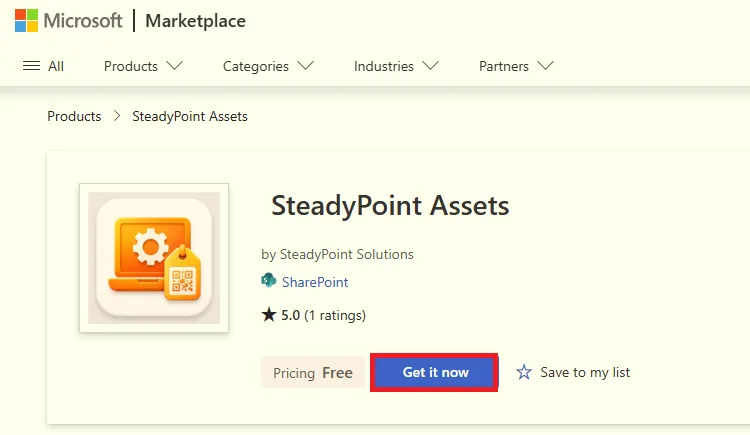
Or, you can skip the search and open the SteadyPoint Assets profile directly using this link.
What's next?
Done with installation? Set up asset categories, configure user roles and permissions, and learn how to add and import assets.
Don't miss out — Start your free trial of SteadyPoint Assets