
Organizing assets into clear categories makes it easier to manage, find, and maintain your asset records. With a well-structured category list, you can group assets by type and set warranty alert rules that help your team keep track of upcoming warranty expirations.
In this guide, we'll show you how to set up and manage asset categories in SteadyPoint Assets Management, a SharePoint asset management app for Microsoft 365.
Ready to try it yourself? Start your free trial of SteadyPoint Assets. For more guides, visit the Assets blog.
Why Set Up Asset Categories?
Asset categories help you keep your asset inventory organized from the start. For example, you might create categories such as:
- Laptops
- Desktop Computers
- Mobile Phones
- Monitors
- Printers
- Office Equipment
Categories can also have their own warranty alert threshold. This allows you to define how many days before warranty expiration an alert should be raised for assets in that category.
Once categories are created, they will be available when you add new assets. We'll cover adding and managing individual assets in a separate guide.
How to Add an Asset Category
Follow these steps to create a new category in SteadyPoint Assets Management.
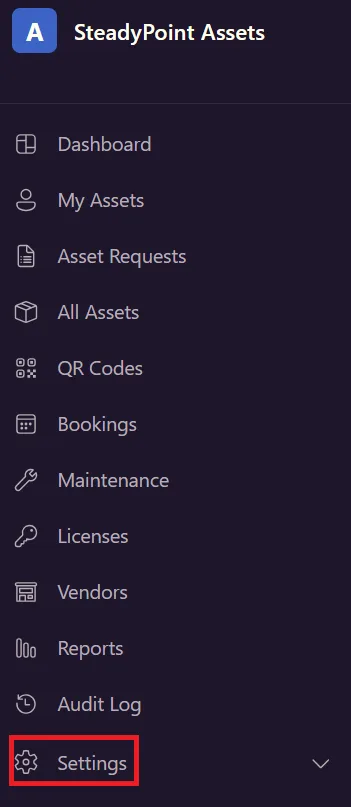
Go to Settings
From the Assets Management app, open Settings.
Open Categories
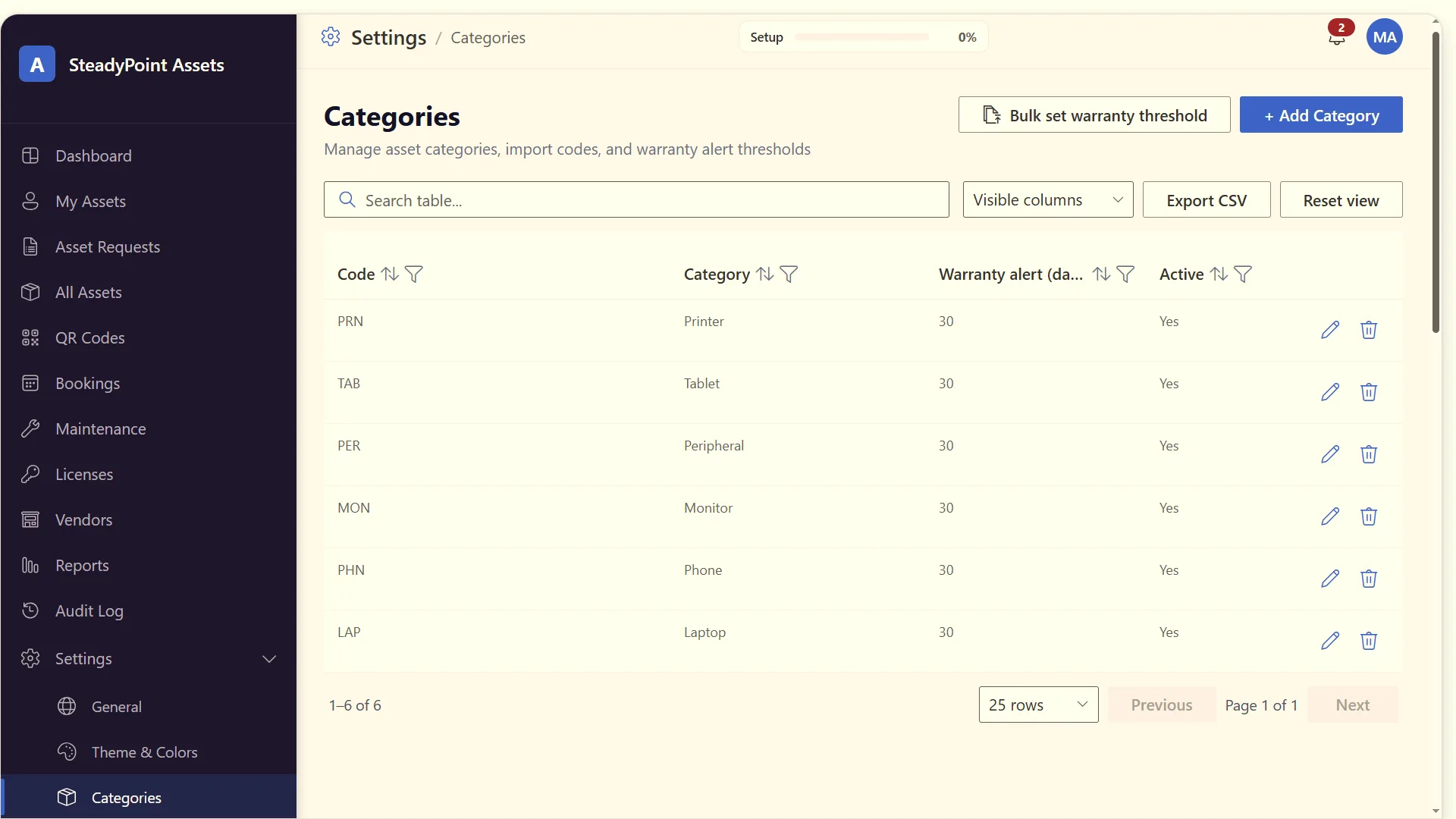
Under Settings, select Categories.
This will open the category management page, where you can view existing categories and add new ones.
Click "Add Category"
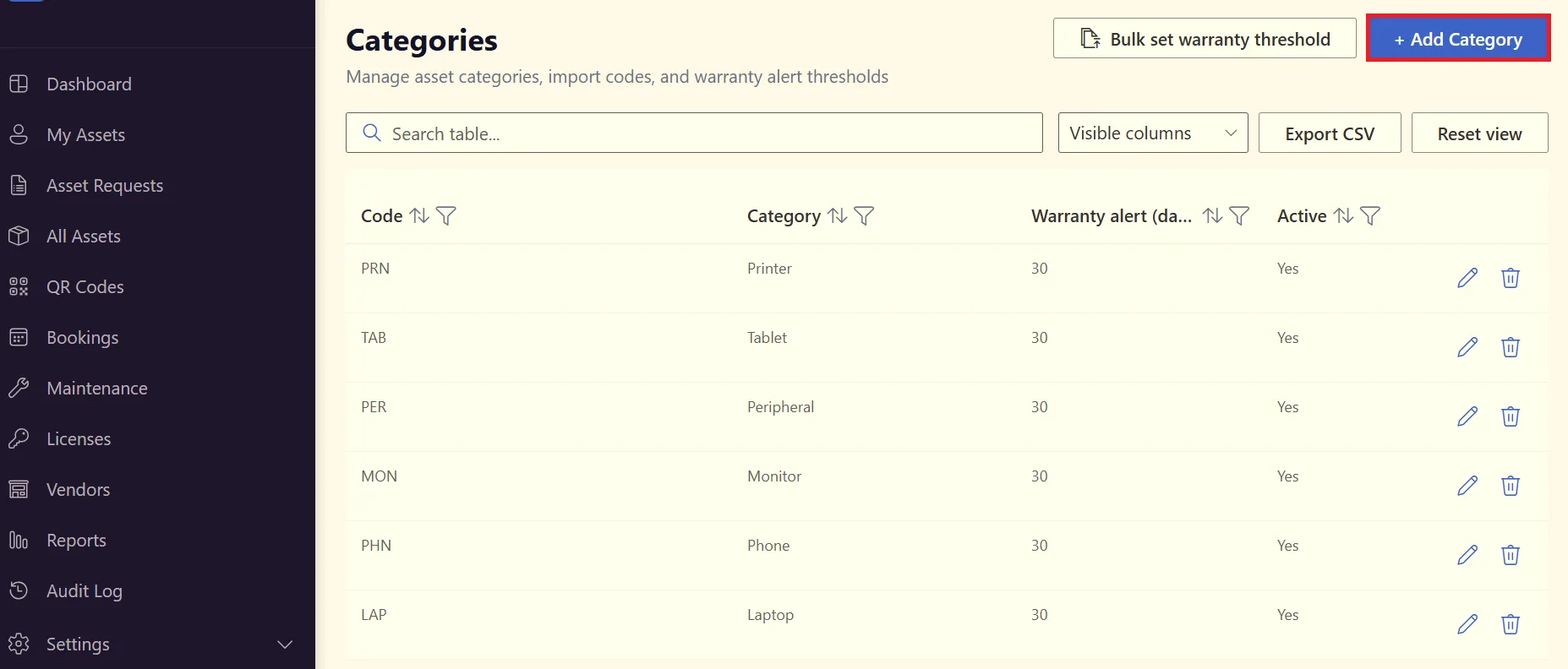
Click Add Category to create a new category.
A new window will open with the fields you need to complete.
Enter the Category Information
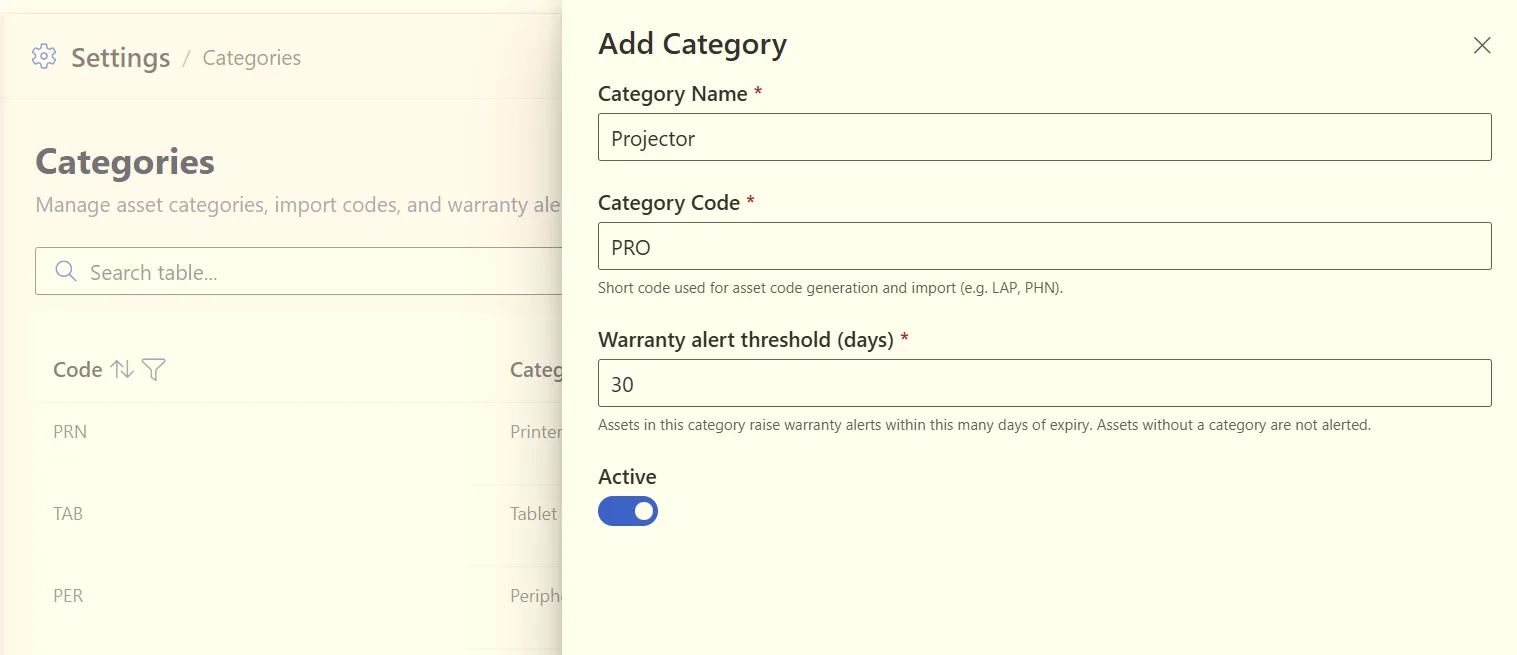
You will need to provide the following information:
- Category Name — Enter the name of the category. For example: Laptops. Choose a name that clearly describes the type of assets that will belong to this category.
- Category Code — Enter a short code for the category. For example: LAP. A category code can make it easier to identify categories in your asset records.
- Warranty Alert Threshold (Days) — Enter the number of days before warranty expiration when you want assets in this category to raise a warranty alert. For example, if you enter 30, assets belonging to this category will raise a warranty alert within 30 days of their warranty expiry.
Set the Category Status
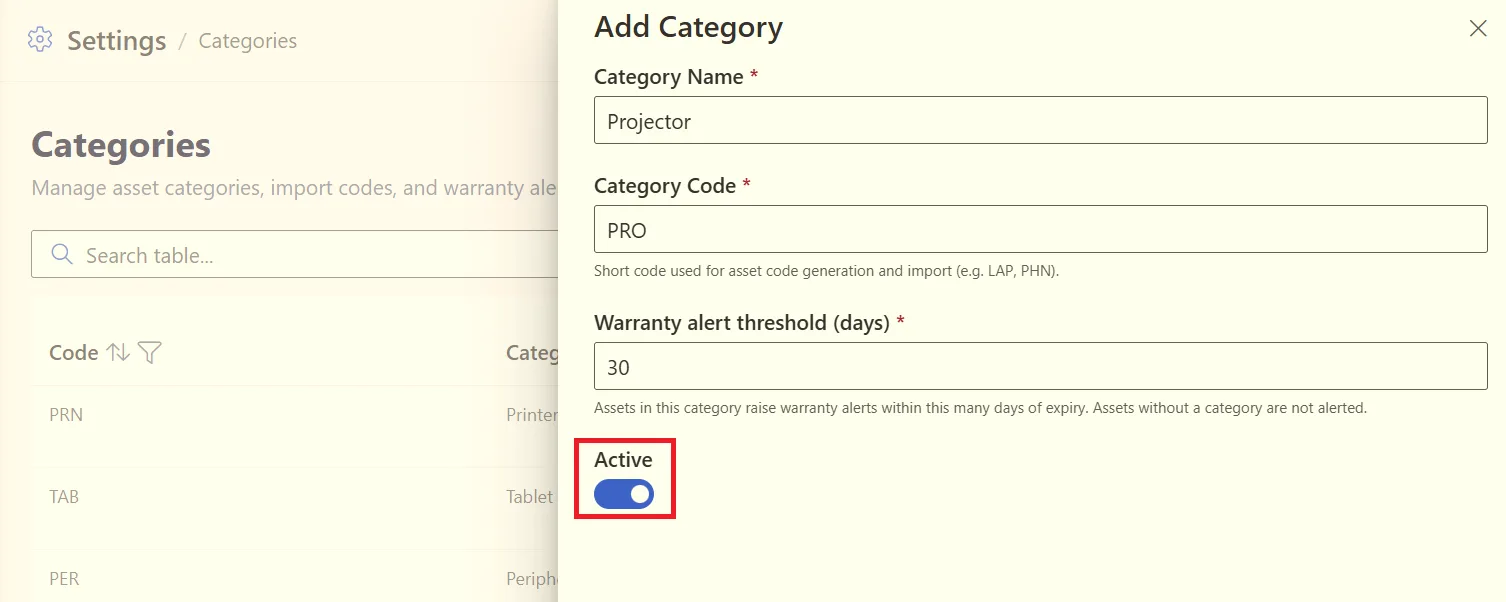
You can also choose whether the category is Active or Inactive.
An active category can be used when adding assets. You can make a category inactive if you no longer want to use it without deleting the category and its existing information.
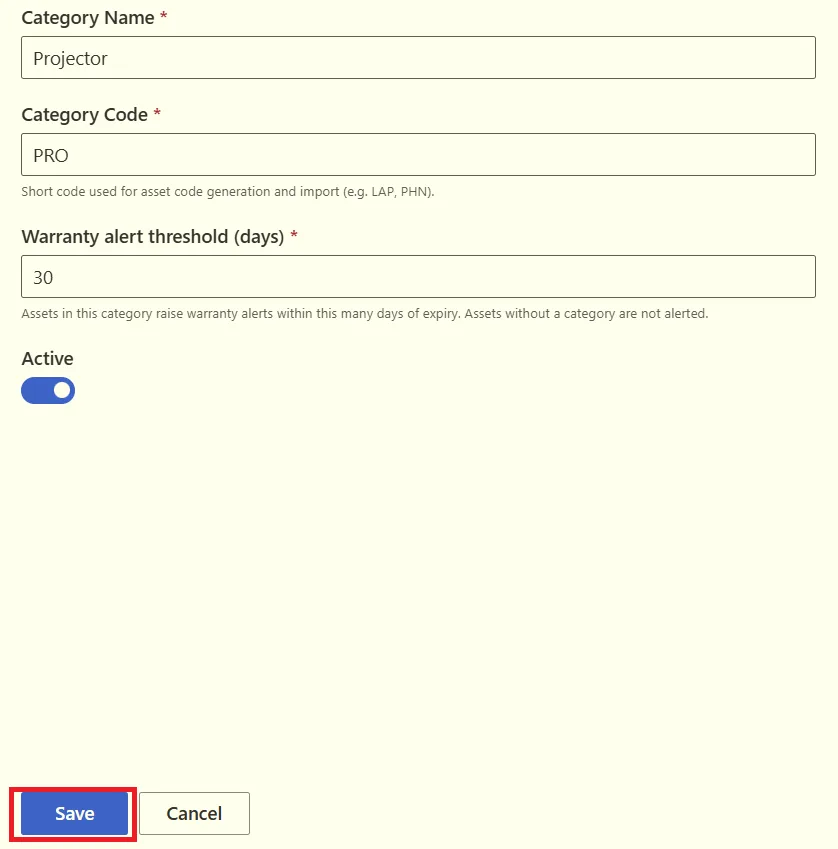
Save the Category
Once you have entered the required information, save the category.
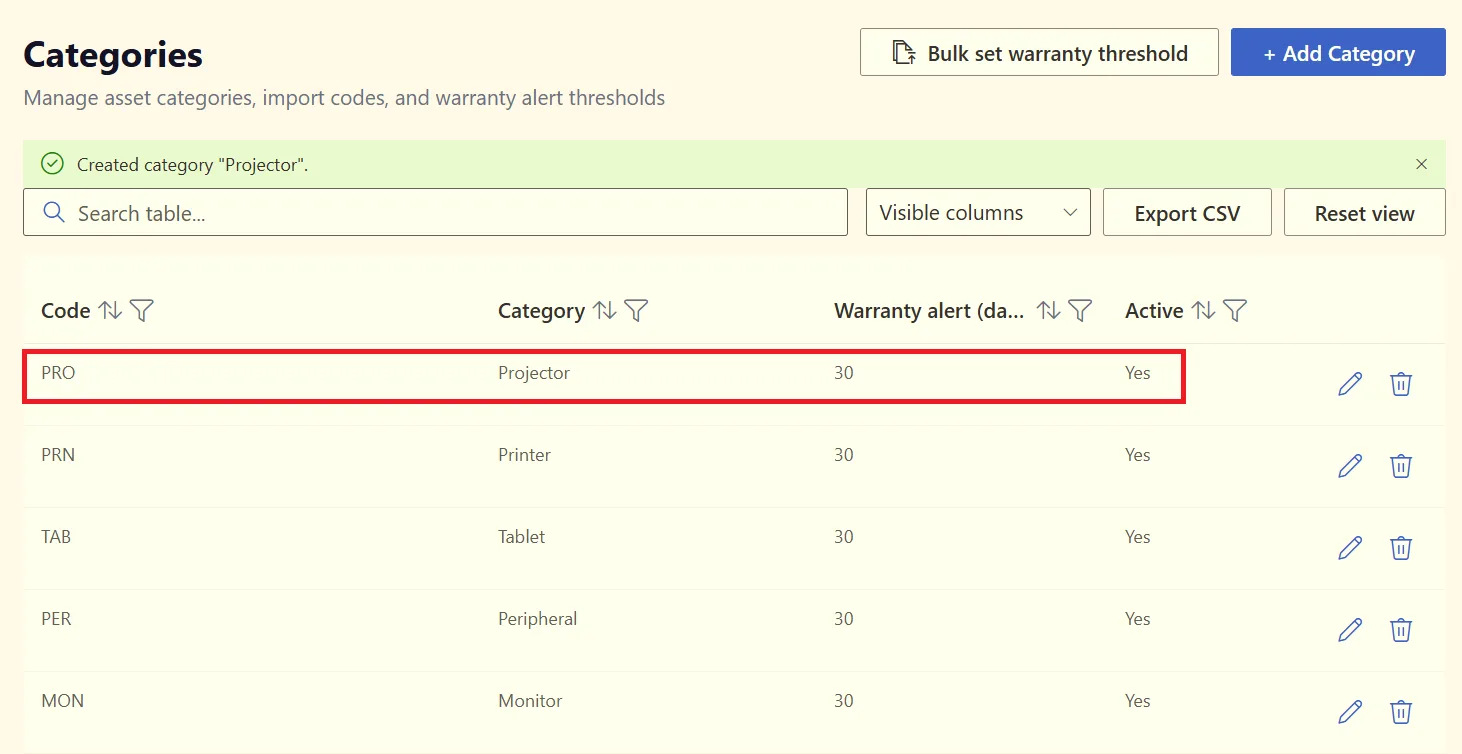
Your new category will now appear in the Categories list.
How to Edit an Existing Category
You can update an existing category at any time.
In the Categories list, find the category you want to change and click the pen icon under Actions.
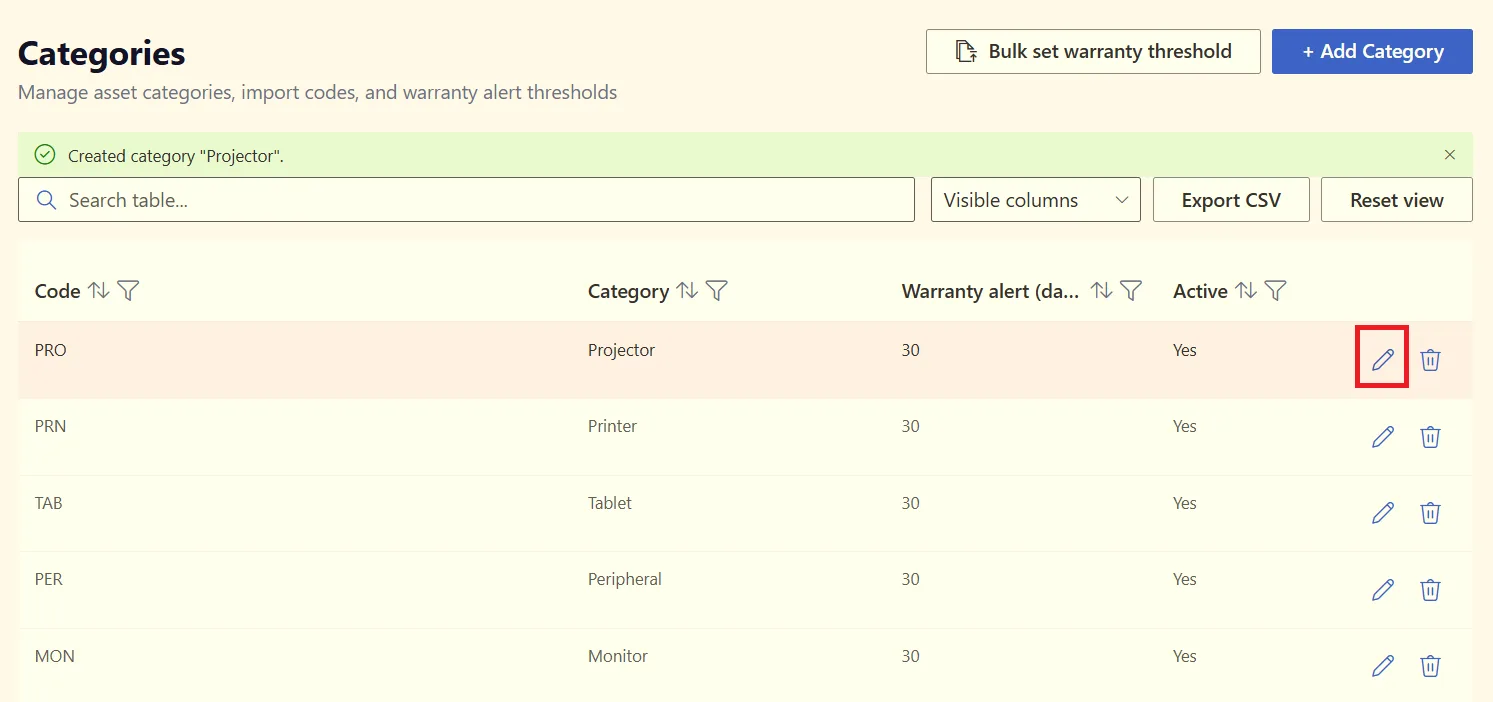
This allows you to edit information such as:
- Category name
- Category code
- Warranty alert threshold
- Active or inactive status
Save your changes when you are finished.
How to Delete a Category
If you no longer need a category, you can delete it from the Categories list.
Click the trash icon next to the category you want to remove.
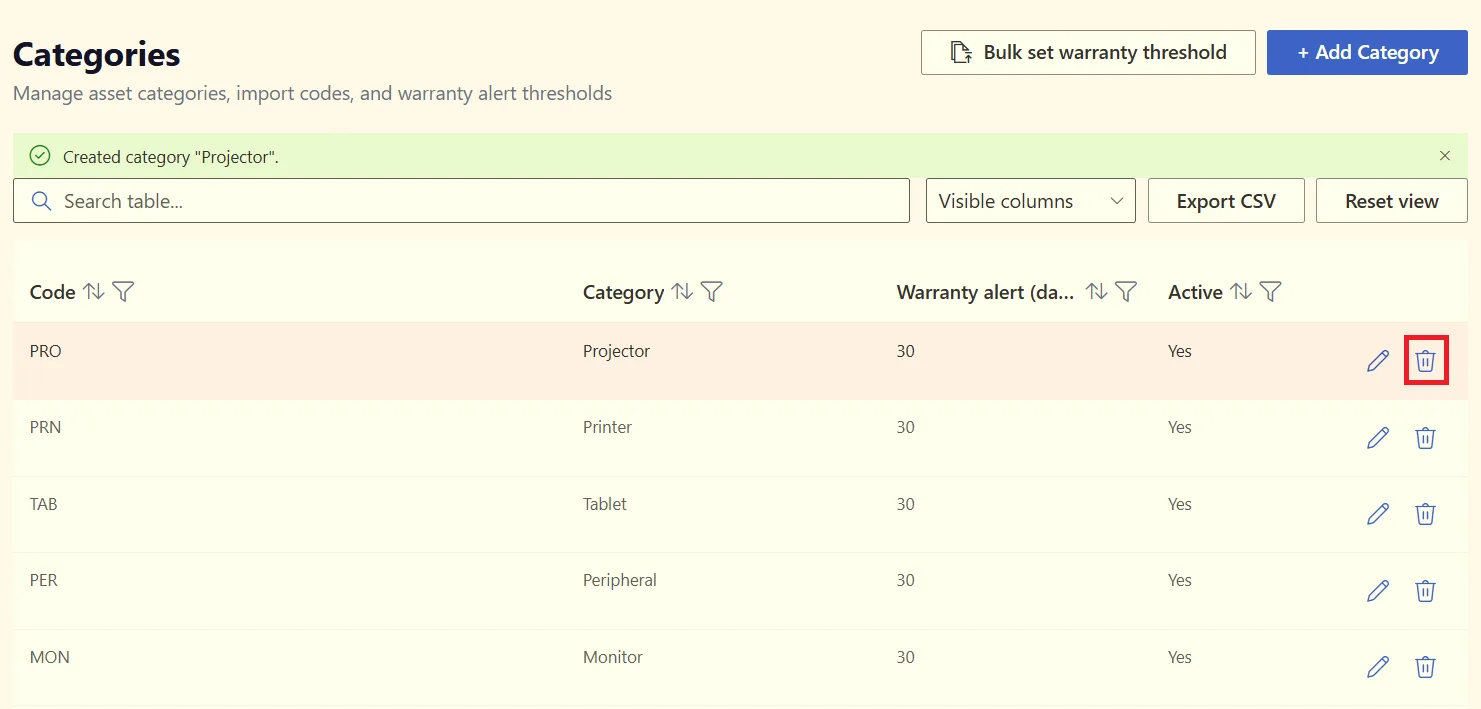
Before deleting a category, make sure it is no longer needed for your asset records.
Choose Which Columns to Display
The Visible column option lets you customize the information shown in your category list.
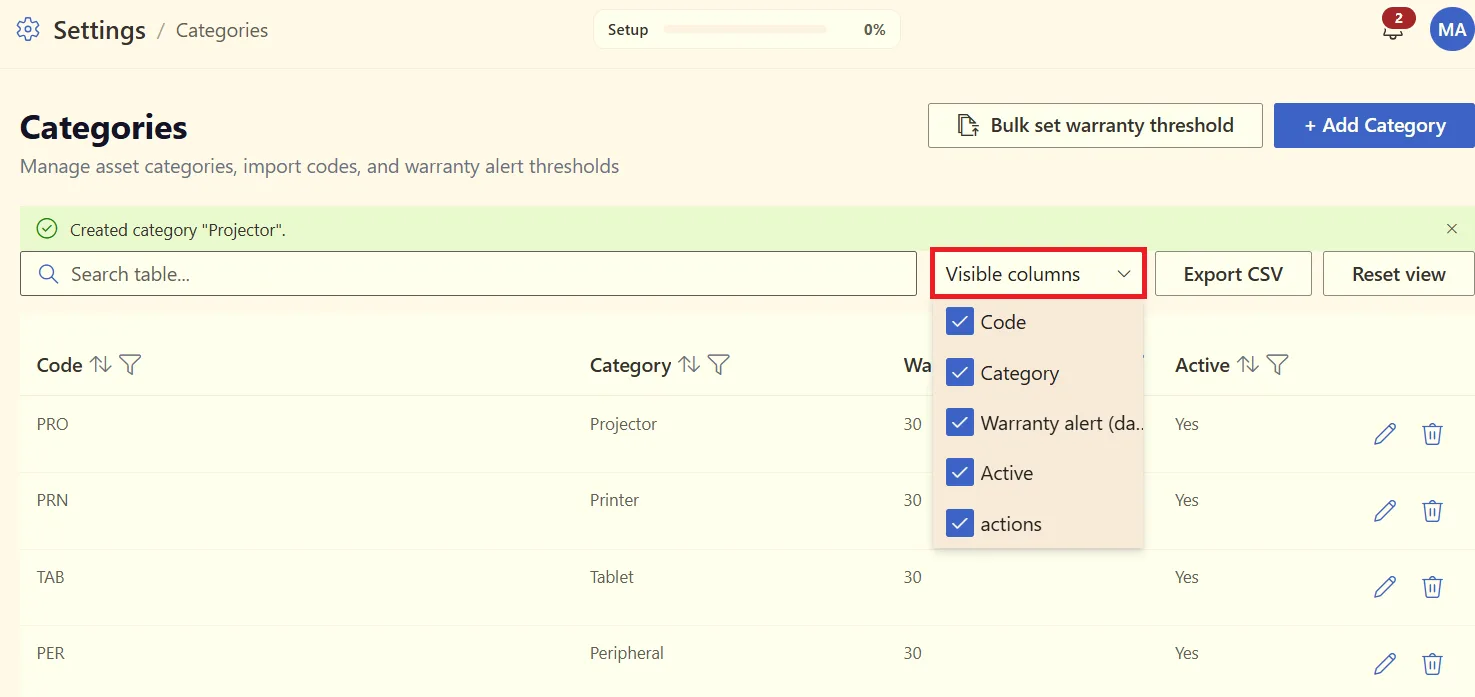
You can choose which columns you want to display, including:
- Code
- Category
- Warranty Alert
- Active Status
- Actions
This makes it easier to focus the view on the information that is most useful to your team.
Export Categories to CSV
If you need to work with your category information outside the app, you can export the data.
Click Export to CSV to download the category list and open it in Excel or another spreadsheet application.
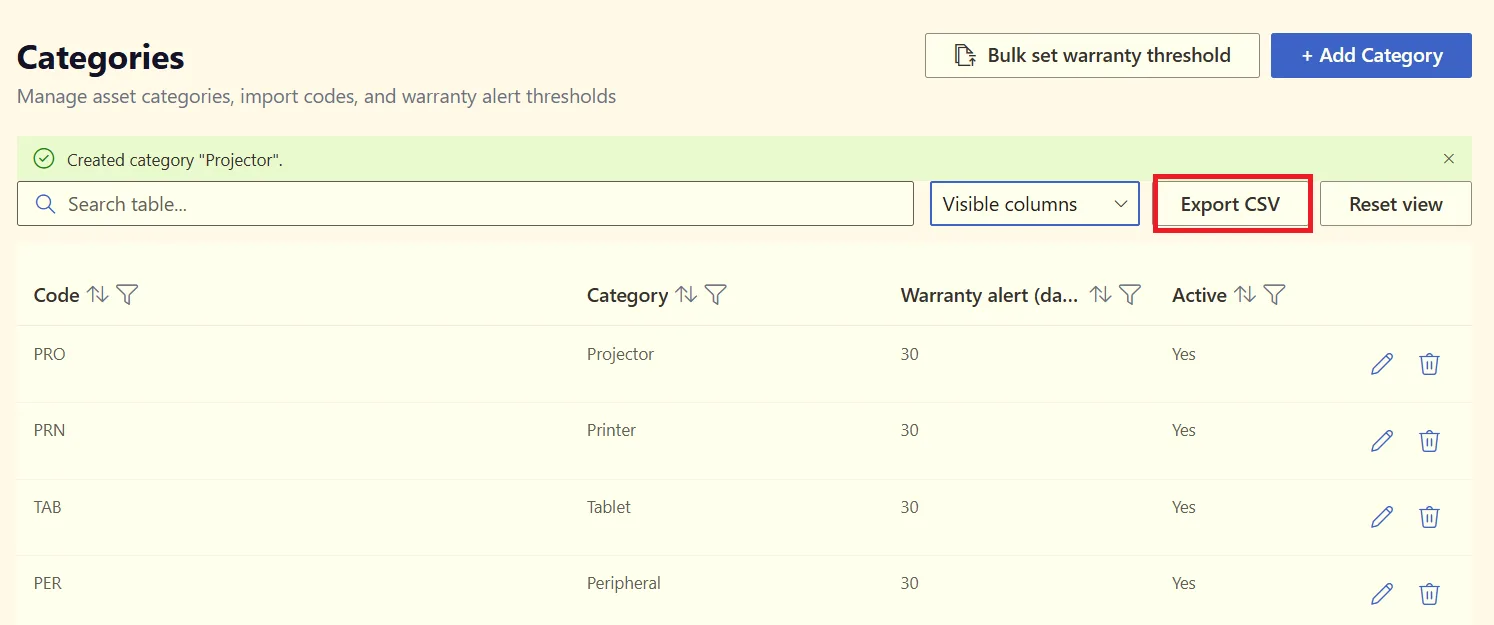
This can be useful when reviewing your category structure, keeping records, or preparing information for internal reporting.
What Happens After You Create Your Categories?
Once your categories are set up, they can be selected when adding a new asset to SteadyPoint Assets Management.
For example, when adding a laptop, you can select Laptops as its category. The category information and warranty alert threshold will then help keep the asset organized and monitored.
We'll cover the complete process of adding and managing an asset in our guide to adding assets.
Manage Your Assets in SharePoint
A well-organized category structure is an important first step in building an effective asset inventory. With SteadyPoint SharePoint Assets Management, you can organize assets, track warranty information, manage assignments and locations, and keep asset records within your Microsoft 365 environment.
If you are looking for a SharePoint asset management app, SharePoint asset management software, or an Office 365 asset management app for managing your organization's equipment and other assets, SteadyPoint Assets Management provides the tools to build and maintain your asset inventory directly in SharePoint.
Ready to organize your assets? Explore SteadyPoint Assets Management and start building your asset inventory today.