
Do your customers or clients prefer to communicate via email, while your agents respond through a helpdesk system? In this blog, we’ll explain how emails sent by clients are turned into helpdesk tickets and how agents can respond through the helpdesk, maintaining seamless communication.
We'll walk you through creating new tickets and sending external emails from within a ticket. Here's how the process works:
- A customer sends an email, which is converted into a ticket.
- Agents reply through SteadyPoint SharePoint helpdesk, and the customer receives the response via email.
- Communication continues back and forth between the agent and the customer.
Support clients, vendors, and external users - seamlessly. 👉 Book a free demo and discover external user support in action.
Step-by-Step Guide to Managing Email-to-Ticket Communication
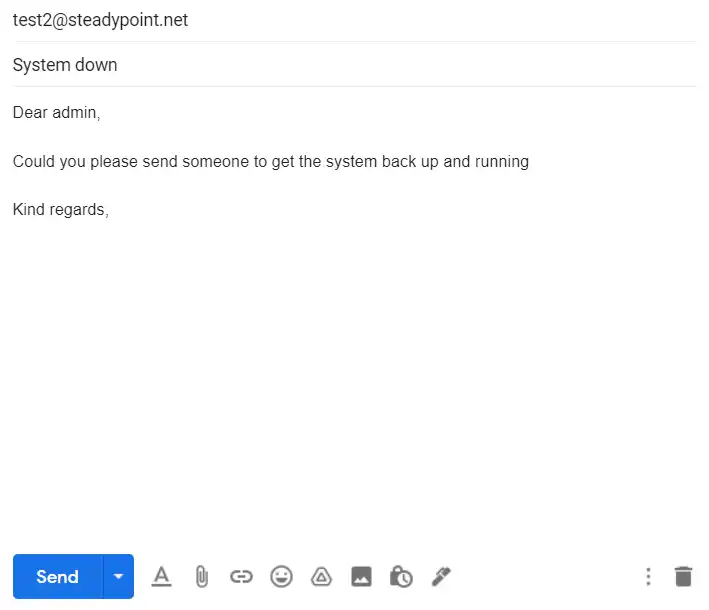
- Create ticket via email as a customer (Hotmail, Gmail, Yahoo, etc.).
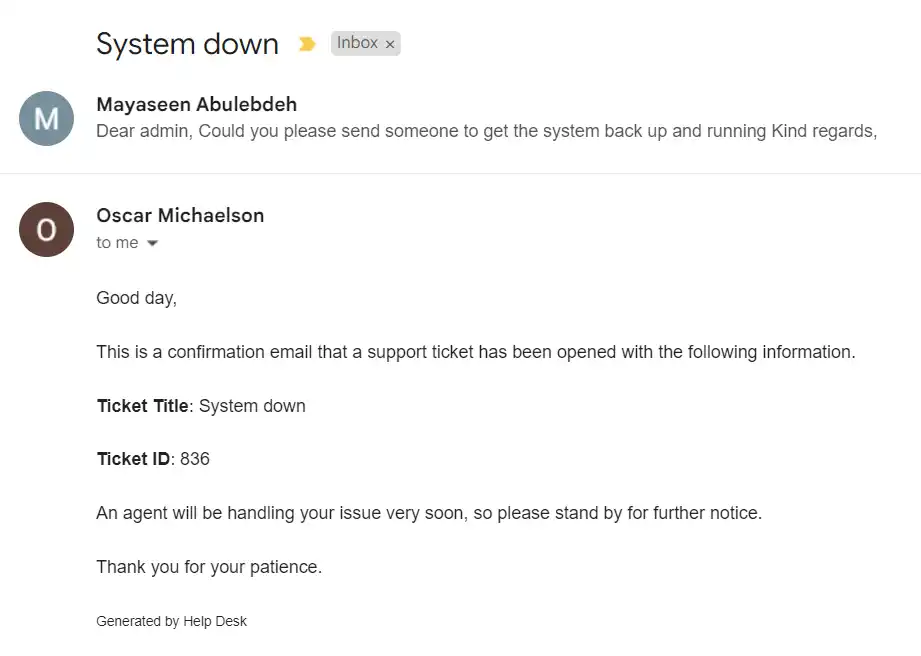
- Client will receive an email confirming receiving their email.
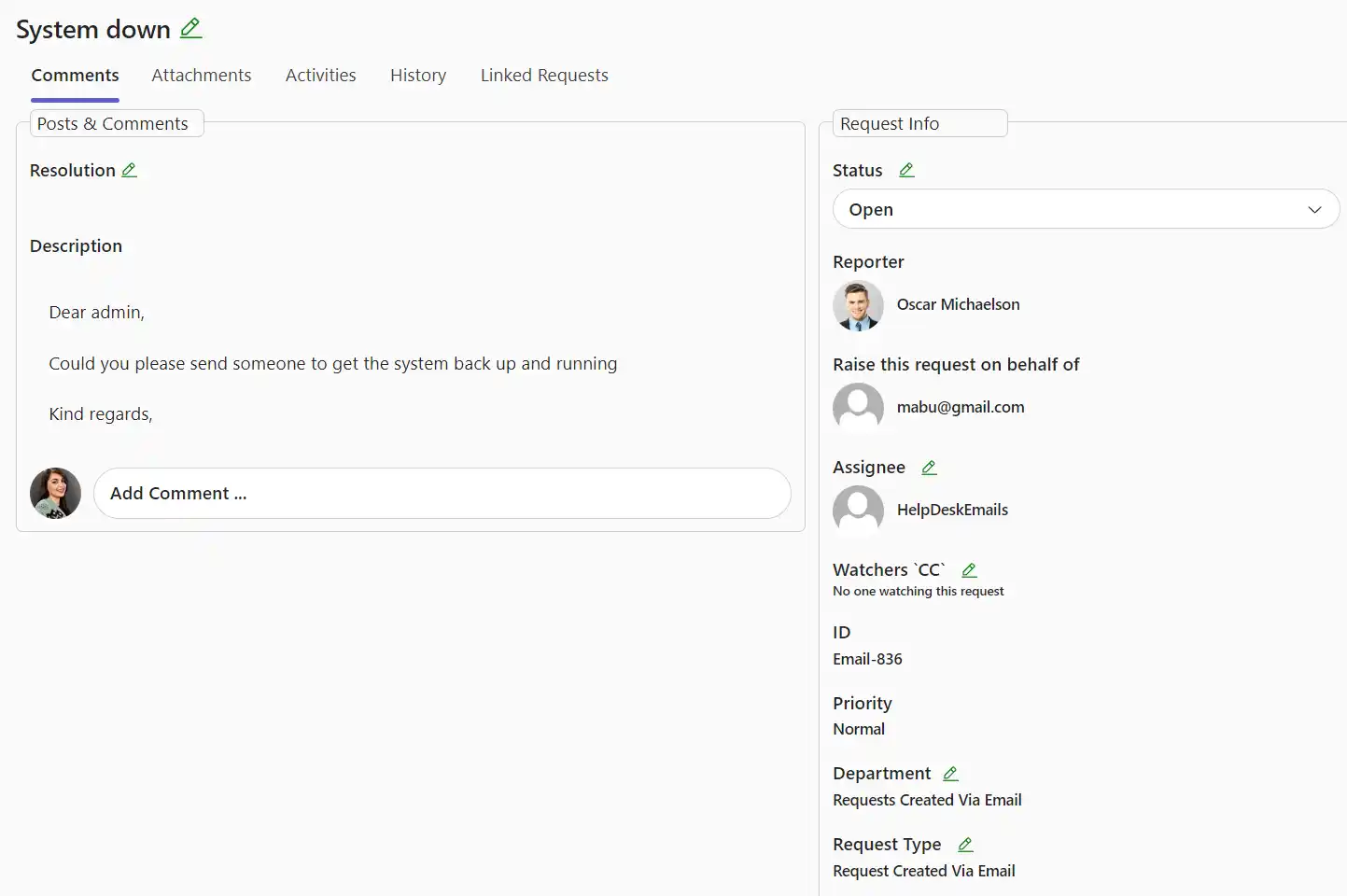
- The assignee will open the ticket and it will look like this:
- Private Comment, Public Comment, Internal Comment, and Reply to Customer are available to users with ticket access, based on their permissions.
- Private comment: a personal message only visible by yourself
- Public comment: updating ticket changes for internal users to see
- Internal comment: are intended for the request type technicians (agents)
- Reply to customer: to have direct contact with the external customer
For example: Reply to customer
- The customer would receive the reply via email.
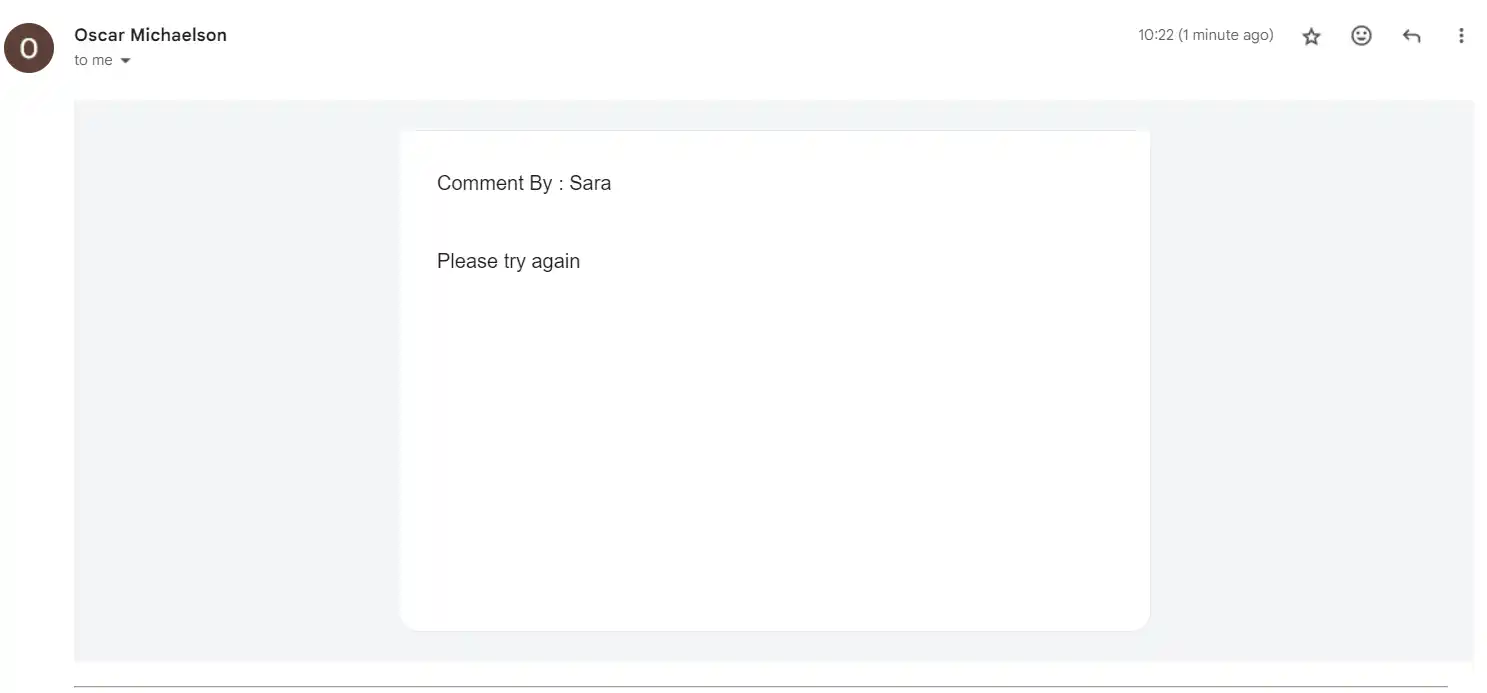
- Customer can then reply via email back to the user (+add attachments).

- The email will be attached and sent to the helpdesk under the ticket.
- The image attached can be opened from Attachments. Select the image to open the attachment.